
Saving and Retrieving Data in the Database Using C# and MySQL Database
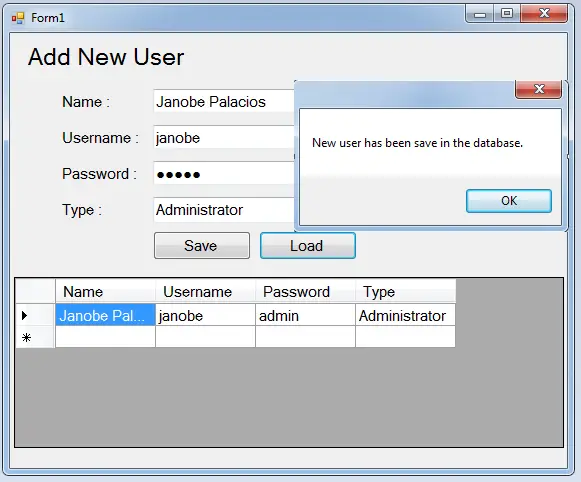
In this tutorial, I will teach you how to save and retrieve data in the database using C#.net and MySQL Database. This method will help you add the user information in the MySQL database and display it onto the Datagridview.
Let’s get started:
- Create a database in the MySQL and name it “dbuser“.
- Do the following query for creating a table in the database that you have created.
 CREATE TABLE IF NOT EXISTS `tblusers` (
 `ID` int(11) NOT NULL AUTO_INCREMENT,
 `UNAME` varchar(40) NOT NULL,
 `UUSERNAME` varchar(40) NOT NULL,
 `UPASSWORD` varchar(90) NOT NULL,
 `UTYPE` varchar(30) NOT NULL,
 PRIMARY KEY (`ID`)
) ENGINE=InnoDB DEFAULT CHARSET=latin1 AUTO_INCREMENT=2 ;
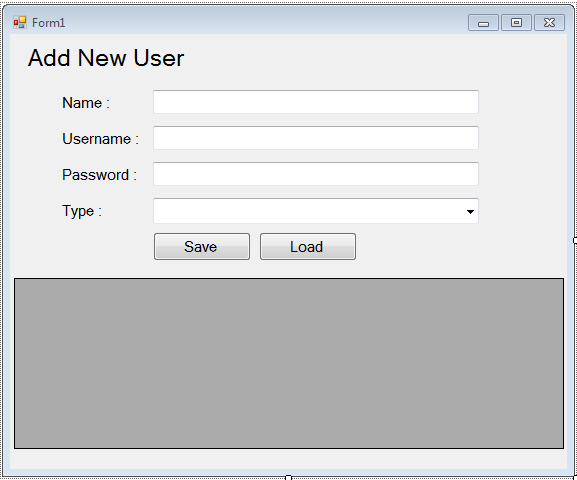
- After that, open Microsoft Visual Studio 2008 and create a new windows form application for C#. Then, do the form just like this.
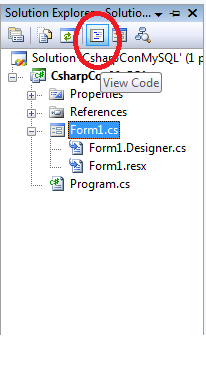
- After setting up the form, go to the solution explorer and hit the “view code” to fire the code editor.
- In the code editor, do the following codes for declaring the classes and variables.
 //initialize sql connection
 MySqlConnection con = new MySqlConnection();
 //initialize all classes
 MySqlCommand cmd = new MySqlCommand();
 MySqlDataAdapter da = new MySqlDataAdapter();
 DataTable dt = new DataTable();

 //declaring variables
 string query;
 int res;
- After declaring the classes and variables, do the following codes for establishing the connection between MySQL database and C#.net
 private void Form1_Load(object sender, EventArgs e)
 {
 //set a connection string
 con.ConnectionString = "server=localhost;user id=root;password=;Database=dbuser;";
}- Go back to the design view, double-click the “Save” button and do the following codes in the method.
 try
 {
 con.Open();
 //create a query for retrieving data in the database.
 query = "Insert Into tblusers (`UNAME`, `UUSERNAME`, `UPASSWORD`, `UTYPE`) VALUES ('" + txtName .Text + "','" + txtUsername.Text + "','" + txtPassword .Text + "','" + cboType .Text + "')";
 //initialize new Sql commands
 cmd = new MySqlCommand();
 //hold the data to be executed.
 cmd.Connection = con;
 cmd.CommandText = query;

 res = cmd.ExecuteNonQuery();

 if (res > 0)
 {
 MessageBox.Show("New user has been save in the database.");
 }
 }
 catch (Exception ex)
 {
 //catching error
 MessageBox.Show(ex.Message);
 }
 finally
 {
 da.Dispose();
 con.Close();
}- Go back to the design view again, double-click the “Load” button and do the following codes in the method.
 try
 {
 con.Open();
 //create a query for retrieving data in the database.
 query = "SELECT `UNAME` as Name, `UUSERNAME` as Username, `UPASSWORD` as Password, `UTYPE` as Type FROM `tblusers` ";
 //initialize new Sql commands
 cmd = new MySqlCommand();
 //hold the data to be executed.
 cmd.Connection = con;
 cmd.CommandText = query;
 //initialize new Sql data adapter
 da = new MySqlDataAdapter();
 //fetching query in the database.
 da.SelectCommand = cmd;
 //initialize new datatable
 dt = new DataTable();
 //refreshes the rows in specified range in the datasource.
 da.Fill(dt);

 dataGridView1.DataSource = dt;


 }
 catch (Exception ex)
 {
 //catching error
 MessageBox.Show(ex.Message);
 }
 finally
 {
 da.Dispose();
 con.Close();
 }
Output:
For all students who need a programmer for your thesis system or anyone who needs a source code in any programming languages. You can contact me @ :
Email – jannopalacios@gmail.com
Mobile No. – 09305235027 – TNT
| ABOUT PROJECT | PROJECT DETAILS |
|---|---|
| Project Name : | Saving and Retrieving Data in the Database Using C# and MySQL Database |
| Project Platform : | C# |
| Programming Language Used: | C# Programming Language |
| Developer Name : | itsourcecode.com |
| IDE Tool (Recommended): | Visual Studio 2008 |
| Project Type : | Desktop Application |
| Database: | MYSQL DATABASE |
| Upload Date and Time: | July 20, 2016 – 6:10 am |
Frequently Asked Questions
What does this C# code snippet demonstrate?
Focused C# WinForms code pattern: how to add, insert, save, search, display, print, or connect to SQL Server with minimum code. Drop-in pattern you can adapt for your own capstone module.
What .NET and SQL Server versions does this project require?
Most projects in this batch use C# WinForms on .NET Framework 4.5+ (the dominant stack for tutorial sites) with SQL Server 2012 Express or higher. A few newer projects use .NET 6/7/8. To run: install Visual Studio 2019 / 2022 (Community edition is free), install SQL Server Express + SSMS, open the .sln file, build, run.
How do I set up the database for this C# project?
Open SQL Server Management Studio (SSMS) and connect to your SQL Server instance (e.g. localhost\SQLEXPRESS). Right-click Databases > Restore Database OR > New Database then import the included .sql script. Update the connection string in App.config (or in code-behind) with your server name + credentials. Rebuild and run.
Can I use this C# project for a BSIT capstone or thesis?
Yes, but extend it. A bare CRUD form is too narrow for full capstone scope. Add: role-based access (admin/staff/customer login redirect), Crystal Reports or RDLC reports, dashboard with Chart controls, audit log, multi-branch support. Pair with Chapter 1-5 documentation matching your panel’s rubric.
Why am I getting ‘connection error’ or ‘object reference not set’?
Three common C# issues: (1) Connection error: SQL Server isn’t running OR connection string in App.config has wrong server name. Open SQL Server Configuration Manager + verify SQL Server (SQLEXPRESS) service is running. (2) NullReferenceException: a control reference or DB column returned NULL, add a check or use ?? operator. (3) Build error ‘The type or namespace could not be found’: missing assembly reference, add via Project > Add Reference.
Where can I find more C# projects with source code?
Browse the C# Projects hub for the full library. For other .NET stacks see VB.NET Projects (300+ Windows Forms systems). For ASP.NET WebForms see ASP.NET Projects. For BSIT capstone idea lists see 150 Best Capstone Project Ideas.