
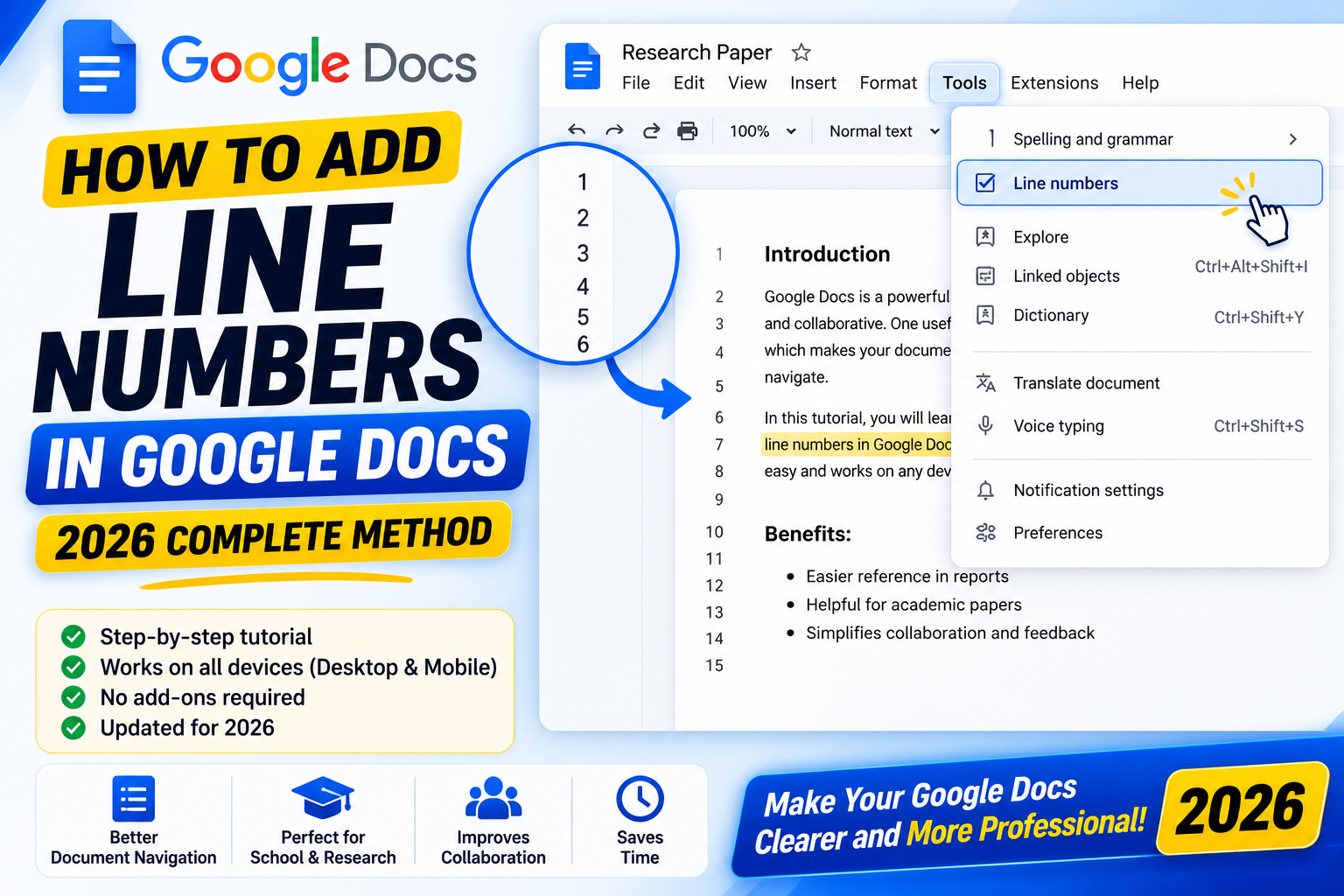
Quick step-by-step summary (click to expand)
- Open your Google Doc. Go to docs.google.com and open the file.
- Click Tools menu. Top menu bar.
- Click Line numbers. A settings panel appears on the right.
- Toggle Show line numbers on. Numbers appear immediately on the left of each line.
- Pick numbering behavior. Continuous, per page, or per section.
- Set the starting number. Optional. Default is 1.
- Skip specific paragraphs (optional). Right-click a paragraph and choose “Skip in line numbers” to omit from the count.
Enable line numbers in Google Docs
- Open your Google Doc.
- Click “Tools” in the top menu.
- Click “Line numbers”.
- The right sidebar opens with the Line numbers panel.
- Toggle “Show line numbers” ON.
- Numbers appear immediately in the left margin, one per visible line.
Numbers renumber automatically as you type or delete. They are visible on screen and in the printed/exported version.
Choose how numbering restarts
In the Line numbers sidebar, choose one of three numbering behaviors:
- Continuous: Numbers run from 1 to the end of the document without resetting. Ideal for a single-flow document like a legal brief or contract.
- Restart each page: Numbers start at 1 at the top of every page. Useful for court documents where line references cite page + line (“page 3, line 12”).
- Restart each section: Numbers restart at the start of every section break. Useful for documents split into distinct parts (like a screenplay with multiple scenes).
Skip specific paragraphs from numbering
You may want to skip headers, footers, or captions from the line count. To exclude a specific paragraph:
- Right-click the paragraph you want to skip.
- Click “Skip in line numbers”.
- The paragraph no longer counts toward the numbers, and subsequent lines renumber accordingly.
To re-include a previously skipped paragraph, right-click it and choose “Include in line numbers”.
Add line numbers to just one section (not the whole doc)
To apply line numbers to a specific section only:
- Place your cursor at the start of where you want numbering to begin.
- Insert > Break > Section break (next page or continuous).
- Do the same at the end of where you want numbering to stop.
- Open Tools > Line numbers.
- Turn ON “Show line numbers”.
- In the sidebar, choose “Apply to selected sections” instead of “Apply to entire document”.
- Numbers appear only in the section you defined.
This is useful when your document has a title page and preamble that shouldn’t be numbered, followed by the main body that should.
Adjust line number formatting
Line numbers use the default font and size, which is 11pt Arial. To change:
- Click any line number in the margin.
- The Line numbers panel opens.
- Currently, Google Docs does not expose font/size customization for line numbers directly. To change, you would need to modify the document theme or use a browser extension.
For legal documents needing specific formatting (Times New Roman, size 12, right-aligned), the workaround is to accept the default and note that recipients seeing the exported PDF will get whatever Google Docs renders.
Line numbers in exported PDF and DOCX
Line numbers export correctly to both PDF and Microsoft Word format:
- PDF: Numbers appear in the same left-margin position. File > Download > PDF Document.
- DOCX (Word): Numbers transfer to Word format and appear correctly when opened in Microsoft Word.
- HTML or ODT: Numbers may not export perfectly. Use PDF or DOCX for cross-app compatibility.
Common use cases for line numbers
- Legal briefs and pleadings: Court rules often require line numbers so citations can reference exact line locations. Continuous or per-page numbering is standard.
- Academic papers and dissertations: Peer reviewers reference specific lines. Continuous numbering across the whole paper.
- Screenplays and scripts: Each scene gets numbered lines for shooting reference. Per-section numbering aligns with scene breaks.
- Code documentation: Reference specific code lines in written explanations. Continuous numbering.
- Contracts: Some contracts number lines for citation in amendments. Per-page numbering common.
If you have an old Docs interface without Line numbers
The native line numbers feature launched in mid-2023. If your Tools menu does not show “Line numbers”, possibilities:
- You are using an older Google Docs client or an embedded Docs viewer.
- Your Google Workspace admin has restricted the feature.
- Your account is on a legacy plan.
Workarounds if you cannot enable native line numbers:
- Export to Microsoft Word (File > Download > .docx). Word has line numbers under Layout > Line Numbers.
- Use a Chrome extension like “Line Numbers for Google Docs” that adds them via CSS injection.
- Manually add a numbered list at the start of each line (tedious, only for short docs).
Common issues
- Line numbers not appearing after toggle ON. Refresh the page (Ctrl+F5). Sometimes Google Docs does not immediately re-render the margin.
- Numbers cut off in the printout. The default left margin may be too narrow. Increase margins under File > Page setup > Margins.
- Wrong numbering in tables and columns. Tables count as one line by default. Content in table cells is not individually numbered. This is a Google Docs limitation.
- Numbers persist after I disable them. Some sections have per-section overrides. Open Tools > Line numbers > uncheck all section-specific settings.
- Comments do not get line numbers. Correct. Comments are anchored to specific lines but not numbered themselves.
Official documentation
Frequently asked questions
Does Google Docs mobile support line numbers?
Not for turning on/off, but line numbers set on the web version DO display when the doc is viewed in the mobile app. You can read a document with line numbers on mobile; you just cannot toggle the setting there.
Can I number only every 5th or 10th line?
Not natively. Google Docs shows every line’s number. For “count by 5s” style, you would export to Word which has that setting, or use a browser extension. For most legal and academic use cases, every-line numbering is standard.
Do line numbers affect word count?
No. Word count (Tools > Word count) ignores line numbers. Numbers are a display feature and do not count as document content.
Can I change the color of line numbers?
Not through the Google Docs native UI. Numbers appear in the default text color. For custom styling, use a browser extension that overrides the CSS, or export to Word for full formatting control.
Do collaborators see line numbers when I share the doc?
Yes. Line number visibility is a document-level setting, not a per-user preference. Everyone with access sees the same numbers. This makes it easy to reference specific lines in comments and reviews.
Do line numbers work in Google Docs headers and footers?
No. Headers and footers are separate content areas and do not receive line numbers. Only the main body counts. This is standard behavior across word processors (Word does the same).