
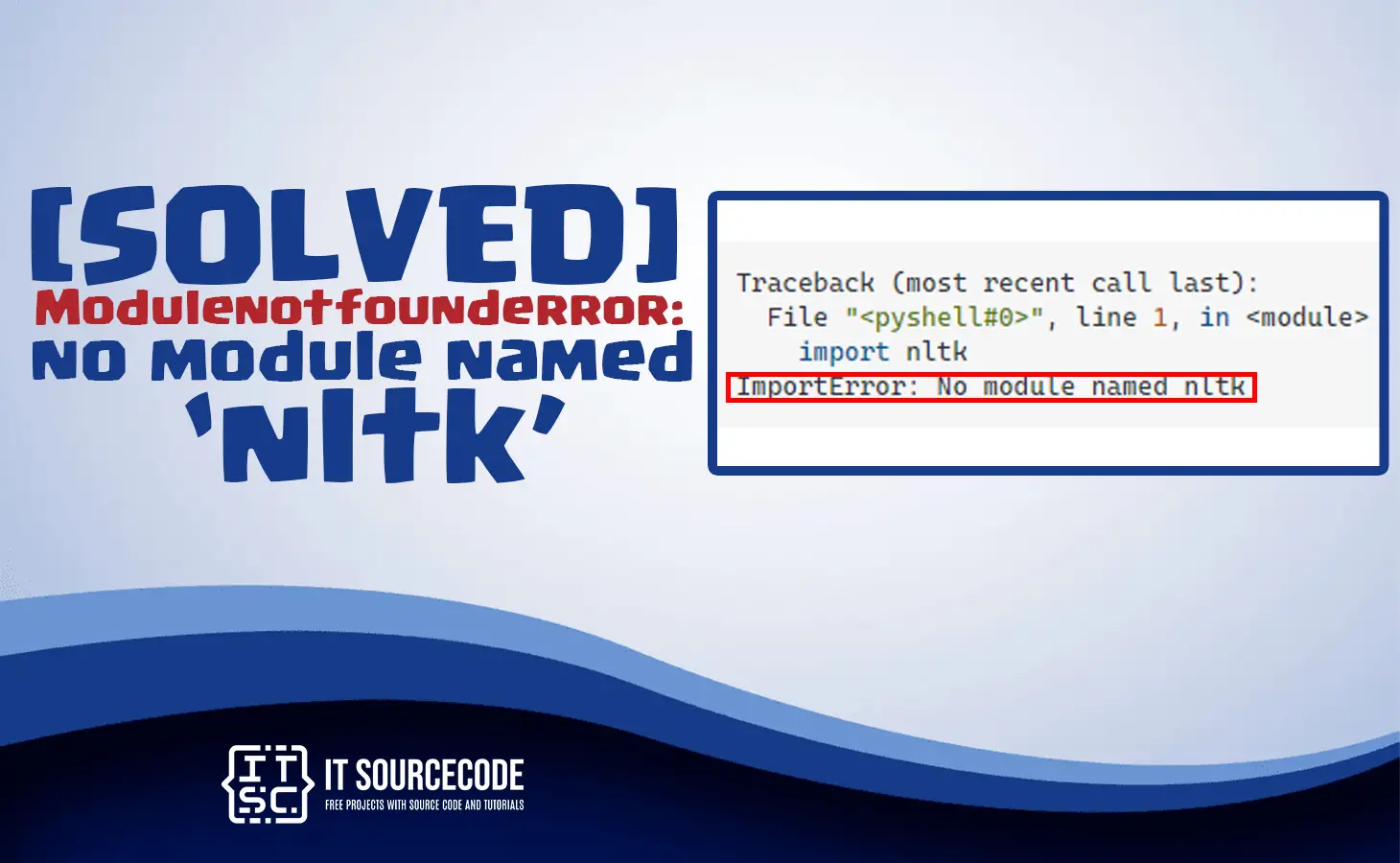
Are you facing Modulenotfounderror: no module named nltk error in Python?
This tutorial explains a few steps to fix it as well as why we get this error.
What is Modulenotfounderror: no module named ‘nltk’?
The “ModuleNotFoundError: no module named ‘nltk’” error occurs when the Natural Language Toolkit (NLTK) module is not installed on your system or when it is not found by Python.
Moreover, NLTK is a popular library used for natural language processing and text analysis in Python.
What is the reason of Modulenotfounderror: no module named nltk error?
There are several reasons why you might encounter this error, including:
- NLTK is not installed on your system.
- NLTK is installed, but not in the correct location.
- The NLTK module is corrupted or outdated.
- Python environment is not set up correctly.
Steps to fix Modulenotfounderror: no module named nltk
To fix this error the following are the steps you can consider.
- Install nltk module
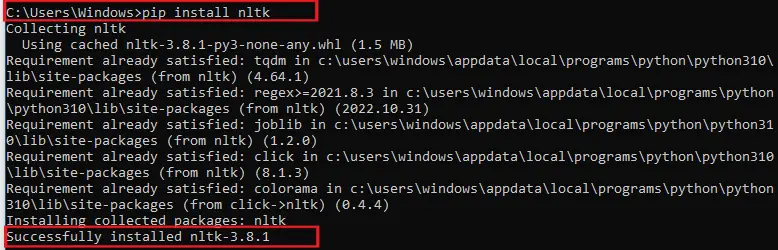
To install NLTK, open your command prompt or terminal and run the following command:
pip install nltk
This will install the latest version of NLTK and its dependencies.
- Check nltk Installation
To check if NLTK is installed correctly, run the following code in your Python environment:
import nltk
If NLTK is installed correctly, you should not see any error messages. - Check nltkl data
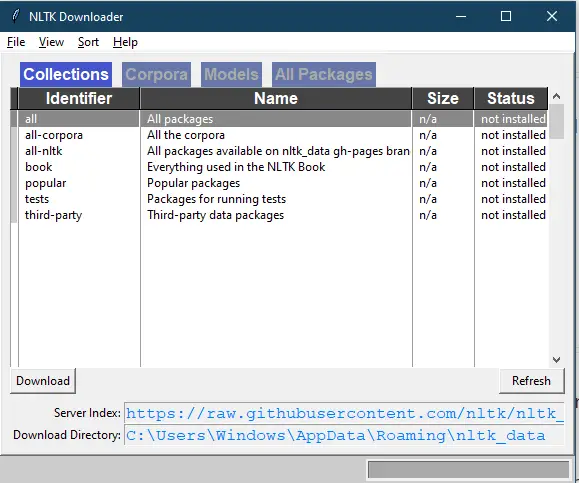
NLTK requires additional data to function properly. To download the required data, run the following code in your Python environment:
nltk.download()
This will open the NLTK Downloader GUI, where you can select and download the required data.
- Set Up Python Environment
If you still encounter the “ModuleNotFoundError: No module named ‘nltk’” error after installing NLTK and its data, it might be due to a problem with your Python environment.
Ensure that your Python environment is correctly set up and that NLTK is installed in the correct location.
Other Solution Modulenotfounderror no module named nltk
Install nltk in windows
In installing nltk module in windows just do the following:
- Open your command prompt.
- Type the command pip install nltk and press Enter.
Install nltk in macOS and Linux
Here’s how you can install NLTK (Natural Language Toolkit) on macOS and Linux:
- Open a terminal window.
- Install pip (Python package installer) by running the following command:
- sudo easy_install pip
- Install NLTK by running the following command:
- sudo pip install -U nltk
Install nltk module in PyCharm
To install nltk in you can use the IDE of PyCharm itself. Follow the steps we will provide:
- Head over on “File> Settings> Project> Python Interpreter“.
- Select the + icon and type nltk.
- Then click on “Install Package”.
Upon installing the modules of Python in Pycharm, ensure that your IDE is configured in the correct version.
Install nltk in Anconda
The following steps are to install nltk in Anaconda and consider following the guide to fix no module named nltk error.
If you are using Anaconda navigator do this:
- Open your Anaconda Navigator.
- On “Environments” click it and select your project.
- From the search bar to the right type nltk.
- Click the nltk package and click on “Apply”.
If you want to install through a command do this:
- On windows open the anaconda prompt application.
- If you using macOS or Linux, open your terminal.
Run the following command to install the nltk package.
| Given Scenario | Command |
| If using conda | conda install -c anaconda nltk |
| Use pip | pip install nltk –upgrade |
| When using Python 3 | pip3 install nltk –upgrade |
| When getting permissions error | sudo pip3 install nltk –upgrade |
| If you don’t have pip in your PATH environment variable | python -m pip install nltk –upgrade |
| When using python 3 | python3 -m pip install nltk –upgrade |
| When using py alias | py -m pip install nltk –upgrade |
| Alternative if you get permissions error | pip install nltk –user –upgrade |
Install NLTK in Jupyter Notebook
To install the nltk in Jupyter Notebook consider following the steps below:
- Oper your terminal and type Jupyter Notebook.
- Open on “New” and then click on “Python 3 (ipykernel)”.jupyter notebook click new ipykernel
- Type !pip install nltk and click on “Run”.
Note that the pip install command must begin with an exclamation mark if you use this method.
!pip install nltk –upgrade
After you have input the command, just click run and nltk module should be installed.
If you fetch a permissions error, such as “[WinError: 5] Access is denied”, include the –user option in the installation command.
!pip install nltk –user –upgrade
Official documentation
Frequently Asked Questions
What is Python ModuleNotFoundError and what causes it?
ModuleNotFoundError (a subclass of ImportError) is raised when Python cannot find the module you tried to import. Common causes: the package isn’t installed (pip install missing), wrong virtual environment activated, typo in module name, or Python can’t find your local module on the import path. The error message names exactly which module is missing.
How do I fix ‘ModuleNotFoundError: No module named X’?
Run pip install X first. If that succeeds but you still get the error, check which Python you’re using (which python OR python –version) vs which pip (which pip OR pip –version), they must match. Common gotcha: pip points to system Python 3.9 but you’re running python3.11 in a venv. Inside the venv, use python -m pip install X to be sure pip matches the active Python.
Why does my code work in one environment but not another?
Different Python versions or different installed packages. To diagnose: pip freeze > requirements.txt on the working environment, then pip install -r requirements.txt on the broken one. Use virtualenv (python -m venv venv) or conda for every project to avoid system-wide package collisions.
Is ModuleNotFoundError the same as ImportError?
ModuleNotFoundError is a subclass of ImportError added in Python 3.6. It specifically means ‘no such module exists.’ Plain ImportError covers a wider set: module exists but a name inside it can’t be imported (e.g. ‘cannot import name X from Y’). except ImportError catches both; except ModuleNotFoundError catches only the missing-module case.
Where can I find more ModuleNotFoundError fixes?
Browse the ModuleNotFoundError reference hub for 198+ specific module fixes (TensorFlow, Flask, Django, pandas, numpy, etc.). For related issues see ImportError. For broader Python setup see Python Tutorial hub.
Conclusion
In conclusion, Modulenotfounderror: no module named nlk is an error raised when the Python code is trying to import the “nlk” module but it can’t be found.
Or the module is not installed or it’s installed in a location where your Python interpreter is not looking for it.
Remember to always keep your Python installation and modules up to date, and to check for missing dependencies if you encounter any issues.
We hope that this guide has helped you fix the “ModuleNotFoundError: No module named ‘nltk’” error in Python. If you have any further questions or concerns, please do not hesitate to reach out to us.
If you are finding solutions to some errors you’re encountering we also have Modulenotfounderror: no module named flask_sqlalchemy.

Glay Eliver
Programmer & Technical Writer at PIES IT Solution
Glay Eliver is a programmer and writer at PIES IT Solution, author of over 600 tutorials at itsourcecode.com. Specializes in JavaScript tutorials, Microsoft Office how-tos (Excel, Word, PowerPoint), and Python error debugging covering ImportError, TypeError, AttributeError, ModuleNotFoundError, and JavaScript ReferenceError. Authored several of the site’s highest-traffic Excel and MS Office reference articles.
Expertise: JavaScript · MS Excel · MS Word · MS PowerPoint · Python · Python ImportError · Python TypeError · Python AttributeError · ModuleNotFoundError · JavaScript ReferenceError · Pygame · View all posts by Glay Eliver →