
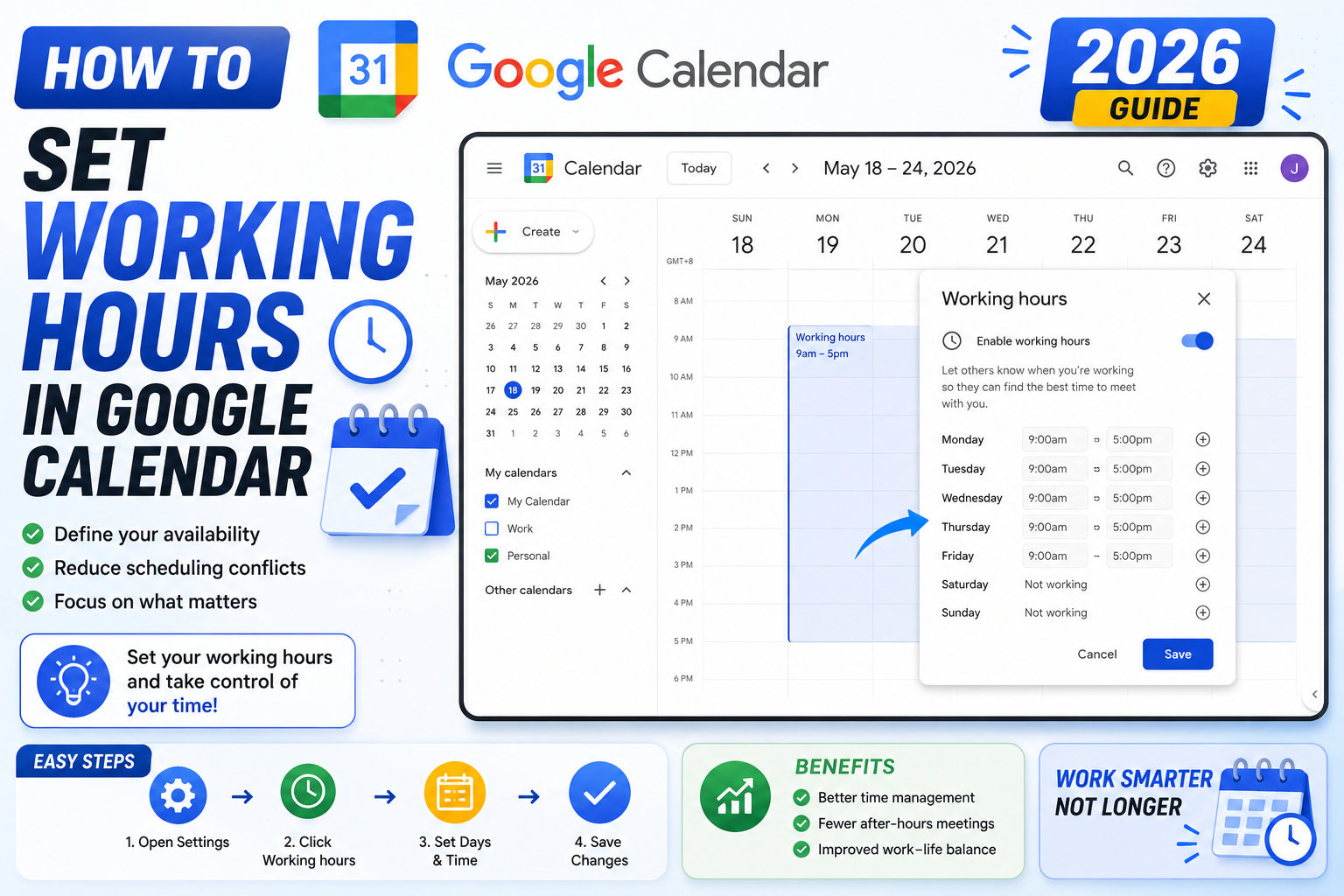
Quick step-by-step summary (click to expand)
- Open Google Calendar Settings. Click the gear icon, then Settings.
- Click “Working hours & location”. Left sidebar of Settings.
- Toggle “Enable working hours” on.
- Set your daily hours. Default is 9 AM to 5 PM Monday-Friday. Change as needed.
- Set different hours per day (optional). Different Monday vs Friday? Click each day to customize.
- Add working location (optional). Office, home, or other locations per day.
- Save. Changes apply immediately.
What working hours actually do
When you set working hours in Google Calendar:
- Your calendar displays a subtle grey shade during your non-working hours (visual signal to you and viewers of your calendar).
- When someone uses “Find a time” to schedule with you, Google Calendar prioritizes your working hours.
- If someone tries to send you a meeting invite outside your working hours (Google Workspace only), they see a warning that you are outside your working hours.
- People do not automatically get blocked from booking you (unless they respect your working hours), but the visibility reduces off-hours meetings significantly.
For maximum protection, combine with “Do not disturb” (in Google Chat) and calendar defaults that automatically decline outside-hours invites.
Enable working hours on Google Calendar Web
- Open calendar.google.com.
- Click the gear icon at the top right, then click “Settings”.
- In the left sidebar, click “Working hours & location”.
- Toggle “Enable working hours” ON.
- The default hours are 9:00 AM to 5:00 PM, Monday through Friday.
- To customize:
- Click a day (like Monday) to change hours for that day.
- Click the plus icon next to a day to add a second time block (useful if you take a long midday break).
- Toggle days off if you do not work Saturdays or Sundays.
- Changes save automatically.
Set different hours for different days
Real work schedules are often not 9-5 five days a week. Common patterns:
- Compressed week (4×10): Monday-Thursday 8 AM-6 PM, Friday off.
- Split day: 8 AM-noon, 1 PM-5 PM (lunch break blocked).
- Half-day Friday: Monday-Thursday 9 AM-5 PM, Friday 9 AM-1 PM.
- Weekend on-call: Regular weekday plus Saturday 10 AM-2 PM.
Google Calendar supports all these patterns via the per-day customization. Click each day and set the specific range.
Add your working location per day
Google Calendar’s working location feature lets colleagues see where you are working each day (office, home, or a specific location). Useful for hybrid teams:
- In Settings > “Working hours & location”.
- Toggle “Enable working location” ON.
- For each day, click and choose Home, Office, or Somewhere else.
- For “Somewhere else”, type the location (e.g., “Cafe” or “Client site XYZ”).
- Save.
Your working location appears at the top of your calendar for each day and is visible to colleagues you share your calendar with. They can plan in-person coffees or meetings when you are in the office.
Set working hours on Google Calendar mobile (Android and iPhone)
- Open the Google Calendar app.
- Tap the menu icon (three lines) at the top left.
- Scroll down and tap “Settings”.
- Tap “Working hours & location”.
- Toggle “Working hours” on.
- Tap each day to customize hours.
- Toggle “Working location” on if you want to broadcast where you are.
Changes sync between mobile and web. Set once on either platform.
Auto-decline outside-hours meetings (Google Workspace)
Working hours are a signal, but you can go further and auto-decline invites outside those hours:
- Open Google Calendar Settings.
- Under “Event settings”, find “Automatically decline meetings”.
- Choose one of the options:
- Do not decline (default)
- Decline all new invitations (aggressive – for vacation)
- Decline new invitations outside working hours
- Optionally add a decline message (like “I don’t take meetings outside 9-5 to protect focus time. Please suggest a time within my working hours.”).
This feature is available on Google Workspace paid plans. Personal Gmail accounts do not have auto-decline.
Signal your timezone to remote colleagues
Working hours are stored in your primary Google Calendar timezone. If you work with people in other timezones, they see your working hours in THEIR local time:
- You work 9 AM-5 PM Manila (UTC+8).
- A colleague in New York (UTC-4) sees your working hours as 9 PM-5 AM their time.
Make sure your timezone is set correctly in Settings > “Time zone”. Also enable “Show world clock” (Settings > View options) so you can see other timezones next to your own. This reduces confusion when scheduling across regions.
Combine working hours with focus time blocks
For maximum protection of your deep work, add “Focus time” blocks INSIDE your working hours:
- Create an event in your calendar during your working hours.
- Change the event type from “Event” to “Focus time”.
- Focus time blocks show as busy, mute Chat/Meet notifications for the duration, and can auto-decline meetings.
This gives you two layers of protection: working hours block outside-hours meetings, and focus time protects specific hours inside your working day.
Common questions and issues
- Colleagues still schedule me outside working hours. Working hours are a signal, not an enforcement. Turn on auto-decline (Workspace plans only) or reply to invites with “Can we move to X?”.
- Working hours setting is missing. Your Google Workspace admin may have restricted the feature. Contact them. Personal accounts have it by default.
- Working location grayed out. Some organizations restrict location sharing for privacy. Ask your admin to enable.
- Hours reset after browser refresh. Rare bug. Try setting via mobile app instead, which syncs back correctly.
- Multiple calendars have different working hours. Working hours are set per-account, not per-calendar. If you have multiple Google accounts (personal, work), each has its own setting.
Official documentation
Frequently asked questions
Do working hours automatically block meetings outside my schedule?
By default, no. Working hours are a visual signal. Anyone can still book you outside those hours. To auto-decline outside-hours invites, use the “Automatically decline meetings” setting under Event settings (Google Workspace paid plans only).
Can other people see my working hours?
Yes. When they view your calendar or use “Find a time” to schedule with you, they see your working hours as a shaded reference. They can override and still book outside those hours unless auto-decline is enabled.
Can I set different working hours for different weeks?
Working hours are a single global setting per account. You cannot set different weeks. For temporary schedule changes (vacations, sabbaticals), use the “Out of Office” event type which overrides working hours temporarily.
What is the difference between working hours and Out of Office?
Working hours are a recurring weekly schedule (your normal work days and times). Out of Office is a one-off event that overrides your working hours for a specific date range (vacation, sick day). Use both together for the fullest availability signal.
Do working hours affect Google Meet or Chat notifications?
No, they only affect calendar scheduling suggestions. To silence Chat notifications outside working hours, use Google Chat’s “Do not disturb” hours (Settings > Notifications). Combine both for full off-hours protection.
Are working hours shown to external Google Calendar users?
Yes if they have permission to view your calendar. External users using Find a time see your working hours as a visual guide. Non-shared calendars only expose free/busy, so working hours are not visible to them.