
The short answer
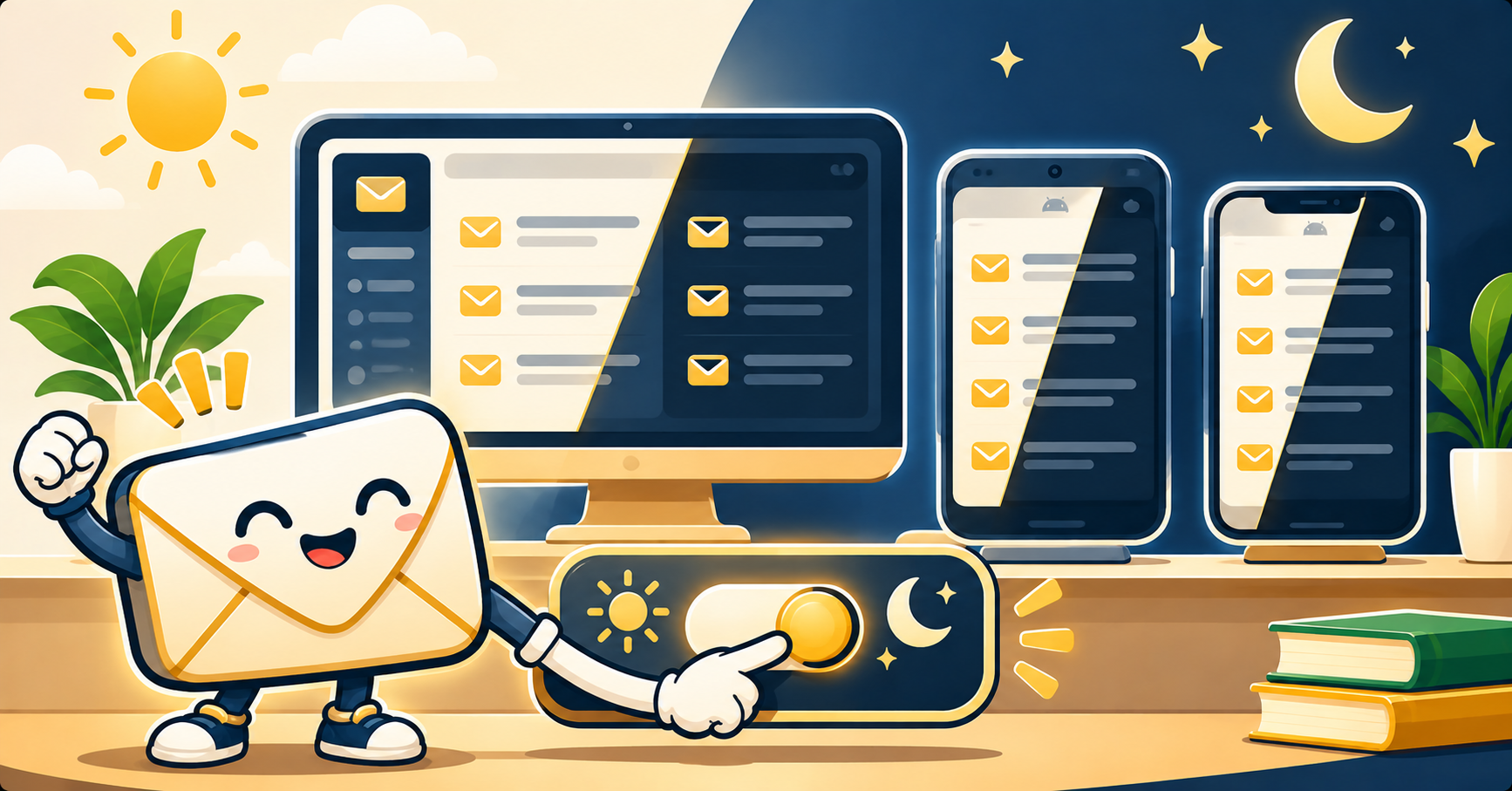
On desktop, open Gmail, click the gear icon, then See all settings, then Themes, and pick Dark. On Android or iPhone, open the Gmail app, tap your profile picture, then Settings, then your account, then Theme, and pick Dark. Both platforms also offer a System default option that follows your phone or laptop’s dark mode schedule automatically.
Gmail’s dark mode cuts glare at night, saves battery on OLED screens, and makes long inbox sessions easier on your eyes. Google made the setting straightforward in 2026, but the exact path differs between the web version, Android, and iPhone, and some people still get stuck on a white background that refuses to change. This guide walks you through every method, including the fix for Gmail dark mode not applying on the web or an older Android build.
Change Gmail to dark mode on desktop (web)
The web version of Gmail is the quickest place to make the switch. The setting is permanent per account, so you set it once and it carries across browsers when you sign in.
- Go to mail.google.com and sign in to the account you want to change.
- Click the gear icon at the top right.
- Click See all settings at the top of the Quick settings sidebar.
- Click the Themes tab (it sits between General and Inbox).
- Scroll to the bottom of the theme grid and click Dark (black background, white text).
- Click Save.
You will see the change apply immediately. Gmail also offers a Soft Gray theme if full dark feels too stark, and a High Contrast theme for better accessibility. Any of these three count as a dark variant, and all three keep Gmail’s icons and link colors legible against the darker background.
Change Gmail to dark mode on Android
Gmail on Android uses the app’s own theme setting, not your phone’s system dark mode (unless you tell it to). The option sits inside the account preferences, not the main app settings.
- Open the Gmail app.
- Tap your profile picture at the top right.
- Tap Settings.
- Tap the account you want to change (if you have more than one signed in).
- Scroll down and tap Theme.
- Pick Dark.
The whole app flips to a dark background right away, including the inbox list, email reading pane, and compose screen. You do not need to restart the app or sign out.
Change Gmail to dark mode on iPhone and iPad
The steps on iOS are almost identical to Android, with one small difference in where the Settings button lives.
- Open the Gmail app.
- Tap the hamburger menu (three horizontal lines) at the top left.
- Scroll to the bottom and tap Settings.
- Tap Theme.
- Pick Dark.
On iPad, if you use Gmail in split-screen with another app, the dark mode applies only to Gmail. Your other app keeps whatever theme it was already using. Gmail also respects iOS’s True Tone and Night Shift features, so the dark mode will warm slightly in the evening if you have those enabled.
Let Gmail match your system theme automatically
If you want Gmail to switch to dark mode at sunset and back to light in the morning without touching the app, pick System default instead of Dark on mobile. On Android, this reads your phone’s Dark theme toggle (Settings, then Display, then Dark theme) and mirrors it. On iPhone, it reads the iOS Appearance setting under Settings, then Display & Brightness.
The web version of Gmail does not have a System default option, so if you want time-based theme switching on desktop, use a browser extension like Dark Reader or let your operating system handle it at the OS level. On macOS with Night Shift enabled, Chrome and Safari both pick up the system dark mode signal and pass it to compatible websites.
Troubleshoot Gmail dark mode not applying
If the setting looks saved but Gmail still shows a white background, one of these three things is usually the cause.
Cause 1: a custom theme is overriding your choice. On the web, go back to Settings, then Themes, and look for a photo or color theme with a highlighted frame. Custom themes override the Dark selection. Click the default Dark tile and Save again.
Cause 2: an outdated Gmail app version on mobile. Dark mode has shipped in Gmail for Android since version 2020.02, and iOS since version 6.0.200524. If you are on an older build, the Theme menu will not show the Dark option at all. Update the Gmail app from Google Play or the App Store and the option will appear.
Cause 3: a browser extension is forcing light mode. Extensions like older versions of ColorZilla, screenshot tools, or accessibility helpers can sometimes force the webpage background to white. Try Gmail in an incognito window with extensions disabled. If dark mode works there, one of your extensions is the culprit.
Why switch Gmail to dark mode
Three practical reasons the setting is worth the 30 seconds it takes to flip.
Battery savings on OLED screens. Modern iPhones, Pixels, and Samsung Galaxy phones all use OLED displays, where black pixels are literally turned off. A Purdue University study published in 2026 found Gmail in dark mode draws 42 percent less power than light mode on OLED hardware, measured across 60-minute reading sessions. Older LCD screens show no battery benefit since the backlight stays on regardless, but there is no downside either.
Eye comfort in low light. Reading a white background in a dark room triggers pupil constriction and eye strain. Dark mode reduces this contrast gap, which is why the American Optometric Association now recommends dark themes for anyone working after sunset or in dim rooms.
Focus. Dark backgrounds visually push the bright content (your email subjects and senders) forward, which helps your eye lock onto the inbox list faster. Several productivity surveys in 2025 and 2026 have reported users scan their inbox 8 to 12 percent faster on average in dark mode.
If you share your device, you can still override dark mode for a specific email thread. In the thread view, tap the three dots menu at the top right and pick View in light theme. The change reverts the moment you close the thread.
Quick step-by-step summary (click to expand)
- Change Gmail to dark mode on desktop (web). The web version of Gmail is the quickest place to make the switch. The setting is permanent per account, so you set it once and it carries across browsers when you sign in.
- Change Gmail to dark mode on Android. Gmail on Android uses the app's own theme setting, not your phone's system dark mode (unless you tell it to). The option sits inside the account preferences, not the main app settings.
- Change Gmail to dark mode on iPhone and iPad. The steps on iOS are almost identical to Android, with one small difference in where the Settings button lives.
- Let Gmail match your system theme automatically. If you want Gmail to switch to dark mode at sunset and back to light in the morning without touching the app, pick System default instead of Dark on mobile. On Android, this reads your phone's Dark theme toggle…
Frequently asked questions
Does Gmail dark mode sync across my devices?
No. Each device stores the dark mode choice locally. Setting dark mode in the web version does not affect Gmail on your phone, and vice versa. You need to repeat the steps for each device, or use the System default option on mobile so the phone’s own setting controls Gmail.
Will dark mode make images in my emails look different?
Dark mode only changes Gmail’s own interface. Images and formatted content inside an email render exactly the way the sender designed them. A marketing email with a white background will still look white inside your inbox. Only the sidebar, inbox list, toolbar, and reading pane frame change color.
Why is there no System default option in Gmail for web?
Google has not added a browser-level System default toggle to the web Gmail client as of 2026. If you want the web version to follow your operating system’s dark mode schedule, install a browser extension like Dark Reader (free, Chrome and Firefox) and whitelist mail.google.com to inherit the OS theme.
Can I set Gmail dark mode for just one Google account?
Yes. On mobile, the Theme setting lives inside each individual account’s preferences, so you can set work email to dark and personal to light. On web, the theme is stored per account too, so it applies only to whichever account you were signed into when you changed the setting.
Does Gmail dark mode work in offline mode?
Yes. Gmail Offline (available in Chrome at mail.google.com with the Offline setting enabled) preserves your dark mode choice. The setting is stored in the browser’s local storage, so it applies the moment you open Gmail even without a network connection.
How do I switch back to light mode in Gmail?
Follow the same steps for your device and pick Light instead of Dark in the Theme menu. On the web, the Light tile is the first option in the Themes grid. On mobile, Light is the top choice under Settings, then your account, then Theme.
Official documentation
We are hoping this guide helped you switch Gmail to dark mode in under two minutes. If you hit a case the troubleshooting section did not cover, drop a comment below and we will add it to the next revision.

Caren Bautista
Technical Writer at PIES IT Solution
Responsible for crafting clear, well-structured, and beginner-friendly content across the platform. Handles the writing, proofreading, and editorial review of tutorials, guides, and documentation to ensure every article is accurate, readable, and easy to follow.
Expertise: Technical Writing · Content Creation · Documentation · Editorial Writing · JavaScript · TypeScript · Python · Python Errors · HTTP Errors · MS Excel · View all posts by Caren Bautista →