
Stickman Game in Python with Source Code
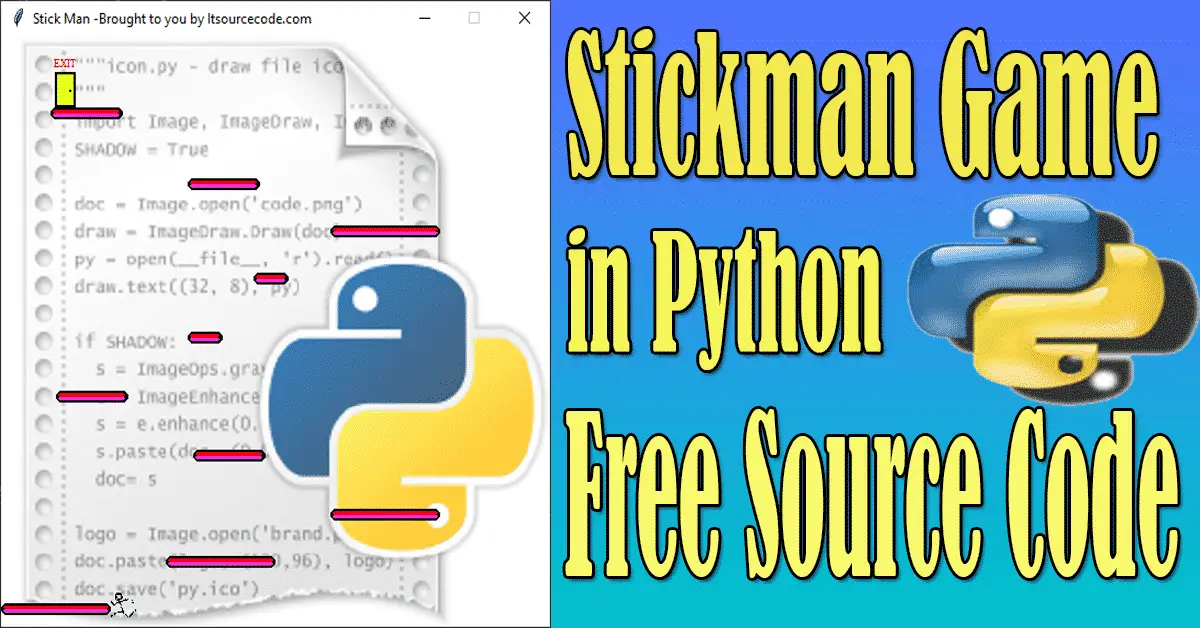
Stickman Game in Python is created using Tkinter and a graphical user interface. The Stickman Game is developed in Python programming language and it is a desktop application.
This stickman game project contains a Python script(stickman.py) and resource files. The graphics of the game is excellent and the controls are easy for the users to use.
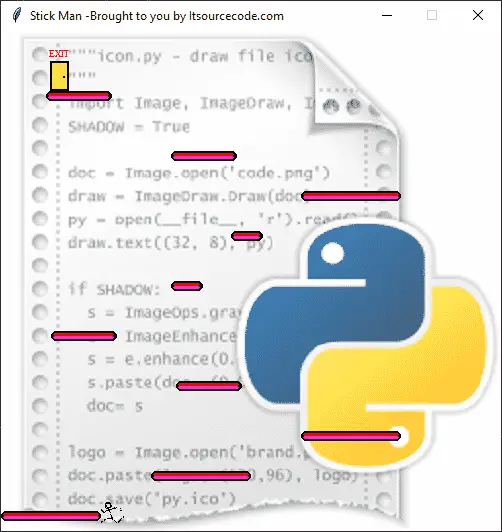
This Stickman Game process is too easy all you need to do is attain to the go out into the endpoint. Here, the player has to leap via unique bars and on the pinnacle and go out to the door.
The player holds on going for walks at a certain speed each time the participant presses the left or right arrow keys. Until and unless the stickman is caught through an item or wall, the participant continues on moving.
The predominant goal of this game is to attain the pinnacle stage to go out. The gamer has to use the left and right arrow keys to move around the stickman and the use of the space bar is to jump the stickman.
Anyway, if you want to level up your knowledge in programming especially games in Python, try this new article I’ve made for you Code For Game in Python: Python Game Projects With Source Code.
Before you start on how to create Stickman Game in Python, make sure that you have PyCharm IDE installed on your computer.
By the way, if you are new to Python programming and don’t know what Python IDE to use, I have here a list of the Best Python IDE for Windows, Linux, and Mac OS that will suit you.
I also have here How to Download and Install the Latest Version of Python on Windows.
How to Create a Stickman Game in Python
These are the steps on how to create a Stickman Game in Python with Source Code
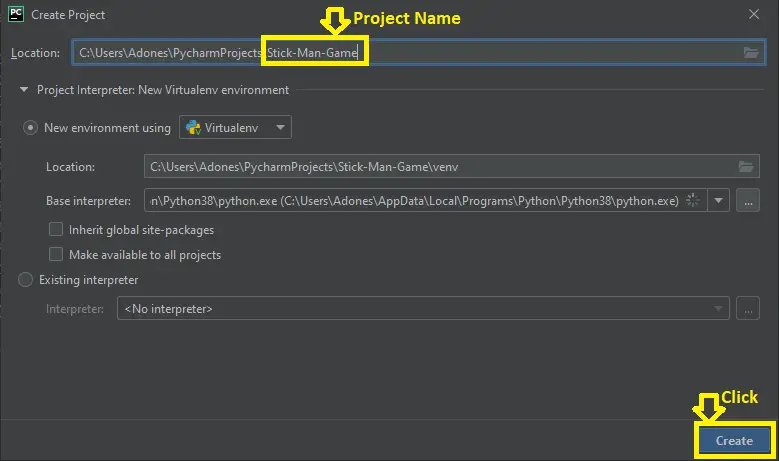
- Step 1: Create a project name.
First, when you finished installing the Pycharm IDE on your computer, open it and then create a “project name.” After creating a project name click the “create” button.

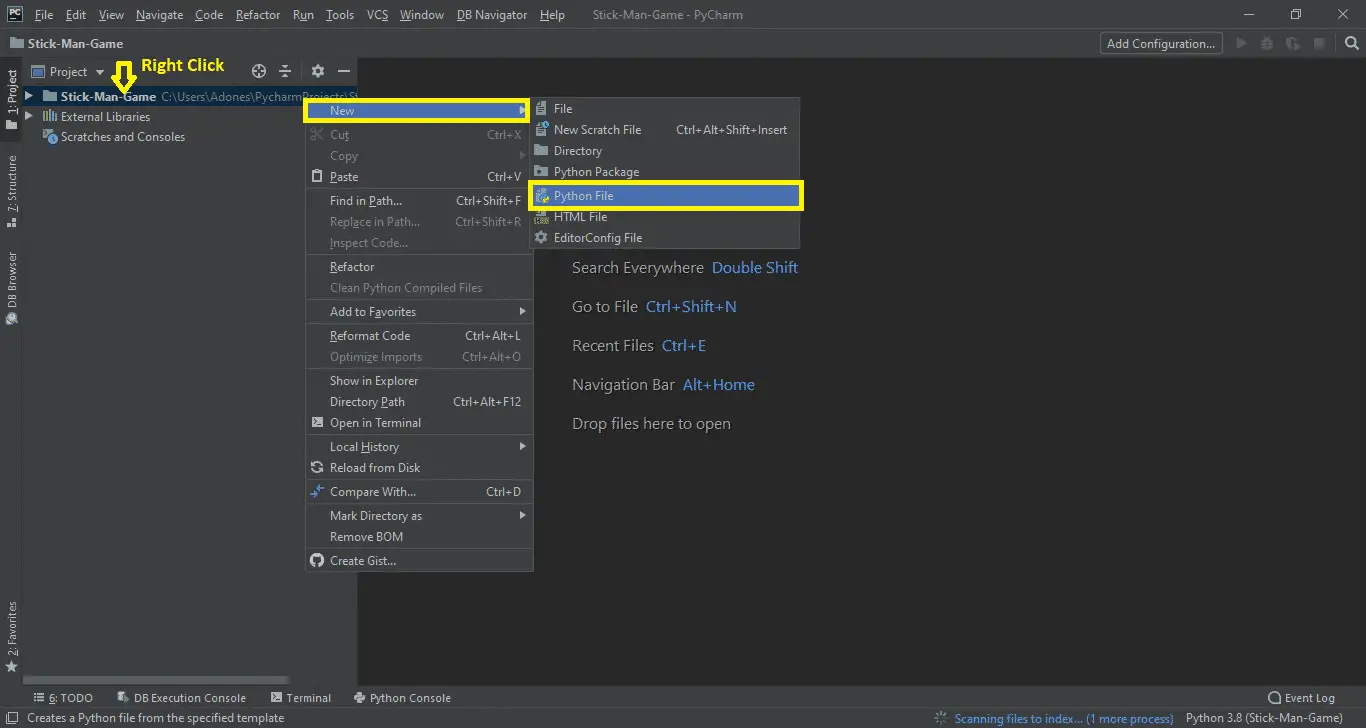
- Step 2: Create a python file.
Second, after creating a project name, “right-click” your project name and then click “new.” After that click the “python file“.

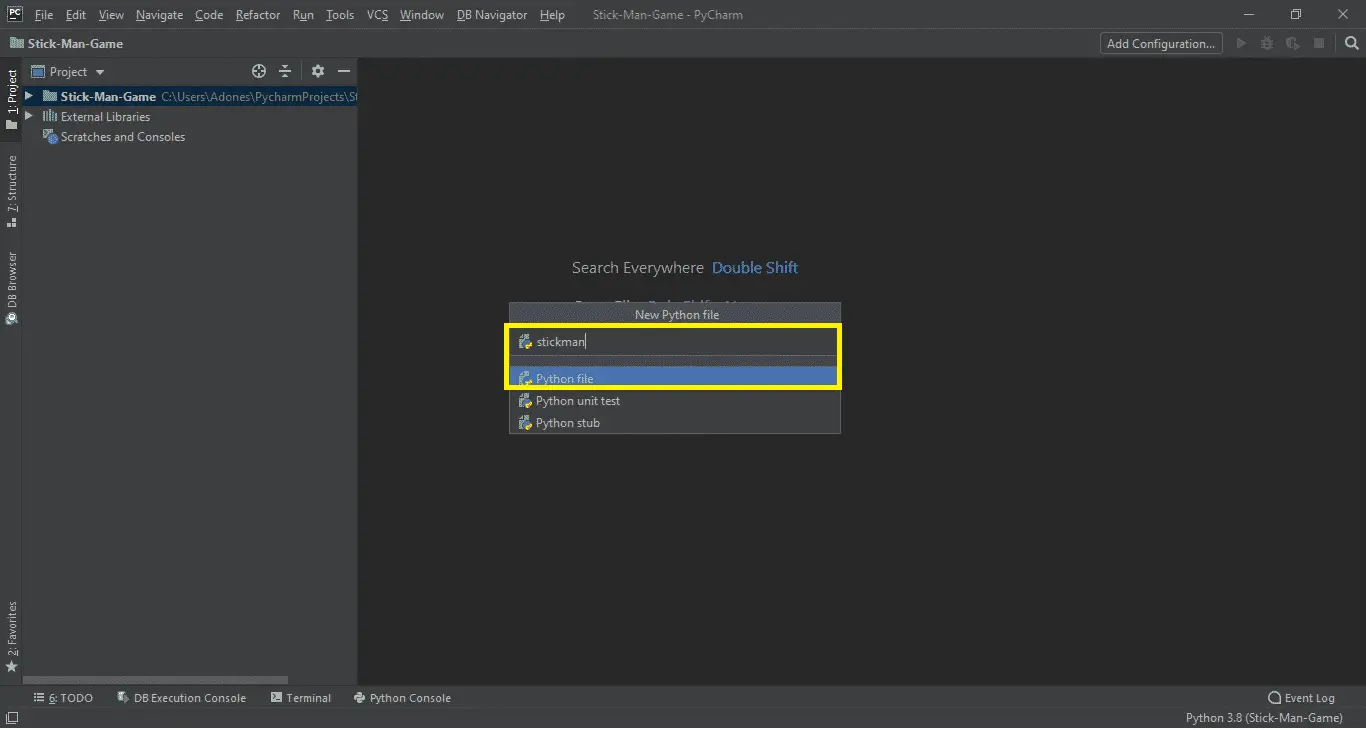
- Step 3: Name your python file.
Third, after creating a Python file, Name your Python file after that click “enter“.

- Step 4: The actual code.
This is the actual coding on how to create Stickman Game in Python, and you are free to copy this code and download the full source code given below.
Importing Tkinter Module
In the code given, which is for the importing tkinter function. Tkinter is the standard GUI library for Python. Python when combined with Tkinter provides a fast and easy way to create GUI applications.
from tkinter import *
This Module for the Design Main Screen Window
In the code given below, which is first of all you have to design the main screen window. This display screen has the title of a game, canvas, and image background. (Stickman Game in Python)
class Game:
def __init__(self):
self.tk = Tk()
self.tk.title("Stick Man -Brought to you by Itsourcecode.com")
self.tk.resizable(0, 0)
self.tk.wm_attributes("-topmost", 1)
self.canvas = Canvas(self.tk, width=500, height=500, highlightthickness=0)
self.canvas.pack()
self.tk.update()
self.canvas_height = 500
self.canvas_width = 500
self.bg = PhotoImage(file="resources/background.png")
w = self.bg.width()
h = self.bg.height()
for x in range(0, 5):
for y in range(0, 5):
self.canvas.create_image(x * w, y * h, image=self.bg, anchor='nw')
self.sprites = []
self.running = True
self.game_over_text = self.canvas.create_text(250, 250, text='YOU WIN!', font=('Times', 30), state='hidden', fill='red')
self.out = self.canvas.create_text(58, 22, text='EXIT', font=('Times', 7), fill='red')
This module is for the class coordinates function
In the code given below, which is for the class coordinates function of x and y which is the right, left, top, and bottom. (Stickman Game in Python).
 class Coordinates:
def __init__(self, x1=0, y1=0, x2=0, y2=0):
self.x1 = x1
self.y1 = y1
self.x2 = x2
self.y2 = y2

def within_x(c1, c2):
if (c1.x1 > c2.x1 and c1.x1 < c2.x2) or (c1.x2 > c2.x1 and c1.x2 < c2.x2) or (c2.x1 > c1.x1 and c2.x1 < c1.x2) or (c2.x2 > c1.x1 and c2.x2 < c1.x1):
return True
else:
return False

def within_y(c1, c2):
if (c1.y1 > c2.y1 and c1.y1 < c2.y2) or (c1.y2 > c2.y1 and c1.y2 < c2.y2) or (c2.y1 > c1.y1 and c2.y1 < c1.y2) or (c2.y2 > c1.y1 and c2.y2 < c1.y1):
return True
else:
return False

def collided_left(c1, c2):
if within_y(c1, c2):
if c1.x1 <= c2.x2 and c1.x1 >= c2.x1:
return True
return False

def collided_right(c1, c2):
if within_y(c1, c2):
if c1.x2 >= c2.x1 and c1.x2 <= c2.x2:
return True
return False

def collided_top(c1, c2):
if within_x(c1, c2):
if c1.y1 <= c2.y2 and c1.y1 >= c2.y1:
return True
return False

def collided_bottom(y, c1, c2):
if within_x(c1, c2):
y_calculation = c1.y2 + y
if y_calculation >= c2.y1 and y_calculation <= c2.y2:
return True
return False
This module is for the class door function
The code given below is for the door function of opening and closing the door and the photo image. (Stickman Game in Python)
class DoorSprite(Sprite):
def __init__(self, g, x, y, width, height):#hei1353
Sprite.__init__(self, g)
self.closed_door = PhotoImage(file="resources/door1.gif")
self.open_door = PhotoImage(file="resources/door2.gif")
self.image = g.canvas.create_image(x, y, image=self.closed_door, anchor='nw')
self.coordinates = Coordinates(x, y, x + (width / 2), y + height)
self.endgame = True

def op_door(self):
self.game.canvas.itemconfig(self.image, image=self.open_door)
self.game.tk.update_idletasks()
def cl_door(self):
self.game.canvas.itemconfig(self.image, image=self.closed_door)
self.game.tk.update_idletasks()
This module is for the class Stickman
In the code given below, which is for the function of stickman use in a game. The stickman can move to turn left, turn right, and jump.(Stickman Game in Python).
class StickFigureSprite(Sprite):
def __init__(self, g):
Sprite.__init__(self, g)
self.images_left = [
PhotoImage(file="resources/figure-L1.gif"),
PhotoImage(file="resources/figure-L2.gif"),
PhotoImage(file="resources/figure-L3.gif")
]
self.images_right = [
PhotoImage(file="resources/figure-R1.gif"),
PhotoImage(file="resources/figure-R2.gif"),
PhotoImage(file="resources/figure-R3.gif")
]
self.image = g.canvas.create_image(200, 470, \
image=self.images_left[0], anchor='nw')
self.x = -2
self.y = 0
self.current_image = 0
self.current_image_add = 1
self.jump_count = 0
self.last_time = time.time()
self.coordinates = Coordinates()
g.canvas.bind_all('<KeyPress-Left>', self.turn_left)
g.canvas.bind_all('<KeyPress-Right>', self.turn_right)
g.canvas.bind_all('<space>', self.jump)
def turn_left(self, evt):
if self.y == 0:
self.x = -2
def turn_right(self, evt):
if self.y == 0:
self.x = 2
#brought to you by code-projects.org
def jump(self, evt):
if self.y == 0:
self.y = -4
self.jump_count = 0
This module is for the animation
In the code given below, which is for the function of animation used in the game. (Stickman Game in Python)
def animation(self):
if self.x != 0 and self.y == 0:
if time.time() - self.last_time > 0.1:
self.last_time = time.time()
self.current_image += self.current_image_add
if self.current_image >= 2:
self.current_image_add = -1
if self.current_image <= 0:
self.current_image_add = 1
if self.x < 0:
if self.y != 0:
self.game.canvas.itemconfig(self.image, image=self.images_left[2])
else:
self.game.canvas.itemconfig(self.image, image=self.images_left[self.current_image])
elif self.x > 0:
if self.y != 0:
self.game.canvas.itemconfig(self.image, image=self.images_right[2])
else:
self.game.canvas.itemconfig(self.image, image=self.images_right[self.current_image])
Complete the Source Code of the Stickman Game in Python
from tkinter import *
import time

class Game:
def __init__(self):
self.tk = Tk()
self.tk.title("Stick Man -Brought to you by Itsourcecode.com")
self.tk.resizable(0, 0)
self.tk.wm_attributes("-topmost", 1)
self.canvas = Canvas(self.tk, width=500, height=500, highlightthickness=0)
self.canvas.pack()
self.tk.update()
self.canvas_height = 500
self.canvas_width = 500
self.bg = PhotoImage(file="resources/background.png")
w = self.bg.width()
h = self.bg.height()
for x in range(0, 5):
for y in range(0, 5):
self.canvas.create_image(x * w, y * h, image=self.bg, anchor='nw')
self.sprites = []
self.running = True
self.game_over_text = self.canvas.create_text(250, 250, text='YOU WIN!', font=('Times', 30), state='hidden', fill='red')
self.out = self.canvas.create_text(58, 22, text='EXIT', font=('Times', 7), fill='red')

def mainloop(self):
while 1:
if self.running:
for sprite in self.sprites:
sprite.move()
else:
time.sleep(1)
self.canvas.itemconfig(self.game_over_text, state='normal')
self.tk.update_idletasks()
self.tk.update()
time.sleep(0.01)

class Coordinates:
def __init__(self, x1=0, y1=0, x2=0, y2=0):
self.x1 = x1
self.y1 = y1
self.x2 = x2
self.y2 = y2

def within_x(c1, c2):
if (c1.x1 > c2.x1 and c1.x1 < c2.x2) or (c1.x2 > c2.x1 and c1.x2 < c2.x2) or (c2.x1 > c1.x1 and c2.x1 < c1.x2) or (c2.x2 > c1.x1 and c2.x2 < c1.x1):
return True
else:
return False

def within_y(c1, c2):
if (c1.y1 > c2.y1 and c1.y1 < c2.y2) or (c1.y2 > c2.y1 and c1.y2 < c2.y2) or (c2.y1 > c1.y1 and c2.y1 < c1.y2) or (c2.y2 > c1.y1 and c2.y2 < c1.y1):
return True
else:
return False

def collided_left(c1, c2):
if within_y(c1, c2):
if c1.x1 <= c2.x2 and c1.x1 >= c2.x1:
return True
return False

def collided_right(c1, c2):
if within_y(c1, c2):
if c1.x2 >= c2.x1 and c1.x2 <= c2.x2:
return True
return False

def collided_top(c1, c2):
if within_x(c1, c2):
if c1.y1 <= c2.y2 and c1.y1 >= c2.y1:
return True
return False

def collided_bottom(y, c1, c2):
if within_x(c1, c2):
y_calculation = c1.y2 + y
if y_calculation >= c2.y1 and y_calculation <= c2.y2:
return True
return False

class Sprite:
def __init__(self, g):
self.game = g
self.endgame = False
self.coordinates = None
def move(self):
pass
def syncronize(self):
return self.coordinates

class PlatformSprite(Sprite):
def __init__(self, g, photo_resources, x, y, width, height):
Sprite.__init__(self, g)
self.photo_image = photo_resources
self.image = g.canvas.create_image(x, y, image=self.photo_image, anchor='nw')
self.coordinates = Coordinates(x, y, x + width, y + height)

class MovingPlatformSprite(PlatformSprite):
def __init__(self, g, photo_resources, x, y, width, height):
PlatformSprite.__init__(self, g, photo_resources, x, y, width, height)
self.x = 2
self.counter = 0
self.last_time = time.time()
self.width = width
self.height = height

def coordinate(self):
xy = self.game.canvas.coords(self.image)
self.coordinates.x1 = xy[0]
self.coordinates.y1 = xy[1]
self.coordinates.x2 = xy[0] + self.width
self.coordinates.y2 = xy[1] + self.height
return self.coordinates

def move(self):
if time.time() - self.last_time > 0.03:
self.last_time = time.time()
self.game.canvas.move(self.image, self.x, 0)
self.counter += 1
if self.counter > 20:
self.x *= -1
self.counter = 0

class DoorSprite(Sprite):
def __init__(self, g, x, y, width, height):#hei1353
Sprite.__init__(self, g)
self.closed_door = PhotoImage(file="resources/door1.gif")
self.open_door = PhotoImage(file="resources/door2.gif")
self.image = g.canvas.create_image(x, y, image=self.closed_door, anchor='nw')
self.coordinates = Coordinates(x, y, x + (width / 2), y + height)
self.endgame = True

def op_door(self):
self.game.canvas.itemconfig(self.image, image=self.open_door)
self.game.tk.update_idletasks()
def cl_door(self):
self.game.canvas.itemconfig(self.image, image=self.closed_door)
self.game.tk.update_idletasks()

class StickFigureSprite(Sprite):
def __init__(self, g):
Sprite.__init__(self, g)
self.images_left = [
PhotoImage(file="resources/figure-L1.gif"),
PhotoImage(file="resources/figure-L2.gif"),
PhotoImage(file="resources/figure-L3.gif")
]
self.images_right = [
PhotoImage(file="resources/figure-R1.gif"),
PhotoImage(file="resources/figure-R2.gif"),
PhotoImage(file="resources/figure-R3.gif")
]
self.image = g.canvas.create_image(200, 470, \
image=self.images_left[0], anchor='nw')
self.x = -2
self.y = 0
self.current_image = 0
self.current_image_add = 1
self.jump_count = 0
self.last_time = time.time()
self.coordinates = Coordinates()
g.canvas.bind_all('<KeyPress-Left>', self.turn_left)
g.canvas.bind_all('<KeyPress-Right>', self.turn_right)
g.canvas.bind_all('<space>', self.jump)
def turn_left(self, evt):
if self.y == 0:
self.x = -2
def turn_right(self, evt):
if self.y == 0:
self.x = 2
#brought to you by code-projects.org
def jump(self, evt):
if self.y == 0:
self.y = -4
self.jump_count = 0

def animation(self):
if self.x != 0 and self.y == 0:
if time.time() - self.last_time > 0.1:
self.last_time = time.time()
self.current_image += self.current_image_add
if self.current_image >= 2:
self.current_image_add = -1
if self.current_image <= 0:
self.current_image_add = 1
if self.x < 0:
if self.y != 0:
self.game.canvas.itemconfig(self.image, image=self.images_left[2])
else:
self.game.canvas.itemconfig(self.image, image=self.images_left[self.current_image])
elif self.x > 0:
if self.y != 0:
self.game.canvas.itemconfig(self.image, image=self.images_right[2])
else:
self.game.canvas.itemconfig(self.image, image=self.images_right[self.current_image])

def syncronize(self):
xy = self.game.canvas.coords(self.image)
self.coordinates.x1 = xy[0]
self.coordinates.y1 = xy[1]
self.coordinates.x2 = xy[0] + 27
self.coordinates.y2 = xy[1] + 30
return self.coordinates

def move(self):
self.animation()
if self.y < 0:
self.jump_count += 1
if self.jump_count > 20:
self.y = 4
if self.y > 0:
self.jump_count -= 1
c = self.syncronize()
left = True
right = True
top = True
bottom = True
falling = True
if self.y > 0 and c.y2 >= self.game.canvas_height:
self.y = 0
bottom = False
elif self.y < 0 and c.y1 <= 0:
self.y = 0
top = False
if self.x > 0 and c.x2 >= self.game.canvas_width:
self.x = 0
right = False
elif self.x < 0 and c.x1 <= 0:
self.x = 0
left = False
for sprite in self.game.sprites:
if sprite == self:
continue
sprite_co = sprite.syncronize()
if top and self.y < 0 and collided_top(c, sprite_co):
self.y = -self.y
top = False
if bottom and self.y > 0 and collided_bottom(self.y, c, sprite_co):
self.y = sprite_co.y1 - c.y2
if self.y < 0:
self.y = 0
bottom = False
top = False
if bottom and falling and self.y == 0 and c.y2 < self.game.canvas_height and collided_bottom(1, c, sprite_co):
falling = False
if left and self.x < 0 and collided_left(c, sprite_co):
self.x = 0
left = False
if sprite.endgame:
self.end(sprite)
if right and self.x > 0 and collided_right(c, sprite_co):
self.x = 0
right = False
if sprite.endgame:
self.end(sprite)
if falling and bottom and self.y == 0 and c.y2 < self.game.canvas_height:
self.y = 4
self.game.canvas.move(self.image, self.x, self.y)

def end(self, sprite):
self.game.running = False
sprite.op_door()
time.sleep(1)
self.game.canvas.itemconfig(self.image, state='hidden')
sprite.cl_door()

games = Game()
form1 = PlatformSprite(games, PhotoImage(file = "resources/platform1.gif"), 0, 480, 100, 10)
form2 = PlatformSprite(games, PhotoImage(file = "resources/platform1.gif"), 150, 440, 100, 10)
form3 = PlatformSprite(games, PhotoImage(file = "resources/platform1.gif"), 300, 400, 100, 10)
form4 = PlatformSprite(games, PhotoImage(file = "resources/platform1.gif"), 300, 160, 100, 10)
form5 = PlatformSprite(games, PhotoImage(file = "resources/platform2.gif"), 175, 350, 66, 10)
form6 = PlatformSprite(games, PhotoImage(file = "resources/platform2.gif"), 50, 300, 66, 10)
form7 = PlatformSprite(games, PhotoImage(file = "resources/platform2.gif"), 170, 120, 66, 10)
form8 = PlatformSprite(games, PhotoImage(file = "resources/platform2.gif"), 45, 60, 66, 10)
form9 = PlatformSprite(games, PhotoImage(file = "resources/platform3.gif"), 170, 250, 32, 10)
form10 = PlatformSprite(games, PhotoImage(file = "resources/platform3.gif"), 230, 200, 32, 10)

games.sprites.append(form1)
games.sprites.append(form2)
games.sprites.append(form3)
games.sprites.append(form4)
games.sprites.append(form5)
games.sprites.append(form6)
games.sprites.append(form7)
games.sprites.append(form8)
games.sprites.append(form8)
games.sprites.append(form9)
games.sprites.append(form10)
door = DoorSprite(games, 45, 30, 40, 35)
games.sprites.append(door)

sf = StickFigureSprite(games)
games.sprites.append(sf)
games.mainloop()
Output:
How to Run the Stickman Game in Python with Source Code?
To run this project, you must have installed a Pycharm on your PC (for Windows). Stickman Game in Python with Source Code is for educational purposes only!
After downloading the project you must follow the steps below:
Step 1: Unzip the file or Extract the file
Step 2: Double-click the stickman
Step 3: The project is ready to run
Downloadable Source Code
I have here the list of Best Python Projects with Source code free to download for free, I hope this can help you a lot.
Summary
This Stickman Game in Python is a simple graphical user interface-based game created for beginners and for college students.
Stickman Game in Python is free to download the open source code and it is used for educational purposes only.
Check out the different Python-related projects below:
- Snake Game In Python Code
- How to Make a Bouncing Ball Game in Python with Source Code
- How to Create a Rock-Paper-Scissor Game in Python
Inquiries
If you have any questions or suggestions about the Stickman Game in Python with Source Code, please feel free to leave a comment below.
Official documentation
Frequently Asked Questions
How do you play this Python Stickman game?
Arrow keys move the stickman left and right. Spacebar jumps. Collect coins, avoid spikes and enemies. Reach the level exit to advance. Classic 2D platformer mechanics: gravity, ground collision, jump arc. The level layout is a 2D grid loaded from a text file (one character per cell: . = empty, # = block, * = coin, X = enemy). Easy to design new levels by editing the text file, useful for a capstone Level Editor module.
What Python version do I need to run this game?
Python 3.8 or newer works. We recommend Python 3.11 or 3.12 because Pygame ships pre-built wheels for those versions (faster pip install, no compilation errors). Python 3.13 may need a slightly older Pygame release because some wheels lag the latest CPython. Verify your version with python –version on Windows or python3 –version on Mac/Linux.
How do I install Pygame for this project?
Run pip install pygame in your terminal (Windows: open Command Prompt, Mac/Linux: open Terminal). On Windows, if pip is not recognized, try python -m pip install pygame instead. On Linux, you may need sudo apt install python3-pygame if pip fails. Verify with python -c “import pygame; print(pygame.version.ver)”.
Can I use this Python game as my BSIT capstone project?
On its own, no, most Philippine BSIT panels expect a full system with users, data, reports, and a real-world problem. A single Pygame game is too narrow for capstone scope. BUT, you can use this game as ONE module inside a larger capstone (e.g. a gamified learning system, a math practice tool for elementary students with this game as the reward layer, or an arcade-style POS for an internet cafe). Pair the game with a Django backend, a database, and analytics for a defensible capstone.
Can I package this game as a standalone .exe to distribute?
Yes, use PyInstaller. Run pip install pyinstaller then pyinstaller –onefile –windowed your_game.py from the project folder. PyInstaller bundles Python and Pygame into a single .exe (Windows) or .app (Mac) that runs without Python installed on the target machine. Include asset files (images, sounds) with –add-data “assets;assets”. Output goes to the dist/ folder.
Where do I get help if the game does not run?
Check the top 3 most common failures: (1) Pygame is not installed correctly, re-run pip install pygame. (2) The game cannot find an asset file (image/sound), make sure you run python from the project folder so relative paths resolve. (3) Wrong Python version, this code expects Python 3.8+; older Python 2.x or 3.6 raises syntax errors. If you still hit a wall, drop a comment on this article with the exact error message, our team monitors comments daily.

Adones Evangelista
Programmer & Technical Writer at PIES IT Solution
Adones Evangelista is a programmer and writer at PIES IT Solution, author of over 900 tutorials and error-fix guides at itsourcecode.com. Specializes in JavaScript, Django, Laravel, and Python error debugging covering ValueError, TypeError, AttributeError, ModuleNotFoundError, and RuntimeError, plus C/C++ and PHP capstone projects for BSIT students.
Expertise: JavaScript · Python · Django · Laravel · Error Debugging · C/C++ · View all posts by Adones Evangelista →
Stickman Ghost 2 Mod Apk – All Features Unlocked
Say goodbye to in-app purchases and unlock all features in Stickman Ghost 2 with our mod apk. Download now and enjoy the game!
Read More