
Google Sheets is free, familiar, and handles 90 percent of everyday data work well. Airtable costs USD 20/user/month at the Team tier and looks like a spreadsheet at first glance. So why would anyone pay for Airtable when Google Sheets is right there and does most of the same things? The answer comes down to one specific difference: Airtable is a real database, and Google Sheets is a spreadsheet that pretends to be one when you push it hard.
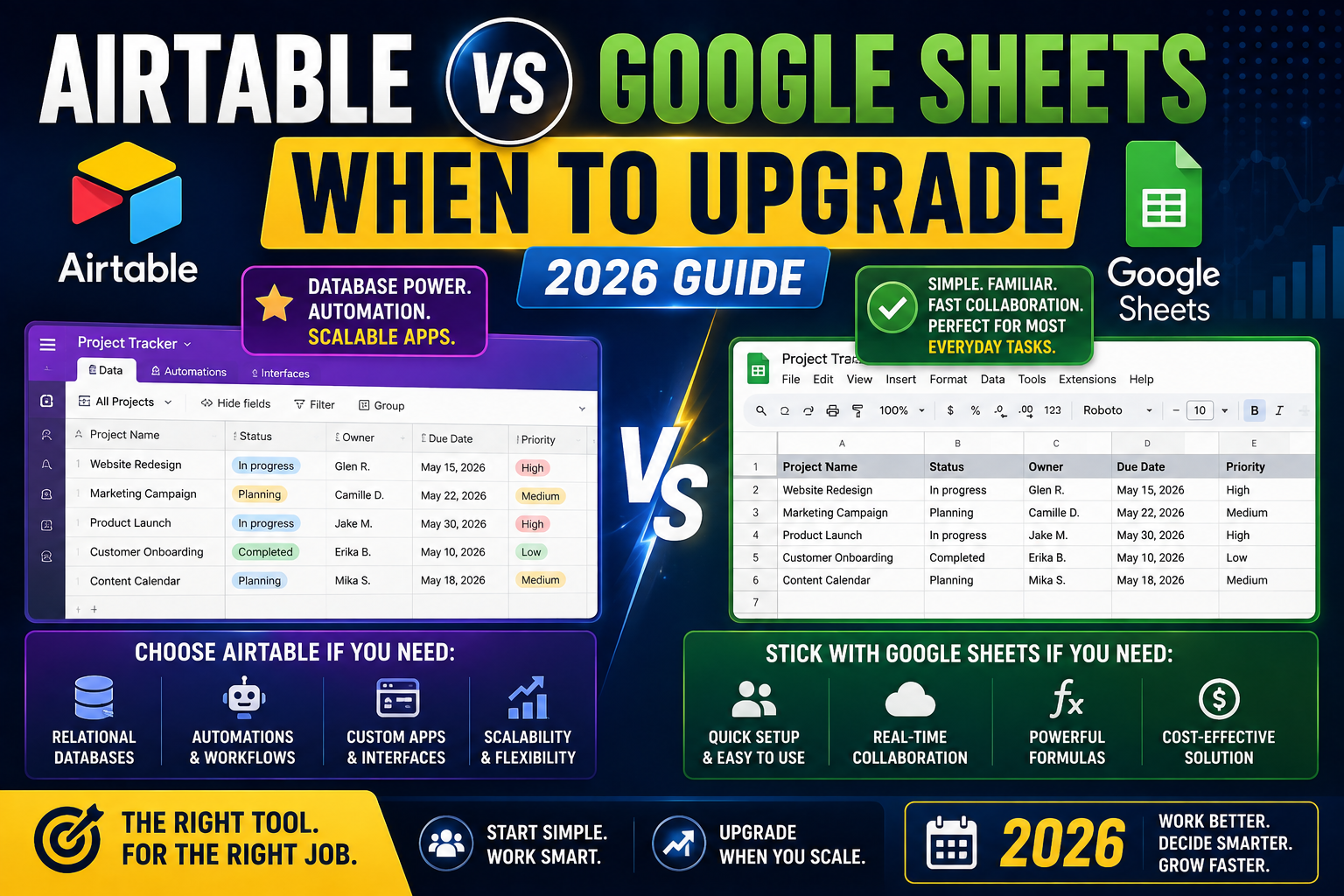
This guide helps you figure out which side of the line your specific work falls on. When Google Sheets is genuinely enough, and when the switch to Airtable pays for itself in productivity gained.
Quick verdict
- Stick with Google Sheets if: You have under 5,000 rows per sheet, your data is mostly numbers and short text, you rarely link records across sheets, and your team is comfortable with spreadsheet formulas.
- Upgrade to Airtable if: You have 5,000+ rows and it is starting to lag, you find yourself using VLOOKUP or QUERY constantly to link data, you need multiple views (gallery, kanban, calendar) of the same data, or you want non-technical team members to update the data without breaking formulas.
Where Google Sheets shines (do not switch)
Google Sheets is genuinely great at:
- Ad-hoc calculations. Quick math, budget rollups, expense tracking, invoice totaling.
- Simple lists. Contact lists, task lists, meeting notes, anything that fits in a 2D grid.
- Free access. Every Google account gets Sheets free with 15 GB shared Drive storage.
- Ubiquitous integration. Every SaaS tool exports to Google Sheets. Zapier and Make have thousands of Sheets automations.
- Real-time collaboration. Multiple people editing the same sheet at once, seeing cursors in real time.
- Formulas that data analysts already know. SUMIF, VLOOKUP, QUERY, ARRAYFORMULA all work the same as Excel plus some Google-specific extensions.
If your work primarily lives in these zones, Sheets is the right tool. Do not overthink it.
Where Airtable pulls ahead
Airtable is fundamentally different because each column has a strict data type (single line text, long text, number, date, attachment, single select, multi-select, linked record, formula, etc.). This unlocks:
- Relational data. Link a “Projects” base to a “Clients” base with real foreign keys, not manual VLOOKUP formulas that break when someone sorts the data.
- Multiple views of the same data. Grid view, kanban board grouped by status, calendar view grouped by due date, gallery view for image-heavy records, timeline view for gantt charts, all from the same underlying table.
- Non-technical team members can safely edit. Because column types are enforced, you cannot accidentally paste text into a number column and break a formula downstream.
- Attachments as first-class data. Upload images, PDFs, and files directly to a cell. Sheets requires links to Drive files (indirect and clunky).
- Automations built in. Send a Slack message when a status changes, create Google Calendar events from due dates, email a client when a project moves to “Complete”. Airtable Automations replace Zapier for many workflows.
- Forms that write directly to your base. Client intake forms, employee onboarding forms, expense submissions, all flow into structured data without you copying manually.
The concrete “you should switch” signals
These 6 signals tell you your work has outgrown Google Sheets:
- Your main sheet is 5,000+ rows and starting to lag when scrolling or filtering. Sheets handles up to 10 million cells but slows noticeably past 5,000 rows with formulas.
- You use VLOOKUP or QUERY in more than 3 places to pull related data across sheets. Every VLOOKUP is a fragile link that breaks when someone deletes a source row.
- You have created “views” of the same data by making copies or filtered ranges. You are recreating what Airtable’s views feature does natively.
- Non-technical team members frequently break formulas by pasting incorrectly or overwriting cells. Airtable prevents this with typed columns.
- You are keeping images or PDFs in a separate Google Drive folder and linking them from Sheets. Airtable stores attachments in the record itself.
- You have 3+ Zapier automations reading from or writing to the same sheet. Airtable Automations does most of this natively at USD 20/user/month vs Zapier’s per-task pricing.
Hit 2 or more of these signals and Airtable pays for itself within a month.
Real-world Filipino team use cases
Editorial calendars for content teams: Google Sheets works for under 100 articles per month. Airtable wins past that because you can view the same content as list (planning), kanban (writers workflow), calendar (publish dates), and gallery (thumbnails). Same records, four different mental models depending on task.
Client project tracking for agencies: Google Sheets breaks when you need to link clients to projects to invoices to team member assignments. Airtable’s linked records make this trivial. For agencies over 10 clients, Airtable is materially better.
Freelance invoice tracking: Google Sheets is fine. A simple sheet with invoice number, client, amount, status, and payment date is what most solo freelancers need. Do not overbuild.
Inventory management for small e-commerce: Airtable wins even at small scale because product photos, variants, SKUs, and supplier links are structured data. Sheets forces you to invent conventions that break.
Applicant tracking for hiring: Airtable’s kanban view for interview stages plus attachment-per-applicant for resumes is a killer feature. Google Sheets requires messy formula work to approximate this.
Personal budget tracking: Google Sheets is perfect. Do not spend USD 20/month for Airtable to track your personal expenses.
Feature comparison head-to-head
| Feature | Google Sheets | Airtable |
|---|---|---|
| Free tier row limit | 10 million cells (roughly 500K rows at 20 cols) | 1,000 records per base |
| Paid tier row limit | Same 10M cells | 50,000 records (Team USD 20) |
| Real-time collaboration | Excellent | Good (slight lag on large bases) |
| Formulas | Spreadsheet formulas (500+ functions) | Formula field (subset of spreadsheet functions) |
| Linked records (relational) | Manual via VLOOKUP | Native, drag to link |
| Multiple views of same data | No (make copies) | Yes (grid, kanban, calendar, gallery, timeline) |
| Attachments in cells | Links to Drive files | Native attachments up to 5 GB per record |
| Forms that write to data | Google Forms (separate tool) | Airtable Forms (built in, no separate tool) |
| Automation built in | Google Apps Script (requires code) | Airtable Automations (no code) |
| API access | Google Sheets API | Airtable REST API (better designed) |
Pricing for a 5-person Filipino team
Google Sheets: Included free with any Google account. Or Google Workspace Business Standard at USD 14/user/month for 2 TB storage + custom domain email. For 5 users on Workspace: USD 70/month.
Airtable Team: USD 20/user/month, annual billing. For 5 users: USD 100/month.
Airtable Free tier: Up to 5 users, 1,000 records per base, unlimited bases. Fine for small teams testing whether Airtable fits.
The USD 30/month difference (Airtable Team vs Google Workspace) buys you the relational database features. If those features save your team 2 hours per week combined, it pays for itself.
Migration path if you decide to switch
Airtable has a Google Sheets import feature that reads your existing Sheet and creates an Airtable base with best-guess column types:
- In Airtable, click “Add a base” then “Quick start” then “Import Google Sheets”.
- Authorize with your Google account.
- Pick your source Sheet and tab.
- Airtable creates a base with columns matching your headers.
- Review column types and adjust (change “Text” to “Date” where appropriate, change “Text” to “Single select” for status columns, etc.).
Migration for a typical sheet under 5,000 rows takes 15-30 minutes including cleanup. Large sheets (25,000+ rows) benefit from cleaning the source data in Google Sheets first before importing.
When you might use both together
Many teams end up using both. Common pattern:
- Airtable as the structured source of truth for client info, project data, editorial calendar, inventory, etc.
- Google Sheets for ad-hoc analysis and quick calculations you do not want cluttering your Airtable base.
- Exports from Airtable to Sheets when you need to share a snapshot with clients who do not want to log into Airtable.
This is a healthy setup, not a sign you cannot commit to one tool.
Bottom line
Google Sheets is the correct default for most Filipino teams and freelancers. Free, universal, familiar. Do not pay for Airtable until you have concrete pain points that Airtable solves.
When you hit 2+ of the 6 upgrade signals in this guide (5,000+ rows, heavy VLOOKUP usage, multiple views needed, non-tech members breaking formulas, files scattered across Drive, growing Zapier bill), Airtable Team at USD 20/user/month becomes worth it fast.
We hope this comparison helps you decide with clarity instead of switching for the wrong reason. Feel free to comment below if you want to discuss your specific use case, or reach out via our contact page.
Official documentation
Try Airtable or Google Workspace (affiliate)
Some links below are affiliate links. We may earn a commission at no extra cost to you. See our affiliate disclosure.
- Airtable, best for relational team data past 5,000 rows
- Google Workspace, includes Sheets plus custom domain email at USD 14/user/month
- Notion, another database alternative worth considering
Frequently asked questions
Is Airtable’s free tier enough for a small team?
For under 5 users and small datasets (under 1,000 records per base), yes. Airtable Free lets you build unlimited bases as long as each base stays under 1,000 records and total users stay under 5. This is fine for testing whether Airtable fits your workflow. Upgrade to Team (USD 20/user/month) when you outgrow either limit.
Can Airtable replace Google Sheets entirely?
Mostly yes for structured data work, but no for ad-hoc calculations. Airtable’s formula language is a subset of what Sheets offers. For heavy financial modeling, statistical analysis, or complex nested formulas, Google Sheets remains stronger. Most teams end up using both: Airtable for their structured source of truth, Sheets for ad-hoc calculations and client-facing exports.
Which is easier to learn for non-technical team members?
Airtable, by a meaningful margin. Airtable’s typed columns prevent the “someone pasted text in a number column and broke everything” problem that Google Sheets always has. Non-technical team members can safely add, edit, and view data in Airtable with almost no risk of breaking downstream formulas. Google Sheets requires more discipline and formula literacy.
Does Airtable work offline?
Limited. Airtable’s mobile app offers read-only offline access to recently viewed bases, but editing requires a connection. Google Sheets offers full offline read AND write via Chrome’s offline mode. If your team frequently works with unstable internet (fieldwork, travel), Google Sheets has an edge on offline reliability.
Can I connect Airtable to my Google Calendar?
Yes. Airtable Automations can create Google Calendar events from records with due dates. There is also a two-way sync option via the Airtable Marketplace. For example, an editorial calendar in Airtable can automatically populate your team’s Google Calendar as publish dates approach. This is one of the strongest workflow integrations Airtable offers.
What is the biggest downside of Airtable that Sheets does not have?
Cost past small teams. Airtable Team at USD 20/user/month scales linearly, so a 20-person agency pays USD 400/month vs Google Workspace at USD 280/month. Also: Airtable’s formula language is less powerful than Excel/Sheets for advanced financial and statistical work. And Airtable’s mobile experience is decent but not as polished as Google Sheets on iOS or Android.

Caren Bautista
Technical Writer at PIES IT Solution
Responsible for crafting clear, well-structured, and beginner-friendly content across the platform. Handles the writing, proofreading, and editorial review of tutorials, guides, and documentation to ensure every article is accurate, readable, and easy to follow.
Expertise: Technical Writing · Content Creation · Documentation · Editorial Writing · JavaScript · TypeScript · Python · Python Errors · HTTP Errors · MS Excel · View all posts by Caren Bautista →