
If your capstone runs locally on your laptop but breaks when you copy it to the panel’s machine, you need Docker. This guide gets you from “never used Docker” to “my capstone runs anywhere in one command” in 30 minutes. Specifically tailored for BSIT students with PHP/Python/Node capstone backends.
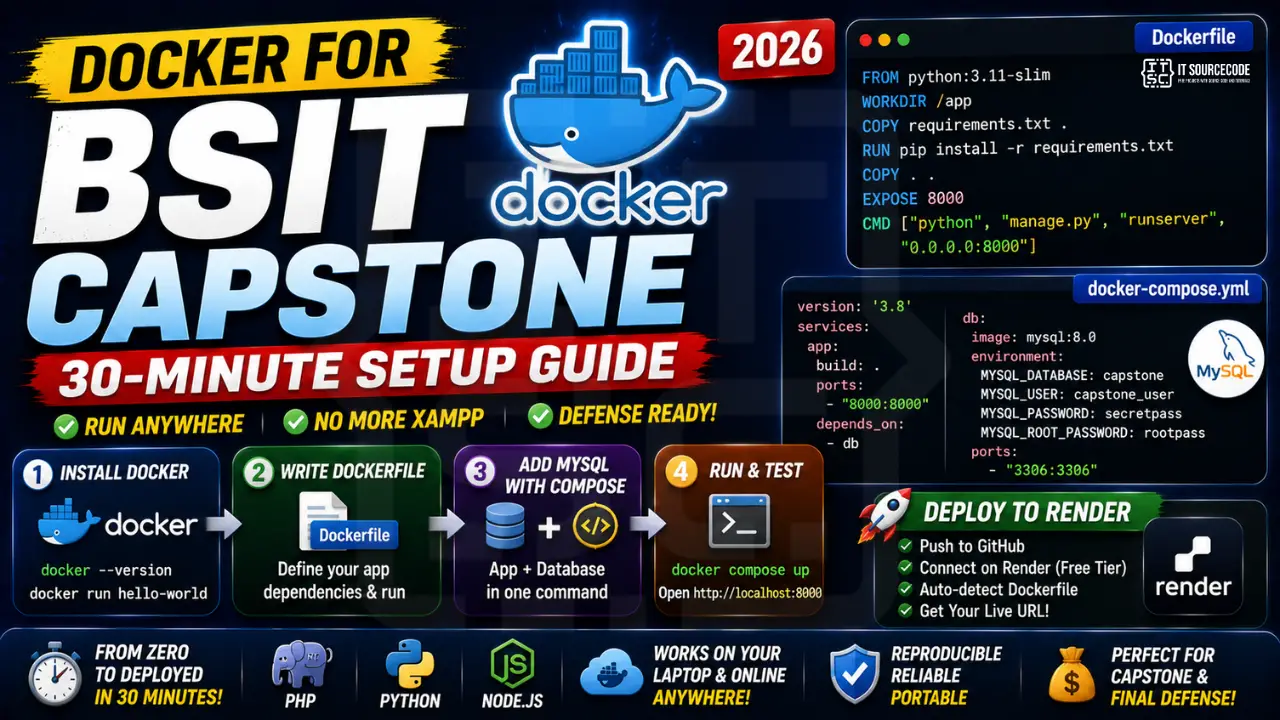
📌 What you’ll have at the end: A Dockerfile + docker-compose.yml that lets anyone run your capstone with one command: docker compose up. Plus deploy-to-Render-free-tier in 5 extra minutes. No more “doesn’t work on my machine” excuses at defense.
Minute 0-5: Install Docker Desktop
Download Docker Desktop from docker.com/products/docker-desktop. Available for Windows, Mac, Linux. ~500MB install. Sign in with a free Docker Hub account.
Verify install:
docker --version
docker run hello-world
Minute 5-15: Write a Dockerfile for Your Capstone
The Dockerfile is a recipe: “start from base image, copy my code, install dependencies, run my app.” Examples for the 3 most common BSIT stacks:
Laravel / PHP:
FROM php:8.2-apache
RUN docker-php-ext-install pdo_mysql
COPY . /var/www/html/
WORKDIR /var/www/html
RUN composer install
EXPOSE 80
Django / Python:
FROM python:3.11-slim
WORKDIR /app
COPY requirements.txt .
RUN pip install -r requirements.txt
COPY . .
EXPOSE 8000
CMD ["python", "manage.py", "runserver", "0.0.0.0:8000"]
Node.js / Express:
FROM node:20-alpine
WORKDIR /app
COPY package*.json ./
RUN npm ci
COPY . .
EXPOSE 3000
CMD ["node", "server.js"]
Minute 15-25: Add MySQL with docker-compose.yml
Most capstones need a database. docker-compose runs your app AND a database together with one command.
version: '3.8'
services:
  app:
    build: .
    ports:
      - "8000:8000"
    environment:
      DB_HOST: db
      DB_NAME: capstone
      DB_USER: capstone_user
      DB_PASS: secretpass
    depends_on:
      - db
  db:
    image: mysql:8.0
    environment:
      MYSQL_DATABASE: capstone
      MYSQL_USER: capstone_user
      MYSQL_PASSWORD: secretpass
      MYSQL_ROOT_PASSWORD: rootpass
    volumes:
      - dbdata:/var/lib/mysql
    ports:
      - "3306:3306"
volumes:
  dbdata:
Run everything:
docker compose up --buildOpen http://localhost:8000. Your app + MySQL are running. To stop: Ctrl+C, then docker compose down.
Minute 25-30: Deploy to Render (Free Tier)
Render.com offers free Docker hosting (with auto-sleep after 15 min idle). Perfect for capstone demos.
- Sign up at render.com (free, no credit card)
- Push your code + Dockerfile to a GitHub repo
- In Render: New + Web Service + Connect Repo
- Render auto-detects your Dockerfile
- Add environment variables (DB_HOST, etc.)
- Add a free PostgreSQL database (Render provides; switch your code from MySQL to PostgreSQL OR pay $7/mo for Render MySQL)
- Deploy. Get a public URL like https://my-capstone.onrender.com
Now your defense panel can access your app from anywhere. No “let me set up XAMPP first.”
Common Capstone Docker Issues
- “Cannot connect to MySQL”, in your app config, set DB_HOST to “db” (the service name in docker-compose), not “localhost” or “127.0.0.1”
- “Permission denied” on Laravel storage, add
RUN chown -R www-data:www-data storagein Dockerfile - “Module not found” on Django, run
docker compose build --no-cacheto rebuild after adding to requirements.txt - Database empty on first run, normal; run migrations inside the container:
docker compose exec app python manage.py migrate(Django) ordocker compose exec app php artisan migrate(Laravel)
Related Guides
- Best Free Hosting for Capstone Projects
- DevOps Engineer Salary + Roadmap PH
- Laravel Projects (with Docker examples)
- Django Projects (with Docker examples)
Common Docker mistakes to avoid
- Skipping the “why” before adopting a new tool. Modern Python tools (uv, Ruff, Polars) are fast and clean. But adopting them without understanding what problem they solve wastes time. Read the tool’s motivation section first.
- Migrating everything at once. Legacy code bases have too many surprises. Migrate one module at a time and test after each step.
- Ignoring backwards compatibility. New Python tools sometimes break with older Python versions. Verify your target Python version supports the tool before committing.
- Trusting benchmarks blindly. “10x faster than X” often means “10x faster for one specific workload”. Test with YOUR data before assuming the benchmark generalizes.
- Not reading the CHANGELOG. Every dependency upgrade may break something. Skimming the changelog for breaking changes takes 2 minutes and saves hours.
Adoption path for Docker
- Read official docs cover-to-cover for the core concepts. Yes, cover-to-cover.
- Complete the official tutorial project. Follow along exactly, no shortcuts.
- Adapt one small piece of your existing project to the new tool. Ship it.
- If it survives 2 weeks in production, expand adoption.
- If it caused issues, rollback and reassess whether the tool fits your use case.
When to use vs when to stick with what you know
Modern Python tools offer real improvements over their predecessors, but “better” is not the same as “necessary for you.” Consider adopting when:
- Your current tool is slow enough to block productivity (uv/Ruff speedups matter here).
- You are starting a new project with no legacy constraints.
- Your team has bandwidth to learn and support the new tool.
- The tool has been stable and community-adopted for 12+ months.
Stick with your existing tools when: production stability is critical and you have working infrastructure; your team is small and cannot afford learning curves; the tool is early-stage and API may change.
Ecosystem integration considerations
Every new Python tool interacts with the broader ecosystem. Before committing, check:
- Does your CI/CD pipeline support it? Most tools have GitHub Actions and GitLab CI templates.
- Does your IDE support it? VS Code and PyCharm have first-class support for most modern tools. Older editors may lag.
- Do dependency scanners (Snyk, Dependabot) recognize it? Ensures security updates get flagged.
- Is there production monitoring integration? Datadog, Sentry, New Relic support matters for production.
For teams shipping production Python code, the ecosystem answer is often more important than the tool answer. A slightly-worse tool that plays well with your stack beats a slightly-better tool that fights it.
Best practices summary
- Read the docs before Stack Overflow. Official docs are cleaner and more accurate than forum answers.
- Pin versions in production. Locked dependencies prevent surprise breakage. Update deliberately, not accidentally.
- Test after every dependency upgrade. Run the full test suite. Catch regressions before deployment.
- Contribute back. Report bugs, submit fixes, write tutorials. The tools improve when users engage.
- Reassess yearly. The Python ecosystem moves fast. What was best last year may be second-best today.
Docker for BSIT capstone development
Docker containerizes your capstone project so it runs identically on any machine. No more “works on my laptop” surprises during defense.
- Write a Dockerfile for your app. Specifies the base image, dependencies, and startup command. One file, reproducible builds.
- Use docker-compose for multi-service projects. Web + database + cache in one command: docker-compose up.
- Volume mounts for development. Edit code on your host machine; changes reflect immediately in the container.
- Environment variables for configuration. Database URLs, API keys, and secrets stay out of your code.
- Ship your container to the defense. Panel members run one command and see your app. No environment setup drama.
Common Docker mistakes for beginners
- Building too-large images. Use slim base images (python:3.11-slim, node:20-alpine). Multi-stage builds strip build tools from final images.
- Ignoring .dockerignore. Without it, Docker copies your entire local directory into the image, including node_modules and .git.
- Running as root. Create a non-root user in your Dockerfile. Improves security.
- Not pinning versions. “python:latest” produces different images over time. Pin to python:3.11.5-slim for reproducibility.
- Committing secrets. Never bake API keys or passwords into images. Use environment variables or secret managers.
Docker deployment paths
Once your project runs in a container, several deployment options open up:
- Fly.io: dead simple, free tier for small projects, Docker-native.
- Railway: friendly UI, one-click deploys from Git.
- Render: similar to Railway, free tier available.
- DigitalOcean App Platform: reliable for production, slightly more setup.
- AWS ECS/Fargate: enterprise-grade, complex, expensive for small projects.
For BSIT capstone projects, Fly.io or Railway are perfect. Free tier handles demo traffic; production infrastructure exists if the project scales.
Official documentation

Angel Jude Suarez
Full-Stack Developer at PIES IT Solution
Focuses on Python development, machine learning, and AI integration. Has built production AI systems including OpenAI Whisper integration for medical transcription and GPT-4o-powered diagnosis assistance. Strong background in pandas, scikit-learn, and TensorFlow.
Expertise: Python · PHP · Java · VB.NET · ASP.NET · Machine Learning · View all posts by Angel Jude Suarez →