
![Modulenotfounderror no module named 'wtforms.compat' [Fixed]](https://itsourcecode.com/wp-content/uploads/2023/02/Modulenotfounderror-no-module-named-wtforms.compat-Fixed.png)
In this tutorial, we’ll show you how to fix the ModuleNotFoundError: No module named ‘wtforms.compat error in Python, step by step.
We’ll cover installing the wtforms package, upgrading pip, and adding this module to current directory.
Let’s get started and define what is ModuleNotFoundError: No module named ‘wtforms.compat error.
What is ModuleNotFoundError: No module named ‘wtforms.compat ?
The ModuleNotFoundError: No module named ‘wtforms.compat is an error message that Python developers may encounter when trying to run a script or program that requires the “wtforms.compat” module.
The error message implies that Python cannot find the required module and therefore cannot execute the program.
Causes of ModuleNotFoundError: No module named wtforms.compat
The most common cause of ModuleNotFoundError: No module named ‘wtforms.compat is that the module is not installed on the system.
When a Python program requires a module, it first checks if the module is installed on the system.
If the module is not found, Python raises the ModuleNotFoundError exception.
Another possible cause of this error is that the module is installed but not in the correct location.
Python searches for modules in specific locations, and if the module is not in one of these locations, Python cannot find it.
How to Fix Modulenotfounderror: no module named ‘wtforms.compat’ Error
Now that we have covered the causes of the error let’s move on to the solutions to fix the Modulenotfounderror: no module named ‘wtforms.compat’ error.
- Install the ‘wtforms.compat’ Module
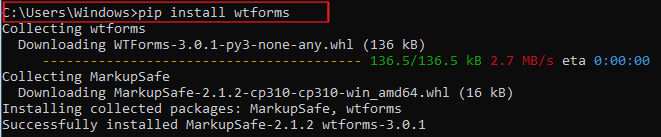
The first solution is to install the ‘wtforms.compat’ module if it is not already installed.
You can do this by running the following command in your terminal:
pip install wtforms
This command will install the ‘wtforms’ module, which includes the ‘wtforms.compat’ module.
- Use the Correct Module Name
Make sure that you are using the correct spelling and capitalization.
If you are using the wrong module name, then you need to update it.
- Add Module to Current Directory
This time if the wtforms.compat module is installed but still cannot be found.
It may not be in the current directory.
To add it to the current directory, follow these steps:
1. Open the terminal or command prompt and navigate to the directory where your Python file is located.
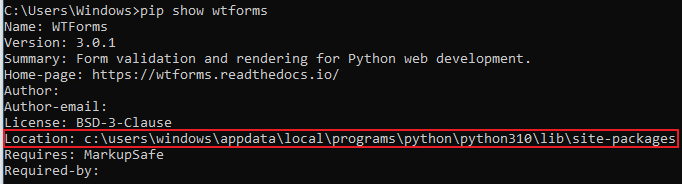
2. Type the following command:

This command will display the location of the wtforms package. Make a note of the location.
3. Create a new file in your Python project directory named .pth, with the following contents:

Take note:
—Replace “<path to wtforms package>” with the location of the wtforms package that you noted in step 2.
—Then substitute “<version>” with the version of wtforms that you have installed, and “<version>” with the version of Python that you are using. - Upgrade pip:
Sometimes, the ‘wtforms.compat’ module may be installed, but it may be outdated. In this case, you need to upgrade pip by running the following command in your terminal:
pip install –upgrade pip
After upgrading pip, you can install the ‘wtforms.compat’ module using the following command:pip install wtforms
This will install the latest version of the ‘wtforms’ module, which includes the ‘wtforms.compat’ module.


Conclusion
In summary, the Modulenotfounderror: no module named ‘wtforms.compat’ error is one of the errors Python developers encountered, despite that it is not a difficult error to fix.
In this tutorial, we have discussed the causes of the error and provided some solutions to fix it.
If you are encountering this error, make sure to follow the steps mentioned above to resolve it quickly and get back to coding.
That’s it we have provided solutions for fixing this error. However, if you follow the steps and encounter any further errors, feel free to ask for more help!
If you are finding solutions to some errors you’re encountering we also have Modulenotfounderror: no module named ‘crispy_forms’ and other error tutorials.
Diagnostic checklist for “No module named ‘wtforms'”
- Verify pip install target. Run
pip show wtforms— if not installed, runpip install wtforms. - Check the active Python interpreter.
which python(mac/Linux) orwhere python(Windows). Both pip and python must point to the same environment. - Check virtual environment activation. If you use venv/conda, activate before installing:
source .venv/bin/activate. - Rule out uppercase/lowercase. Python imports are case-sensitive:
import PyPDF2notimport pypdf2. - Rule out the pip-vs-package-name mismatch. Some packages install under a different name than you import (e.g.
pip install beautifulsoup4→import bs4).
Installing wtforms
# Standard pip install
pip install wtforms

# In a virtual environment (recommended)
python -m venv .venv
source .venv/bin/activate  # or .venv\Scripts\activate on Windows
pip install wtforms

# With uv (faster alternative)
uv pip install wtforms
Common causes for “No module named ‘wtforms'”
- Python interpreter mismatch. Multiple Python installations can confuse pip. Verify with
which pythonandwhich pip. - Virtual environment not activated. If the venv isn’t activated, pip installs to your system Python instead.
- Notebook kernel mismatch. Jupyter uses a kernel that may differ from your terminal Python. Use
%pip install wtformsinside the notebook. - Import name differs from install name. pip install beautifulsoup4 → import bs4. Check the package’s PyPI page.
- Windows PATH issues. Ensure Python is on PATH; use
python -m pip installto invoke pip via the correct Python.
Working code example
# Verify install worked
import wtforms
print(getattr(wtforms, '__version__', 'no version attribute'))
Best practices
- Always use a virtual environment. Avoids most module-not-found errors.
- Use pip freeze to lock versions.
pip freeze > requirements.txtmakes your setup reproducible. - Consider uv or Poetry. Modern package managers with better dep resolution and reproducibility.
Official documentation
Frequently Asked Questions
What is Python ModuleNotFoundError and what causes it?
ModuleNotFoundError (a subclass of ImportError) is raised when Python cannot find the module you tried to import. Common causes: the package isn’t installed (pip install missing), wrong virtual environment activated, typo in module name, or Python can’t find your local module on the import path. The error message names exactly which module is missing.
How do I fix ‘ModuleNotFoundError: No module named X’?
Run pip install X first. If that succeeds but you still get the error, check which Python you’re using (which python OR python –version) vs which pip (which pip OR pip –version), they must match. Common gotcha: pip points to system Python 3.9 but you’re running python3.11 in a venv. Inside the venv, use python -m pip install X to be sure pip matches the active Python.
Why does my code work in one environment but not another?
Different Python versions or different installed packages. To diagnose: pip freeze > requirements.txt on the working environment, then pip install -r requirements.txt on the broken one. Use virtualenv (python -m venv venv) or conda for every project to avoid system-wide package collisions.
Is ModuleNotFoundError the same as ImportError?
ModuleNotFoundError is a subclass of ImportError added in Python 3.6. It specifically means ‘no such module exists.’ Plain ImportError covers a wider set: module exists but a name inside it can’t be imported (e.g. ‘cannot import name X from Y’). except ImportError catches both; except ModuleNotFoundError catches only the missing-module case.
Where can I find more ModuleNotFoundError fixes?
Browse the ModuleNotFoundError reference hub for 198+ specific module fixes (TensorFlow, Flask, Django, pandas, numpy, etc.). For related issues see ImportError. For broader Python setup see Python Tutorial hub.

Glay Eliver
Programmer & Technical Writer at PIES IT Solution
Glay Eliver is a programmer and writer at PIES IT Solution, author of over 600 tutorials at itsourcecode.com. Specializes in JavaScript tutorials, Microsoft Office how-tos (Excel, Word, PowerPoint), and Python error debugging covering ImportError, TypeError, AttributeError, ModuleNotFoundError, and JavaScript ReferenceError. Authored several of the site’s highest-traffic Excel and MS Office reference articles.
Expertise: JavaScript · MS Excel · MS Word · MS PowerPoint · Python · Python ImportError · Python TypeError · Python AttributeError · ModuleNotFoundError · JavaScript ReferenceError · Pygame
· View all posts by Glay Eliver →