
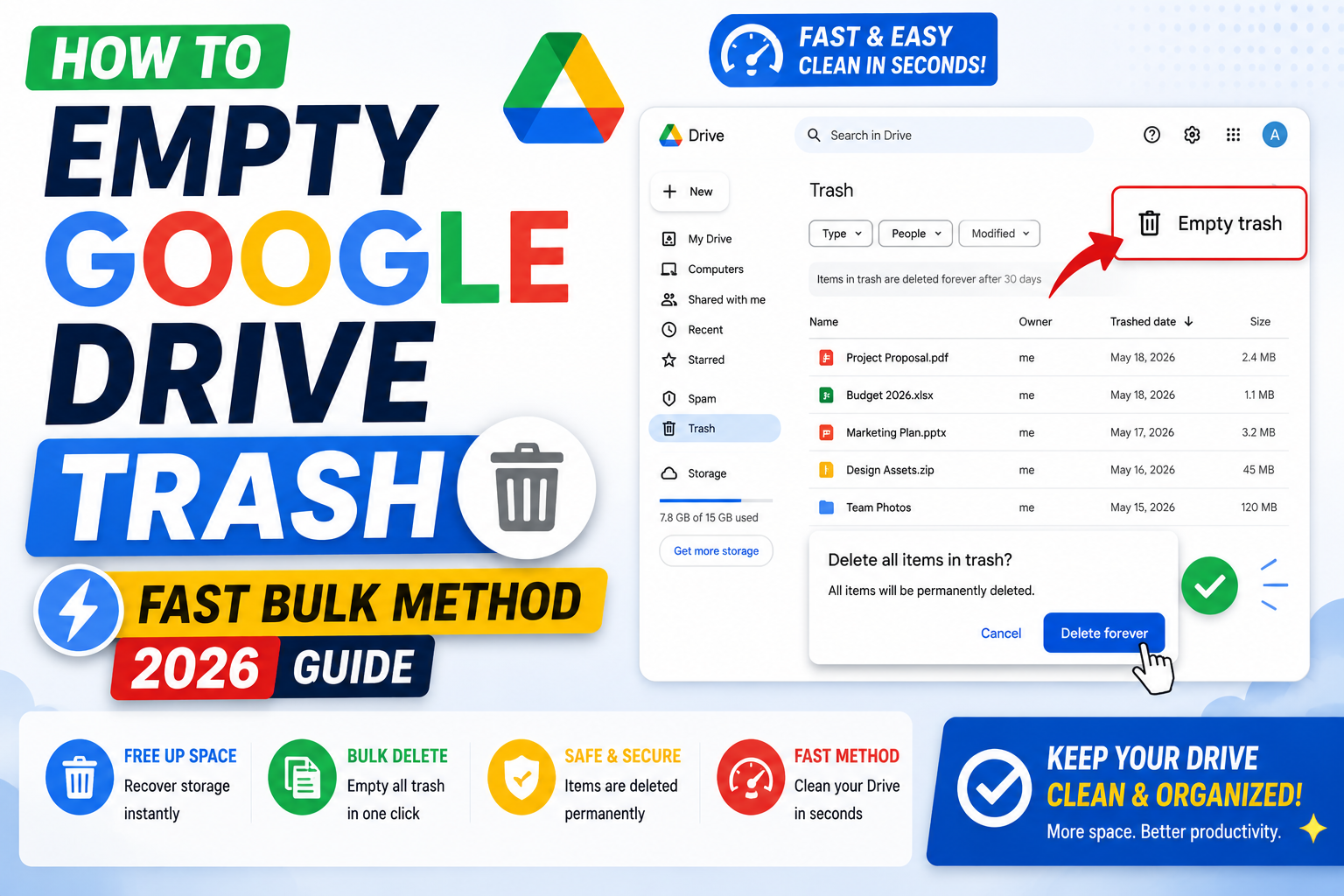
Quick step-by-step summary (click to expand)
- Open Google Drive. Go to drive.google.com.
- Click Trash in the sidebar. Left menu, at the bottom of the folders list.
- Review the contents. These are files that will be auto-deleted in 30 days.
- Click Empty trash. Top-right button (or the three-dot menu > Empty trash on some layouts).
- Confirm. A dialog warns that this is permanent. Click Delete forever.
- Storage frees up. Check Settings > Storage to confirm freed space.
- On mobile, tap menu > Bin. Then tap the three-dot menu and Empty bin.
Empty Google Drive Trash on desktop
- Open drive.google.com in a browser.
- In the left sidebar, click “Trash” (near the bottom of the folder list).
- You see every file and folder currently in Trash, sorted by deletion date.
- Click “Empty trash” at the top right.
- A confirmation dialog appears: “All items in Trash will be deleted forever”. Click “Delete forever”.
- The Trash empties instantly. Storage recovered depends on file sizes but shows up in Settings > Storage within a minute.
To delete individual items only (not everything), right-click a file or folder in Trash and choose “Delete forever”. Useful when you want to keep some in Trash for future restore.
Empty Trash on Google Drive mobile (Android and iPhone)
- Open the Google Drive app.
- Tap the menu icon (three lines) at the top left.
- Tap “Bin” (Android) or “Trash” (iPhone).
- You see all items currently in Trash.
- Tap the three-dot menu at the top-right.
- Tap “Empty bin” or “Empty trash”.
- Confirm to permanently delete all Trash contents.
Individual delete: tap and hold a file in Trash to select it, then tap the three-dot menu and choose Delete forever.
Understand the 30-day auto-delete rule
Google Drive automatically empties Trash 30 days after files were moved there. This means:
- Files stay in Trash for exactly 30 days from their deletion date.
- After 30 days, they are removed permanently. Cannot be restored.
- Manually emptying Trash speeds this up but does not change the underlying storage math.
- The counter starts from when you deleted the file, not from when it entered Trash from another action.
Most people never need to manually empty Trash. The auto-delete handles storage recovery on its own. Empty manually only when you need immediate storage recovery.
Restore a file before emptying Trash
If you realize you need a deleted file, restore it before emptying Trash:
- Open Google Drive > Trash.
- Right-click the file you want to restore.
- Click “Restore”.
- The file returns to its original folder location.
You can also select multiple files (Ctrl+click on desktop) and restore them all at once. If the original folder was also deleted, the file restores to your main My Drive folder.
Shared Drives have their own Trash
If you use Shared Drives (Google Workspace team storage), each Shared Drive has its own separate Trash:
- Open Google Drive.
- Click “Shared drives” in the sidebar.
- Open the specific Shared Drive.
- Click the three-dot menu at the top of the Shared Drive view.
- Click “Trash”.
- Empty it the same way as personal Trash.
Shared Drive trash follows a different retention: it holds items for 30 days, same as personal Trash. Only Shared Drive managers can empty the Shared Drive Trash. Contributors and viewers can restore but not permanently delete.
Check how much space is in your Trash
Before emptying, see how much you will recover:
- Open Google Drive.
- Click the gear icon at the top right > “Settings”.
- Look at the Storage section. It shows total used, and a breakdown by product (Drive, Gmail, Photos).
- Trash contributes to the Drive total. Sort your Trash by File size (in the Trash view) to see the biggest space-hogs.
For a really detailed view, visit one.google.com/storage. It has a “Free up space” tool that helps you find large files, including in Trash.
Google Photos and Gmail have their own trash too
Google Drive Trash only holds Drive files. Photos and Gmail have separate Trash bins:
- Google Photos Trash: photos.google.com > Menu > Trash. Auto-deletes after 60 days.
- Gmail Trash: mail.google.com > Trash label. Auto-deletes after 30 days.
Empty all three separately to fully recover storage across all Google services. Photos Trash is often the biggest one for people with lots of photos.
Common issues
- “Empty trash” button is grayed out. Trash is already empty. Refresh the page (Ctrl+F5) if items are visible but the button is disabled.
- Storage does not decrease after emptying. Google’s storage counter updates within 5 minutes typically. If it still shows the old number after an hour, log out and back in.
- Cannot empty Shared Drive trash. You are not a Shared Drive manager. Only managers can permanently delete. Ask your admin.
- Some files in Trash have “Cannot delete” errors. They may be linked from another location (like a shared document that also lives in your view). Break the link first or ask the original owner to delete.
- Empty trash but storage still full. Photos and Gmail Trash also count. Empty those too.
Best practice: quarterly cleanup
Instead of emptying Trash reactively when storage is full, set a quarterly reminder:
- Check Trash contents on the first of each quarter.
- Restore anything you actually want.
- Empty the rest.
Combined with quarterly cleanup of your main Drive (deleting old projects, huge downloads, etc.), this keeps your Google storage healthy without a crisis. If you have Google One paid storage, this discipline delays the need to upgrade tiers.
Official documentation
Frequently asked questions
How long do files stay in Google Drive Trash?
30 days from when you deleted them. After that, Google automatically permanently deletes them. Manually emptying Trash speeds up storage recovery but does not change the 30-day retention window for individual files.
Can I recover files after the 30-day Trash auto-delete?
Personal Gmail/Drive users: no. After auto-delete, files are permanently gone. Google Workspace admins can restore files for their users within 25 additional days after Trash expiration (up to 55 days total from deletion). Ask your admin.
Does emptying Trash speed up Google Drive?
Very slightly. Google Drive performance is mostly limited by your internet connection and file counts in your active folders, not by Trash contents. Emptying Trash helps if you are near your storage quota, but does not noticeably speed up Drive operations.
Why do items in Trash still count toward my storage?
Google counts Trash items as taking storage space because they can still be restored. Only after items are permanently deleted (via manual Empty Trash or 30-day auto-delete) does that space free up. This is standard behavior across all cloud storage services.
Can I set a shorter auto-delete for Trash?
Personal accounts: no, the 30 days is fixed. Google Workspace admins can adjust the Trash retention for users under Admin console > Apps > Google Workspace > Drive and Docs. But shortening below 30 days requires care because accidental deletion recovery becomes harder.
Does emptying Trash on my phone empty it everywhere?
Yes. Google Drive Trash is a single global bin per account, synced across all devices. Emptying on your phone empties for desktop and web too. Restore operations also sync.