
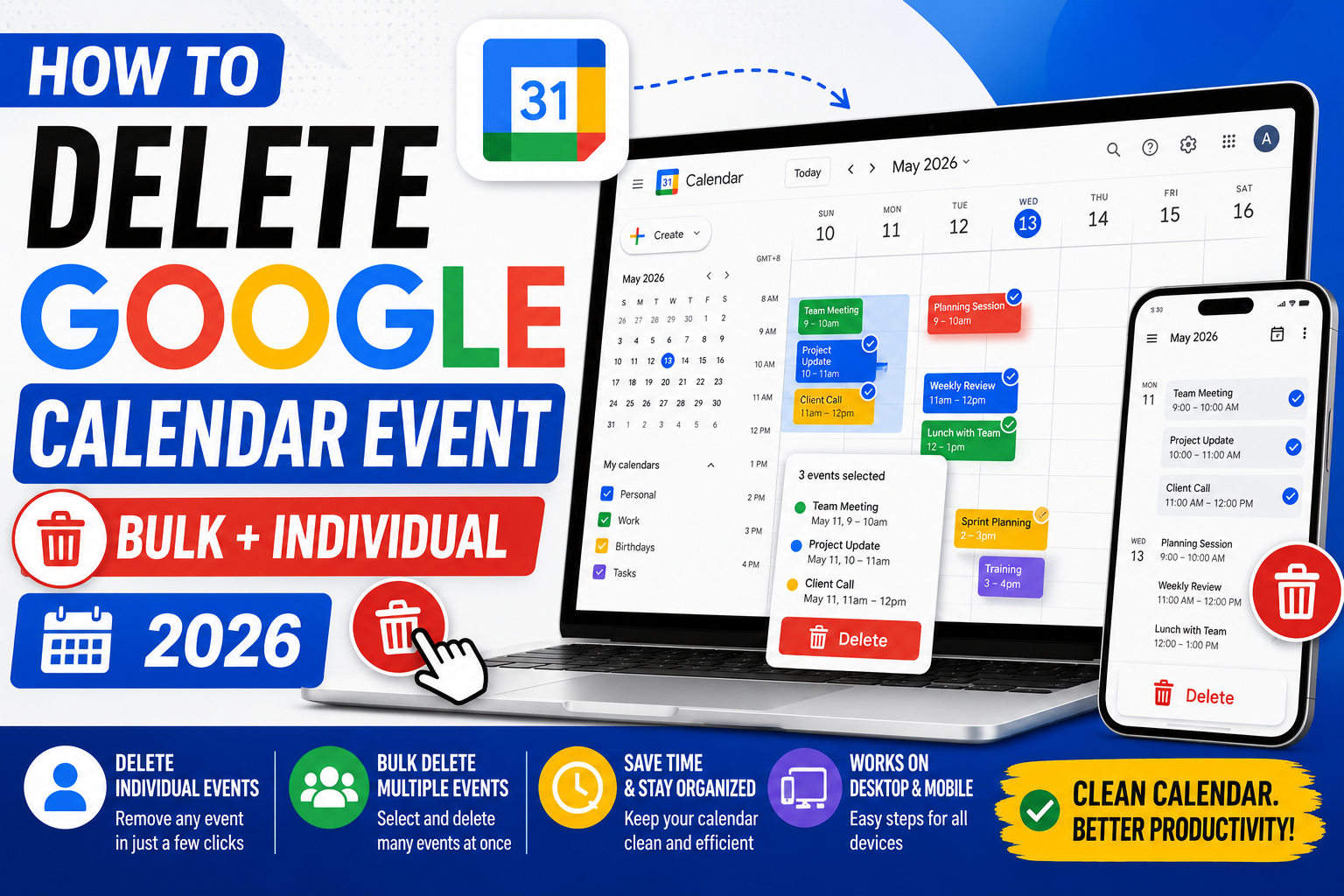
Quick step-by-step summary (click to expand)
- Open Google Calendar. Go to calendar.google.com or open the mobile app.
- Click the event. A popup or side panel opens with event details.
- Click the trash icon. Top of the event details.
- Confirm deletion. For recurring events, choose “This event”, “This and following events”, or “All events”.
- Notify guests. If the event had attendees, click “Send” to notify them or “Don’t send” to skip.
- Event is deleted. It moves to Trash and can be restored within 30 days.
Delete a single event on Google Calendar Web
- Open calendar.google.com.
- Navigate to the day, week, or month view containing the event.
- Click the event to open its details popup.
- Click the trash icon at the top of the popup.
- If the event had guests, Google asks: “Send email updates to guests?” Choose Send, Don’t Send, or Cancel.
- The event disappears from your calendar and moves to Trash.
Delete a recurring event
Recurring events (weekly team meeting, monthly review, etc.) have three deletion scopes:
- Click the recurring event.
- Click the trash icon.
- A dialog asks which occurrences to delete:
- This event: Only the specific instance you clicked (e.g., delete just this Friday’s meeting, keep future ones).
- This and following events: The clicked instance and all future occurrences (e.g., cancel the meeting from now on but keep past ones for history).
- All events: Every occurrence past, present, and future.
- Choose the appropriate scope and click OK.
- Confirm guest notifications if the event had attendees.
Pick “This and following” for canceling a series going forward without wiping the history. Pick “All events” only if you never want the meeting to appear again anywhere.
Delete an event on Google Calendar mobile (Android and iPhone)
- Open the Google Calendar app.
- Tap the event to open the details view.
- Tap the trash icon at the top (or the three-dot menu on some versions, then “Delete”).
- For recurring events, pick the scope (This event, This and following, or All).
- If prompted about guest notifications, choose Send or Don’t Send.
Delete multiple events at once (bulk cleanup)
Google Calendar does not have a native bulk-delete feature. To clean up many events:
- Delete by search query: Use the search bar in Google Calendar to find events by keyword (like “old team standup”). Click each result and delete individually. Slow but native.
- Delete an entire calendar: If the events are all on one calendar (like “Old Project X”), delete or unsubscribe from that calendar in Settings. Every event on that calendar disappears from your view.
- Google Apps Script for bulk delete: If you have hundreds of events matching a pattern, use a Google Apps Script that iterates through events and deletes matches. Sample script available in Google’s documentation.
- Third-party tool: Extensions like “Multiple Events Deletion for Google Calendar” (Chrome) can filter and bulk-delete events based on rules.
Cancel vs delete: what’s the difference?
Deleting removes the event entirely. “Canceling” an event (only relevant for events with guests) is essentially the same thing but signals guests that the event was called off. In practice:
- Both actions remove the event from your calendar and (if you choose to notify) send an email to guests.
- Guests see “Event cancelled” or the event vanishes from their calendars.
- To be polite, always send the cancellation notification for events with attendees.
- To silently remove an event without notifying guests (rare, usually unprofessional), choose “Don’t send” in the confirmation dialog.
Restore a deleted event
Google Calendar keeps deleted events in Trash for 30 days:
- Open Google Calendar on desktop.
- Click the gear icon at the top right > “Trash”.
- Find the event you want to restore.
- Click the restore icon (arrow) or select the event and click “Restore”.
- The event returns to your calendar with all original details.
After 30 days, deletion is permanent. There is no way to recover events beyond that window through the Google Calendar interface. If your organization uses Google Workspace, admins can sometimes restore events from server backups within 25 days.
Delete events others created (guest can’t delete)
You cannot delete an event you were invited to but did not create. Options:
- Decline the event: Click the event, then choose “No” (declining). It moves to your declined events list but does not delete from the organizer’s calendar.
- Remove from your view: Click the event > three-dot menu > “Remove from calendar”. This removes it from your view but does not notify the organizer.
- Ask the organizer to cancel: Only they can truly delete the event.
Common issues
- Trash icon is missing. The event was created by someone else. You cannot delete it, only decline or remove from your view.
- Event keeps re-appearing. The event is on a calendar synced from another account (like your work calendar synced to your personal Google account). Unsubscribe from that calendar or unlink the sync.
- Recurring event partial-delete doesn’t work as expected. “This and following” deletes from the CLICKED instance forward. If you click on today’s occurrence, deletion starts from today. Pick a specific date to control the exact cutoff.
- Guests still receive event reminders after cancellation. They may have added the event to their own calendar as a copy. Ask them to delete it manually on their side.
- Delete option grayed out. Your organization’s Google Workspace admin may have restricted deletion for compliance. Contact your admin.
Clean up old past events (10,000+ events)
If your calendar has years of accumulated events, the “delete individually” approach is impractical. Options:
- Create a new calendar named “Active”.
- Import upcoming events (or manually add them) to the new calendar.
- Hide the old calendar (do not delete, just uncheck it in the sidebar).
- Optionally, export the old calendar to an .ics file for archive, then delete the calendar entirely.
This is faster than deleting event-by-event and preserves history if you ever need it later.
Official documentation
Frequently asked questions
Can I delete an event without notifying attendees?
Yes. When you delete an event with guests, Google Calendar asks if you want to send an update. Click Don’t Send to delete silently. The event vanishes from your calendar but guests keep it on theirs (marked as scheduled). This is usually rude for real meetings but useful for accidentally-created placeholder events.
How long do deleted events stay in Trash?
30 days from the deletion date. After that, the event is permanently gone. Google Workspace admins can sometimes recover events from server backups within 25 days beyond user-visible Trash, but personal accounts do not have that option.
Can I bulk delete all past events?
Google Calendar does not offer a native bulk-past-event delete. Workarounds: (1) create a new calendar for future events and hide the old one; (2) use a Google Apps Script that iterates and deletes events by date range; (3) use a Chrome extension like Multiple Events Deletion.
Why can’t I delete an event I was invited to?
Only the event organizer can delete an event. If you were just invited, you can decline it (choose No when clicking the event) or remove it from your calendar view via the three-dot menu. Neither action deletes the event from the organizer’s calendar or other guests’ calendars.
What happens to attachments and Meet links when an event is deleted?
Attachments in Google Drive remain in Drive (they were linked from the event, not stored in it). Google Meet links become inactive. If you restore the event within 30 days, the same attachments and Meet link are restored. After permanent deletion, you would need to re-attach and re-create the Meet.
Does deleting a recurring event stop all reminders?
Yes, for you. Depending on your scope choice (This, This and following, or All), reminders for those occurrences stop firing. For guests, they may have set their own reminders in their local calendar, which continue firing on their end unless they delete the event on their side.