
5 Steps on How To Connect VB.Net To MySQL Database
This tutorial entitled “5 Steps How to Connect VB.Net to MySQL Database” will teach you how to create a MySQL connection through the use of visual studio 2013 or a higher version of visual studio.
This tutorial can give solutions to those questions about how to connect VB.Net to MySQL Database or How do I connect VB.Net to MySQL Database found on the internet.
MySQL is the standard Database System used today and mostly compatible in any different programming languages.
How To Connect VB.Net To MySQL Database
Time needed: 5 minutes
Here are the 5 Steps on How To Connect VB.Net To MySQL Database
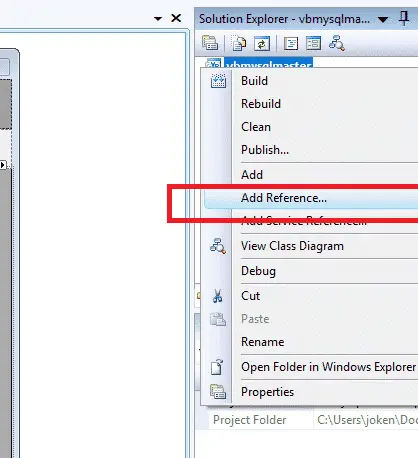
- Step 1: Add Reference
go solution explorer and right click project then select “Add Reference.”

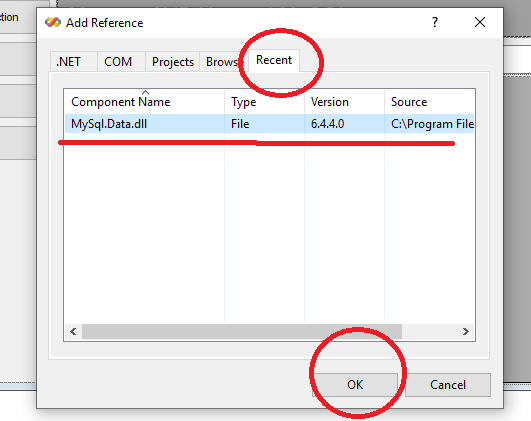
- Step 2: Add MySQL.Data.dll
When the “Add reference” box appears, find and select “MySQL.Data.dll” in the “.Net” or “Recent” tab and click Ok. The MySql.Data.dll reference is in your project.

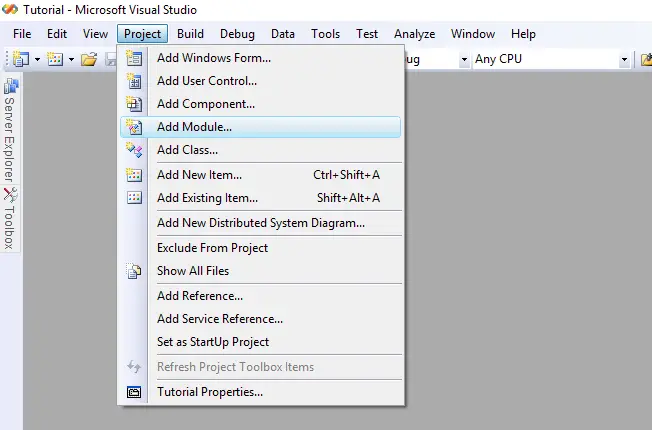
- Step 3: Add Module
Go back to your “Project” menu and select “Add Module.” The codes will be inserted into your newly created module.

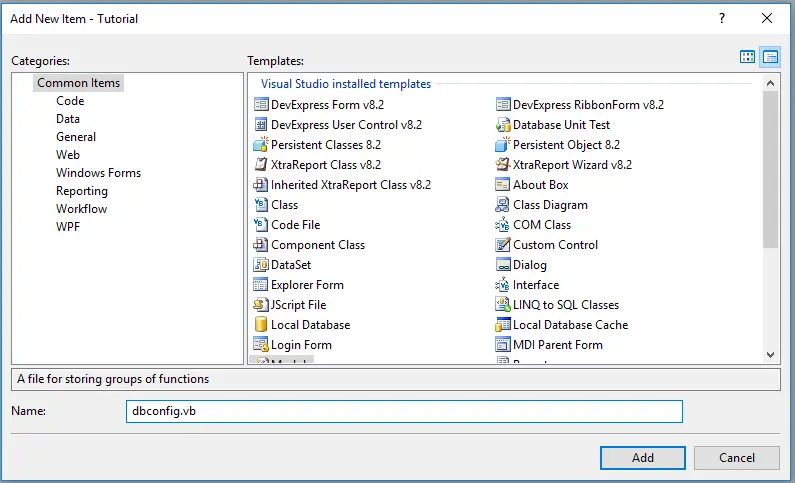
- Step 4: Name the Module
Add new item dialog box appeared. Input the name of your module and click add button. In my case, I used “dbconfig.”

- Step 5: Start Coding
In this final step, add the following codes inside your newly created module.
Import libraries (put this code above Module)
Imports MySql.Data.MySqlClient
Creating VB.net MySQL Connection String
Public conn As New MySqlConnection("host=localhost;user=root;password=;port=3306;")Conn – the name of your connection, we use this connection in your CRUDS function.
Host– the hostname of your MySQL Server
User– the username of your MySQL Server
Password – The password of your MySQL Server
Port – The port of your MySQL Server
Overall View of Codes
Imports MySql.Data.MySqlClient
Module dbconfig
Public conn As New MySqlConnection("host=localhost;user=root;password=;port=3306;")
End Module
REMEMBER: This is the first method if you are working with C.R.U.D.S (Create, Read, Update, Delete, Search) application. The code is tested in Visual Studio 2008 and MySQL Server 5.1.
For Complete CRUD application of vb.net and MySQL Database, here on how to master VB.Net with MySQL Database in 30 minutes.
Next Topic: How to Save Data Using VB.Net and MySQL Database
If you have any questions or suggestions about how to connect vb.net to MySQL database, please feel free to contact us or simply leave a comment below.
Advanced Topic:
- How to Load Data from MySQL Database to DatagridView in VB.Net Application
- Load data from DatagridView to Textfield
- Update Data Using VB.Net and MySQL Database
- Delete Data using VB.Net and MySQL Database
***PLEASE LEAVE A COMMENT, MAYBE WE CAN HELP.
Technology stack and requirements
To run this VB.NET project, you need the following on your development machine:
- Visual Studio 2019 or later. The free Community Edition is enough for building, debugging, and running the project.
- .NET Framework 4.7.2 or higher. Most Windows 10 and 11 systems have it preinstalled through Windows Update.
- MySQL Server 8.0 or MSSQL Express 2019. Choose whichever your capstone panel prefers; both work with VB.NET data adapters.
- MySQL Connector/NET or SqlClient library. Add via NuGet Package Manager inside Visual Studio.
- Crystal Reports (optional). Required only if the project generates printable reports; install the runtime redistributable.
Installing the source code
The download link contains a ZIP archive with the full solution. Extract and set up in five steps:
- Extract the archive to a folder outside Program Files (avoids permission issues).
- Open the .sln file in Visual Studio. It loads the full solution with all forms and modules.
- Restore NuGet packages. Right-click the solution then Restore NuGet Packages if prompted.
- Import the database. Locate the .sql file in the archive and import via phpMyAdmin (MySQL) or SQL Server Management Studio.
- Update the connection string in App.config or module code to match your local database name, user, and password.
How to use this project for your BSIT capstone
This VB.NET project maps cleanly to standard BSIT capstone documentation. Suggested chapter alignment:
- Chapter 1 (Introduction). Discuss the problem the system solves in real-world context. Cite Philippine business or academic use cases where a manual process could be replaced.
- Chapter 2 (Review of Related Literature). Compare this system’s features against 5-10 similar published projects. Cite journals like IJERT or IEEE Access for academic-standard sources.
- Chapter 3 (Methodology). Include Use Case Diagram, Data Flow Diagram, Entity Relationship Diagram, and Activity Diagram covering all major workflows in the system.
- Chapter 4 (Results and Discussion). Screenshot each module of the running system with a caption explaining what data it processes and which user role interacts with it.
- Chapter 5 (Conclusion and Recommendations). Identify features that could be added in a Version 2, such as web dashboard, mobile app, or REST API export.
Modules typical of 5 Steps on How To Connect VB.Net To MySQL Database
- Master data. CRUD forms for the primary entities the system manages, with search and filter.
- Transaction processing. Data entry forms for the day-to-day operations the system automates.
- Reports. Formatted printable output summarizing activity per day, per user, or per category.
- User management. Login with role-based permissions (Admin, Encoder, Viewer).
- Backup and restore. Export database to a .sql or .bak file and restore when needed.
Common enhancements for capstone review
- Modernize the UI. Add Bunifu or Guna UI controls for a more polished, modern appearance.
- Add printable receipts. Integrate a printer preview form with page-setup options.
- Multi-user concurrency. Ensure the database handles simultaneous writes without lost-update errors.
- Web version. Rewrite the front-end in ASP.NET Core or React for a modern deployment path.
Official documentation
Frequently Asked Questions
What does this VB.NET code snippet demonstrate?
Focused VB.NET WinForms code pattern: how to add, insert, save, search, display, print, connect to SQL Server, or perform a common calculation with minimum code. Drop-in pattern you can adapt for your own capstone module.
What Visual Studio and SQL Server versions does this VB.NET project require?
Most projects use VB.NET WinForms on .NET Framework 4.5+ with SQL Server 2012 Express or higher. To run: install Visual Studio 2019 / 2022 (Community is free) with the ‘Desktop development with .NET’ workload, install SQL Server Express + SSMS, open the .sln file, build, run.
How do I set up the database for this VB.NET project?
Open SQL Server Management Studio (SSMS) and connect to your SQL Server (e.g. localhost\SQLEXPRESS). Right-click Databases, choose Restore Database OR New Database then import the included .sql script. Update the connection string in App.config (or in code-behind Module) with your server name + credentials. Rebuild and run.
Can I use this VB.NET project for a BSIT capstone or thesis?
Yes, VB.NET is one of the most accepted languages by Philippine BSIT panels. Extend it: add role-based access (admin/staff/customer login redirect), Crystal Reports or RDLC reports, dashboards with Chart control, audit log, multi-branch support. Pair with Chapter 1-5 documentation matching your panel’s rubric.
Why am I getting ‘connection error’ or ‘cannot find SQL Server’?
Three common VB.NET issues: (1) Connection error: SQL Server isn’t running. Open SQL Server Configuration Manager and verify SQL Server (SQLEXPRESS) service is started. (2) Wrong server name in connection string. Try .\SQLEXPRESS, (local)\SQLEXPRESS, or your machine name. (3) Login failed: SQL Server is set to ‘Windows-only’ authentication. Switch to Mixed Mode in SSMS Server Properties, Security.
Where can I find more VB.NET projects with source code?
Browse the VB.NET Projects hub for the full library. For C# WinForms alternatives see C# Projects. For ASP.NET web alternatives see ASP.NET Projects. For BSIT capstone idea lists see 150 Best Capstone Project Ideas.