

Traffic Signs Recognition using CNN & Keras in Python With Source Code
The Traffic Signs Recognition Using CNN & Keras In Python was developed using Python Programming with CNN and Keras.
There are several different types of traffic signs like speed limits, no entry, traffic signals, turn left or right, children crossing, no passing of heavy vehicles, etc.
Traffic sign classification is the process of identifying which class a traffic sign belongs to.
A Traffic Signs Recognition Python project example, we will build a deep neural network model that can classify traffic signs present in the image into different categories.
With this model, we are able to read and understand traffic signs which are a very important task for all autonomous vehicles.
This Python Project Using CNN and Keras also includes a downloadable Python Project With Source Code for free, just find the downloadable source code below and click to start downloading.
By the way, if you are new to Python programming and don’t know how to use Python IDE, I have here a list of the Best Python IDE for Windows, Linux, and Mac OS that will suit you.
I also have here How to Download and Install the Latest Version of Python on Windows.
To start executing Traffic Signs Recognition Using CNN & Keras In Python With Source Code, make sure that you have installed Python 3.9 and PyCharm on your computer.
Traffic Signs Recognition using CNN and Keras in Python With Source Code: Steps on how to run the project
Time needed: 5 minutes
These are the steps on how to run the project:
- Step 1: Download the given source code below.
First, download the given source code below and unzip the source code.

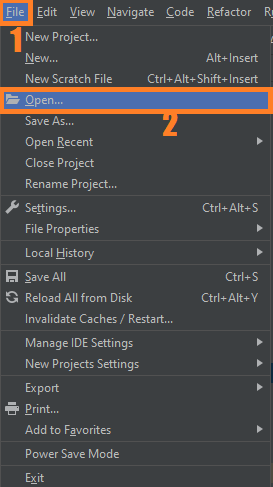
- Step 2: Import the project to your PyCharm IDE.
Next, import the source code you’ve download to your PyCharm IDE.

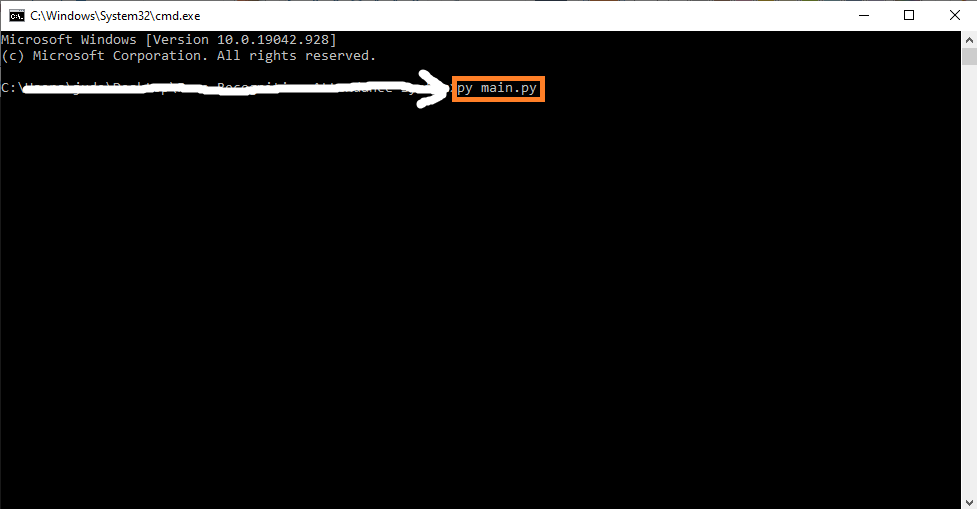
- Step 3: Run the project.
Lastly, run the project with the command “py main.py”


Installed Libraries
import tkinter as tk
from tkinter import filedialog
from tkinter import *
from PIL import ImageTk, Image

import numpy
#load the trained model to classify sign
from keras.models import load_model
Complete Source Code
import tkinter as tk
from tkinter import filedialog
from tkinter import *
from PIL import ImageTk, Image

import numpy
#load the trained model to classify sign
from keras.models import load_model
model = load_model('traffic_classifier.h5')

#dictionary to label all traffic signs class.
classes = { 1:'Speed limit (20km/h)',
            2:'Speed limit (30km/h)',
            3:'Speed limit (50km/h)',
            4:'Speed limit (60km/h)',
            5:'Speed limit (70km/h)',
            6:'Speed limit (80km/h)',
            7:'End of speed limit (80km/h)',
            8:'Speed limit (100km/h)',
            9:'Speed limit (120km/h)',
           10:'No passing',
           11:'No passing veh over 3.5 tons',
           12:'Right-of-way at intersection',
           13:'Priority road',
           14:'Yield',
           15:'Stop',
           16:'No vehicles',
           17:'Veh > 3.5 tons prohibited',
           18:'No entry',
           19:'General caution',
           20:'Dangerous curve left',
           21:'Dangerous curve right',
           22:'Double curve',
           23:'Bumpy road',
           24:'Slippery road',
           25:'Road narrows on the right',
           26:'Road work',
           27:'Traffic signals',
           28:'Pedestrians',
           29:'Children crossing',
           30:'Bicycles crossing',
           31:'Beware of ice/snow',
           32:'Wild animals crossing',
           33:'End speed + passing limits',
           34:'Turn right ahead',
           35:'Turn left ahead',
           36:'Ahead only',
           37:'Go straight or right',
           38:'Go straight or left',
           39:'Keep right',
           40:'Keep left',
           41:'Roundabout mandatory',
           42:'End of no passing',
           43:'End no passing veh > 3.5 tons' }

#initialise GUI
top=tk.Tk()
top.geometry('800x600')
top.title('Traffic sign classification')
top.configure(background='#CDCDCD')

label=Label(top,background='#CDCDCD', font=('arial',15,'bold'))
sign_image = Label(top)

def classify(file_path):
    global label_packed
    image = Image.open(file_path)
    image = image.resize((30,30))
    image = numpy.expand_dims(image, axis=0)
    image = numpy.array(image)
    print(image.shape)
    pred = model.predict_classes([image])[0]
    sign = classes[pred+1]
    print(sign)
    label.configure(foreground='#011638', text=sign)


def show_classify_button(file_path):
    classify_b=Button(top,text="Classify Image",command=lambda: classify(file_path),padx=10,pady=5)
    classify_b.configure(background='#364156', foreground='white',font=('arial',10,'bold'))
    classify_b.place(relx=0.79,rely=0.46)

def upload_image():
    try:
        file_path=filedialog.askopenfilename()
        uploaded=Image.open(file_path)
        uploaded.thumbnail(((top.winfo_width()/2.25),(top.winfo_height()/2.25)))
        im=ImageTk.PhotoImage(uploaded)

        sign_image.configure(image=im)
        sign_image.image=im
        label.configure(text='')
        show_classify_button(file_path)
    except:
        pass

upload=Button(top,text="Upload an image",command=upload_image,padx=10,pady=5)
upload.configure(background='#364156', foreground='white',font=('arial',10,'bold'))

upload.pack(side=BOTTOM,pady=50)
sign_image.pack(side=BOTTOM,expand=True)
label.pack(side=BOTTOM,expand=True)
heading = Label(top, text="Know Your Traffic Sign",pady=20, font=('arial',20,'bold'))
heading.configure(background='#CDCDCD',foreground='#364156')
heading.pack()
top.mainloop()
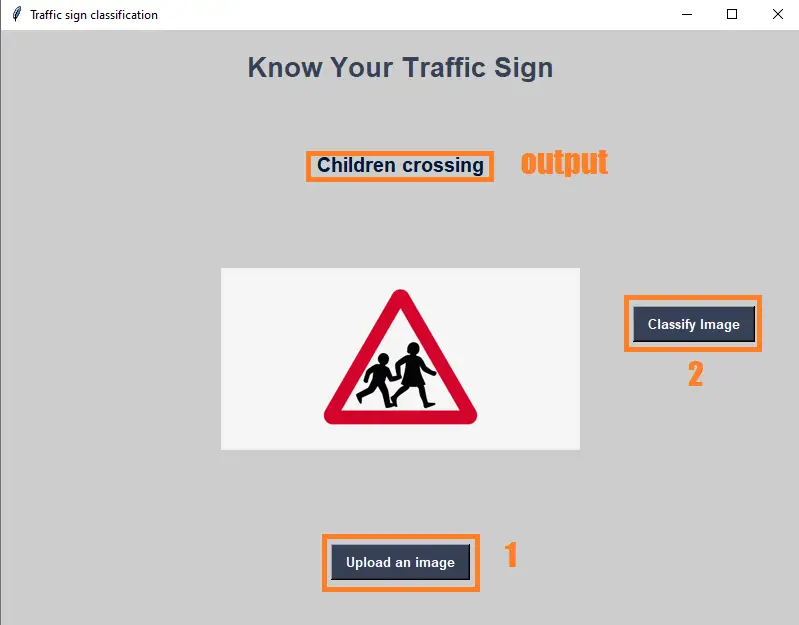
Output:
Download the Source Code below
Summary
In this Python project with source code, we have successfully classified the traffic signs classifier with 95% accuracy and also visualized how our accuracy and loss change with time, which is pretty good from a simple CNN model.
Related Articles
- Code For Game in Python: Python Game Projects With Source Code
- Best Python Projects With Source Code FREE DOWNLOAD
- How to Make a Point of Sale In Python With Source Code
- Python Code For Food Ordering System | FREE DOWNLOAD
- Inventory Management System Project in Python With Source Code
Inquiries
If you have any questions or suggestions about Traffic Signs Recognition using CNN & Keras in Python With Source Code, please feel free to leave a comment below.
Technology stack and requirements
To run this Python project on your development machine, you need:
- Python 3.10 or higher. Download from python.org or install via Anaconda if you prefer bundled packages.
- pip package manager. Comes with Python. Used to install project dependencies from requirements.txt.
- Virtual environment. Use venv or conda to isolate project dependencies from your global Python install.
- VS Code or PyCharm. Free code editors with Python syntax highlighting, IntelliSense, and debugging.
- Git. For version control and cloning source code repositories.
Installing the source code
- Download or clone the repository. Get the ZIP archive from the download link on this page and extract it.
- Create a virtual environment. Open a terminal in the project folder and run: python -m venv venv, then activate it (venv\Scripts\activate on Windows or source venv/bin/activate on Mac/Linux).
- Install dependencies. Run pip install -r requirements.txt to install all libraries the project needs.
- Configure environment variables. If the project uses API keys (OpenAI, Anthropic, database), create a .env file and set the required keys.
- Run the project. Follow the run command in the README (usually python main.py or streamlit run app.py).
Using this project for your BSIT capstone
- Chapter 1 (Introduction). Discuss the real-world problem this system solves. Cite Philippine or international use cases where the manual process could be automated.
- Chapter 2 (RRL). Compare your project against 5-10 similar published works. Cite ACM, IEEE, or arXiv papers for academic-standard sources.
- Chapter 3 (Methodology). Document the model architecture, training data, hyperparameters, and evaluation metrics used.
- Chapter 4 (Results). Report accuracy, precision, recall, F1-score, and confusion matrix. Screenshot the running app on real inputs.
- Chapter 5 (Conclusion). Identify features for Version 2: better model, larger dataset, mobile deployment, or REST API.
Modules typical of Traffic Signs Recognition using CNN and Keras
- Image dataset preparation. Train/val/test split, augmentation (rotation, flip, brightness).
- Model architecture. Pre-trained CNN (ResNet, EfficientNet) fine-tuned on your dataset.
- Training loop. PyTorch or TensorFlow/Keras training with early stopping and checkpoints.
- Evaluation. Confusion matrix, precision, recall, and per-class F1 scores.
- Inference API. FastAPI endpoint accepting image uploads and returning predictions.
- Web or mobile demo. Streamlit or React front-end for user interaction.
Common enhancements for capstone review
- Grad-CAM visualization. Show which pixels the model focused on when making a prediction.
- Data augmentation. Increase training data variety with imgaug or Albumentations library.
- Transfer learning benchmark. Compare training-from-scratch vs fine-tuning pre-trained models.
- Model quantization. Convert to TensorFlow Lite for mobile deployment.
Official documentation
Frequently Asked Questions
How does traffic sign recognition with CNN and Keras work?
A custom CNN (typically 3-4 Conv layers + MaxPooling + Dense + Softmax) trained on the German Traffic Sign Recognition Benchmark (GTSRB) dataset of 39,000+ labeled images across 43 sign classes. After training (achieves 95%+ accuracy), OpenCV captures real-world traffic-sign images, the model classifies each, and the predicted sign label is overlaid. Foundation for self-driving car perception modules.
What Python and library versions do I need?
Python 3.10, 3.11, or 3.12 (avoid 3.13 until all DL wheels catch up). Install with: pip install opencv-python numpy. For deep learning models add: tensorflow keras (CPU build is fine for most demos), torch torchvision (PyTorch alternative), mediapipe (for face/hand/pose). Some projects also need: pytesseract for OCR, pyzbar for barcode, dlib for legacy face-landmark predictor.
Do I need a GPU to run this deep learning project?
For inference on a pretrained model: no, CPU runs at 10-30 FPS for most computer-vision tasks. For TRAINING a custom model: GPU strongly recommended (CPU works but slow). Free GPU options for training: Google Colab Free (12-hour sessions, sufficient for most BSIT capstones), Kaggle Notebooks Free. Buying a $1000+ GPU just for capstone is overkill.
Can I use this deep learning project for a BSIT or CSE capstone?
Yes, but extend it. A single OpenCV deep-learning demo (face detection, object detection alone) is too narrow for full capstone scope. Combine with a real domain wrapper: an attendance system using face recognition, a traffic monitoring system using vehicle detection, a wildlife camera using object detection, a driver-monitoring app using drowsiness detection. Add database logging, simple UI, and Chapter 1-5 manuscript.
Why does my model give wrong predictions or low accuracy?
Three most common causes: (1) Input preprocessing mismatch: the model expects 224×224 RGB normalized to [0,1] or [-1,1]; using BGR (OpenCV default) or wrong size produces garbage. (2) Insufficient training data: if you trained your own model on under 1,000 samples per class, accuracy plateaus low. Augment with cv2.flip, rotate, brightness shifts. (3) Lighting and angle drift between training and live use: train on data that matches the deployment environment.
Where can I find more deep learning project ideas with source code?
Browse our Deep Learning Projects hub for 19+ vision demos. For broader AI / ML / RAG / NLP capstones see 100+ AI Capstone Project Ideas. For pure ML (no deep learning) see Machine Learning Projects.

Angel Jude Suarez
Full-Stack Developer at PIES IT Solution
Focuses on Python development, machine learning, and AI integration. Has built production AI systems including OpenAI Whisper integration for medical transcription and GPT-4o-powered diagnosis assistance. Strong background in pandas, scikit-learn, and TensorFlow.
Expertise: Python · PHP · Java · VB.NET · ASP.NET · Machine Learning · AI Integration · OpenCV · Django · CodeIgniter
· View all posts by Angel Jude Suarez →