

Display and Count Total Value of Records in DataGridView in VB.net
This tutorial is all about How to Display and Count the Total Value of the Records in the DataGridView Using Visual Basic 2008.
In this tutorial I will show you how to display and sum up the total values of the records in the DataGridView using Visual Basic 2008.
The records that are displayed are items that has its price, then, the over all price will be displayed in the last row of the DataGridView. I’m using MySQL Database as my database and Visual Basic 2008.
The features of this is to calculate the salaries of all employees.
What is Visual Basic’s purpose?
The third-generation programming language was created to aid developers in the creation of Windows applications.
It has a programming environment that allows programmers to write code in.exe or executable files.
They can also utilize it to create in-house front-end solutions for interacting with huge databases.
It is because the language allows for continuing changes, you can keep coding and revising your work as needed.
However, there are some limits to the Microsoft Visual Basic download. If you want to make applications that take a long time to process, this software isn’t for you.
That implies you won’t be able to use VB to create games or large apps because the system’s graphic interface requires a lot of memory and space.
Furthermore, the language is limited to Microsoft and does not support other operating systems.
What are the most important characteristics of Visual Basic?
Microsoft Visual Basic for Applications Download, unlike other programming languages, allows for speedier app creation. It has string processing capabilities and is compatible with C++, MFC, and F#.
Multi-targeting and the Windows Presentation Framework are also supported by the system, allowing developers to create a variety of Windows apps, desktop tools, metro-style programs, and hardware drivers.
Let’s begin:
First, create a database named “payroll”.
[mysql]
CREATE DATABASE `payroll` ;
[/mysql]
Second, create a table named “employees”.
[mysql]
CREATE TABLE IF NOT EXISTS `employees` (
`EMPLOYEE_ID` int(11) NOT NULL,
`FIRST_NAME` varchar(255) DEFAULT NULL,
`LAST_NAME` varchar(255) DEFAULT NULL,
`SALARY` int(11) DEFAULT NULL,
PRIMARY KEY (`EMPLOYEE_ID`)
) ENGINE=MyISAM DEFAULT CHARSET=utf8;
[/mysql]
Third, insert all data in the database.
[mysql]
INSERT INTO `employees` (`EMPLOYEE_ID`, `FIRST_NAME`, `LAST_NAME`, `SALARY`) VALUES
(102, 'lex', 'De Haan', 17000),
(103, 'alexander', 'Hunold', 9000),
(104, 'Bruce', 'Ernst', 6000),
(107, 'Diana', 'Lorents',4200),
(124, 'Kevin', 'Mourgos', 5800),
(141, 'Trenne', 'Rajs', 3500),
(142, 'Curtis', 'Davies', 3100),
(143, 'Randal', 'Matos', 2600),
(144, 'Peter', 'Vargas', 2500),
(149, 'Ellen', 'Zlotkey', 10500),
(174, 'Jonathan', 'Abel', 11000),
(176, 'Kimberly', 'Taylor', 8600),
(178, 'Jinnefer', 'Grant', 7000),
(200, 'Michael', 'Whalen', 4400),
(201, 'Pat', 'Hartstein', 13000),
(205, 'Shelley', 'Fay', 6000),
(206, 'William', 'Higgins', 12000),
(207, 'hatch', 'Glets', 8300);
[/mysql]
Open Visual Basic 2008, create a Project and set up you Form just like this.
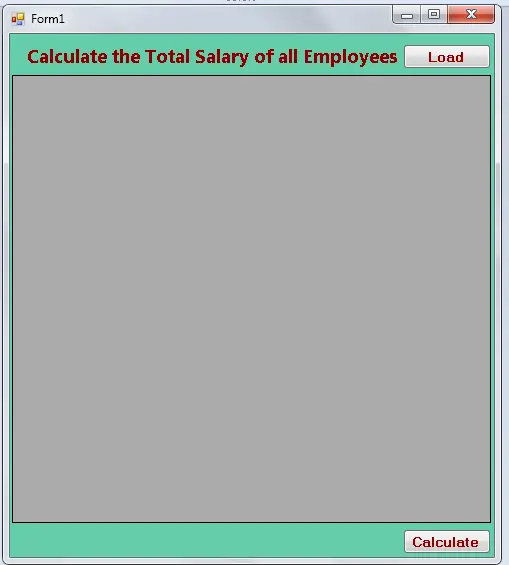
Double click the Form. Set up your connection and declare all the classes that you needed above the Form1_Load.
[vbnet]
'reference
Imports MySql.Data.MySqlClient
Public Class Form1

'setting up the string connection of MySQL Database
Dim con As MySqlConnection = _
New MySqlConnection("server=localhost;user id=root;database=payroll")
'a set of command in MySQL
Dim cmd As New MySqlCommand
'Bridge between a database and the datatable for retrieving and saving data.
Dim da As New MySqlDataAdapter
'a specific table in the database
Dim dt As New DataTable
[/vbnet]
Go back the Design Views and double click the “Load” Button. After that, do these codes in the display_Click.
[vbnet]
Private Sub display_Click _
(ByVal sender As System.Object, ByVal e As System.EventArgs) _
Handles Button1.Click
'for displaying records in the datagridview from the database
Try
'openning connection
con.Open()

'set a new spicific table in the database
dt = New DataTable
'set your commands for holding the data.
With cmd
.Connection = con
.CommandText = "Select * from employees"
End With
'filling the table in the database
da = New MySqlDataAdapter("Select * from employees", con)
da.Fill(dt)
'getting the datasource that will display on the datagridview
DataGridView1.DataSource = dt
'declaring variable as integer to store the value of the total rows in the datagridview
Dim max As Integer = DataGridView1.Rows.Count - 1
'putting the string value in the last row of the datagridview
DataGridView1.Rows(max).Cells(2).Value = "Total"
'putting the value which is 0 in the last row of the datagridview
'this is the first value that appear to the last row in the column 3
'this is for avoiding error when you begin calculating
DataGridView1.Rows(max).Cells(3).Value = 0
Catch ex As Exception
MsgBox(ex.Message)
End Try
'closing connection
con.Close()
End Sub
[/vbnet]
Go back the Design Views and double click the “Calculate” Button. After that, do these codes in the Calculate_Click. This is for calculating all the value in the rows.
[vbnet]
Private Sub Calculate_Click _
(ByVal sender As System.Object, ByVal e As System.EventArgs) _
Handles Button2.Click
Try
'declaring variable as integer to store the value of the total rows in the datagridview
Dim max As Integer = DataGridView1.Rows.Count - 1
'getting the values of a specific rows
For Each row As DataGridViewRow In DataGridView1.Rows
'formula for adding the values in the rows
DataGridView1.Rows(max).Cells(3).Value += row.Cells(3).Value
Next
Catch ex As Exception
MsgBox(ex.Message)
End Try
End Sub
[/vbnet]
The complete sourcecode is included. Download it and run it on your computer.
DOWNLOAD HERE
Readers might read also:
- How to Autocomplete a TextBox with Multiple Columns Using Visual Basic 2008 And MS Acces Database
- How to Navigate Records In the DataGridView Using Visual Basic 2008 And MySQL Database
Official documentation
Frequently Asked Questions
How does this VB.NET DataGridView example work?
Demonstrates binding a DataGridView to a DataTable or SQL Server source via ADO.NET. Common patterns: filter rows, edit cells with validation, export to Excel via interop, custom column formatting, search.
What Visual Studio and SQL Server versions does this VB.NET project require?
Most projects use VB.NET WinForms on .NET Framework 4.5+ with SQL Server 2012 Express or higher. To run: install Visual Studio 2019 / 2022 (Community is free) with the ‘Desktop development with .NET’ workload, install SQL Server Express + SSMS, open the .sln file, build, run.
How do I set up the database for this VB.NET project?
Open SQL Server Management Studio (SSMS) and connect to your SQL Server (e.g. localhost\SQLEXPRESS). Right-click Databases, choose Restore Database OR New Database then import the included .sql script. Update the connection string in App.config (or in code-behind Module) with your server name + credentials. Rebuild and run.
Can I use this VB.NET project for a BSIT capstone or thesis?
Yes, VB.NET is one of the most accepted languages by Philippine BSIT panels. Extend it: add role-based access (admin/staff/customer login redirect), Crystal Reports or RDLC reports, dashboards with Chart control, audit log, multi-branch support. Pair with Chapter 1-5 documentation matching your panel’s rubric.
Why am I getting ‘connection error’ or ‘cannot find SQL Server’?
Three common VB.NET issues: (1) Connection error: SQL Server isn’t running. Open SQL Server Configuration Manager and verify SQL Server (SQLEXPRESS) service is started. (2) Wrong server name in connection string. Try .\SQLEXPRESS, (local)\SQLEXPRESS, or your machine name. (3) Login failed: SQL Server is set to ‘Windows-only’ authentication. Switch to Mixed Mode in SSMS Server Properties, Security.
Where can I find more VB.NET projects with source code?
Browse the VB.NET Projects hub for the full library. For C# WinForms alternatives see C# Projects. For ASP.NET web alternatives see ASP.NET Projects. For BSIT capstone idea lists see 150 Best Capstone Project Ideas.