
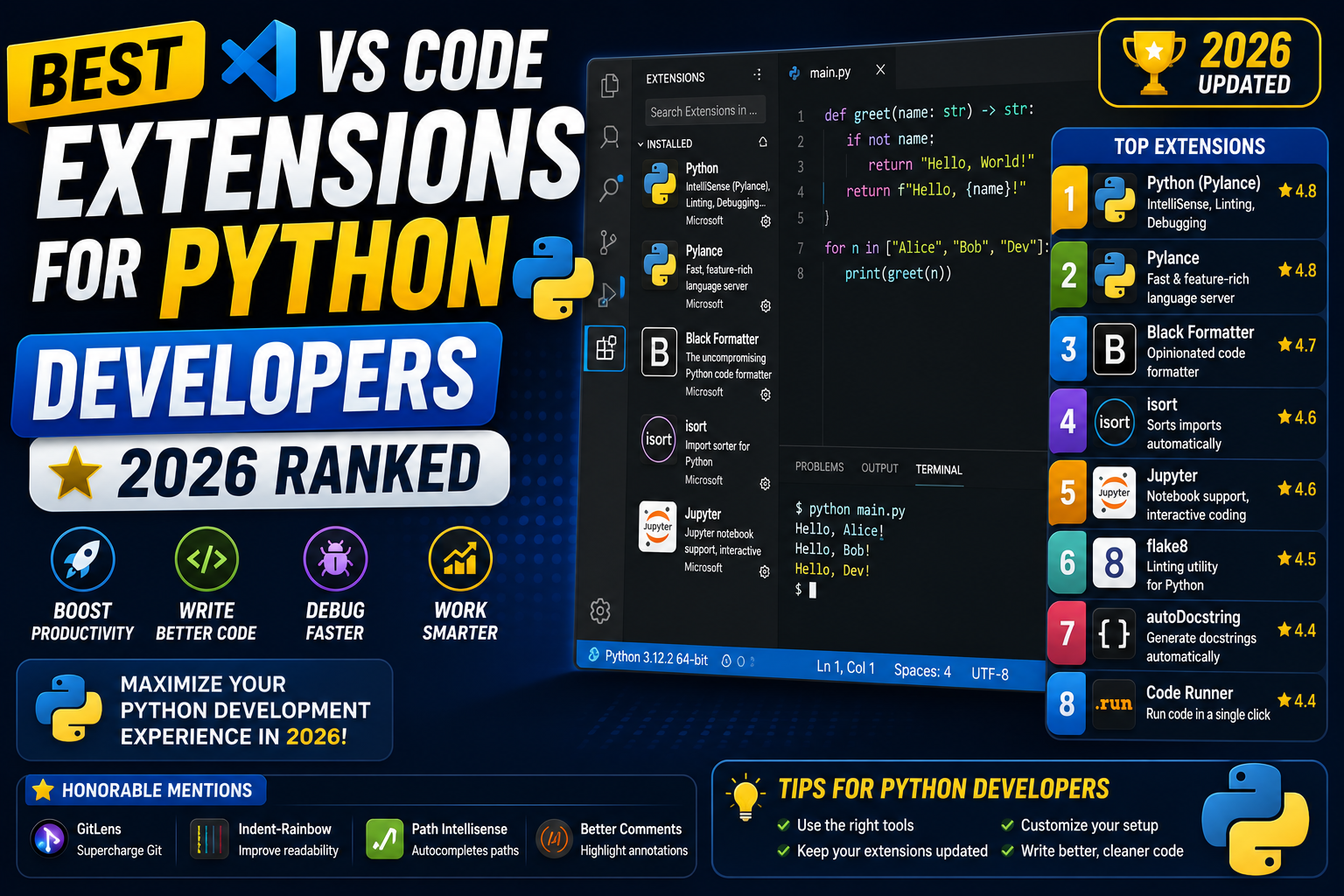
VS Code with the right extensions is the fastest Python development environment in 2026. The wrong extensions slow it down or duplicate each other’s work. This guide ranks the 12 extensions that actually make a difference for Python developers, from must-installs to niche picks worth knowing about.
1. Python (by Microsoft) – must install
The official Python extension from Microsoft. Bundles the essential Python support: interpreter selection, debugging, code navigation, refactoring. Not optional. This is the extension that makes VS Code a Python IDE.
Install: search “Python” in the VS Code marketplace, install the one by Microsoft (usually the top result with 100M+ installs).
2. Pylance – must install (comes bundled)
The language server that powers Python’s IntelliSense, type checking, and code navigation. Bundled with the Python extension automatically. If it feels slow, disable other language servers.
Enable type checking in VS Code settings: python.analysis.typeCheckingMode: "basic" or "strict". Strict catches more bugs but is noisier.
3. Ruff – top ranked linter/formatter
The fastest Python linter/formatter as of 2026. Written in Rust, 10-100x faster than Flake8 or Pylint. Replaces both linting and formatting tools in one extension.
Install: search “Ruff” by Astral Software. Enable format-on-save in VS Code settings: "editor.formatOnSave": true.
Configure with a pyproject.toml file in your project root. Zero config works fine for most cases.
4. Black Formatter (or use Ruff format)
The opinionated Python formatter. If Ruff format doesn’t fit, Black is the standard alternative. Same speed and workflow.
Pick one: Ruff format for speed and unified tooling; Black for the largest ecosystem of pre-existing config. Do NOT run both, they will fight each other on save.
5. GitLens – essential for Git-heavy work
Shows Git blame inline, lets you view file history without leaving the editor, and provides advanced comparison views. Every Python developer working on a team should install this.
Free version is enough for most use cases. Paid version adds file blame visualization and other visualization features.
6. Python Debugger (by Microsoft)
Enhanced debugging over the built-in Python debugger. Better breakpoint UI, faster variable inspection, and stronger support for async debugging.
Usually installed automatically alongside the Python extension. If missing, install it explicitly.
7. Jupyter
Notebook support inside VS Code. Run .ipynb files directly, with variable explorer and rich output rendering. Essential for data science and ML work.
Install alongside “Jupyter Keymap” if you’re used to Jupyter’s keyboard shortcuts. Enables Ctrl+Enter to run cells.
8. Cursor’s Copilot alternative or Claude Code
AI code assistance is table-stakes in 2026. Options:
- GitHub Copilot: The pioneer. Great autocomplete, chat feature integrated. USD 10-19 per month.
- Claude Code: Anthropic’s newer offering. Strong at code understanding and refactoring. Free tier available.
- Codeium: Free AI autocomplete alternative. Slightly less accurate than Copilot but no cost.
Pick one. Running multiple AI extensions causes UI conflicts.
9. Docker (by Microsoft)
If your Python app runs in Docker, this is essential. Build, run, and manage containers from VS Code. Includes container debugging support and Dockerfile IntelliSense.
10. Remote – SSH / Remote – Containers
Both are Microsoft’s remote development extensions. SSH lets you work on a remote server as if it were local. Containers lets you develop inside a Docker container.
Life-changing if your production or dev environment is on a Linux server or a specific container image. No more “works on my machine” for Python version conflicts.
11. Pyproject Toml
Syntax highlighting and validation for pyproject.toml files. Small quality-of-life extension. If you use Poetry or Hatch, this saves you from typos in your project config.
12. Error Lens – shows errors inline
Displays error messages inline at the end of the line, rather than requiring you to hover for them. Much faster feedback loop, especially with strict type checking.
Configure severity to only show errors and warnings (not hints) to keep the UI clean.
Bonus picks by use case
- autoDocstring: Auto-generates docstring templates when you type
""". - Python Test Explorer: Better pytest UI integration.
- SQLite Viewer: View .sqlite files in VS Code (great for Django dev).
- Live Server: Local dev server with auto-reload for Flask/FastAPI development pages.
- REST Client: Test API endpoints from .http files without leaving VS Code.
- indent-rainbow: Colored indentation levels; useful for deeply nested Python.
The minimal starter set (for new Python devs)
If you are new and want the minimum-viable setup:
- Python (by Microsoft)
- Pylance (auto-installed)
- Ruff
- GitLens
- GitHub Copilot or Claude Code
These five cover 90% of what Python developers need. Add more as specific needs come up.
Extensions to AVOID or replace
- Flake8, pylint, mypy (as separate extensions): Replaced by Ruff. Uninstall to avoid duplication.
- YAPF Formatter: Legacy Python formatter. Replaced by Ruff format or Black.
- Kite: Discontinued in 2022. Uninstall if still present.
- Jedi Language Server: Replaced by Pylance. Uninstall unless you specifically need Jedi’s licensing.
- Anaconda Python: Rarely needed. If you use Anaconda, the built-in interpreter selection handles it fine.
Configuration that makes these extensions work well together
Add these to your VS Code settings.json:
{
  "python.analysis.typeCheckingMode": "basic",
  "python.terminal.activateEnvironment": true,
  "editor.formatOnSave": true,
  "[python]": {
    "editor.defaultFormatter": "charliermarsh.ruff",
    "editor.codeActionsOnSave": {
      "source.organizeImports.ruff": "explicit",
      "source.fixAll.ruff": "explicit"
    }
  },
  "errorLens.enabledDiagnosticLevels": ["error", "warning"]
}
These settings enable format-on-save with Ruff, auto-import organization, and inline error display. Copy into your VS Code settings.json (Ctrl+, > click JSON icon at top right).
Official documentation
Frequently asked questions
Do I need to install Python separately or does the extension include it?
Install Python separately from python.org (or use pyenv, uv, or Homebrew). The VS Code Python extension detects your installed interpreter but does not include Python itself.
Is Ruff better than Black + Flake8 + isort combined?
Yes for speed and simplicity. Ruff does formatting, linting, and import sorting in one tool with 10-100x speed compared to the equivalents. Same code style, same rules, one config file. Recommended in 2026 for all new Python projects.
Should I use GitHub Copilot or Claude Code for Python?
Both work well. Copilot has better inline autocomplete integration in 2026. Claude Code is stronger for larger refactors and reading existing code. Pick based on how you work: inline suggestions (Copilot) or deeper conversational coding (Claude Code).
Why is Pylance slow on my large project?
Large virtual environments or thousands of files can slow Pylance. Exclude the venv folder in settings: python.analysis.exclude: ["**/venv/**"]. Also try switching type checking to “basic” from “strict” if performance matters more than strictness.
Can I use these extensions on VS Code for Web (browser)?
Most Python extensions do not run in VS Code for Web because they need a local Python interpreter. Some work with GitHub Codespaces which provides a remote Python environment. For full offline Python work, use the desktop VS Code app.
Is Cursor a better alternative to VS Code for Python?
Cursor is a VS Code fork with AI baked in more deeply. If AI-first coding is your priority, Cursor is smoother than VS Code + Copilot. For pure Python development, standard VS Code with the extensions above works just as well and integrates better with corporate IT setups.