
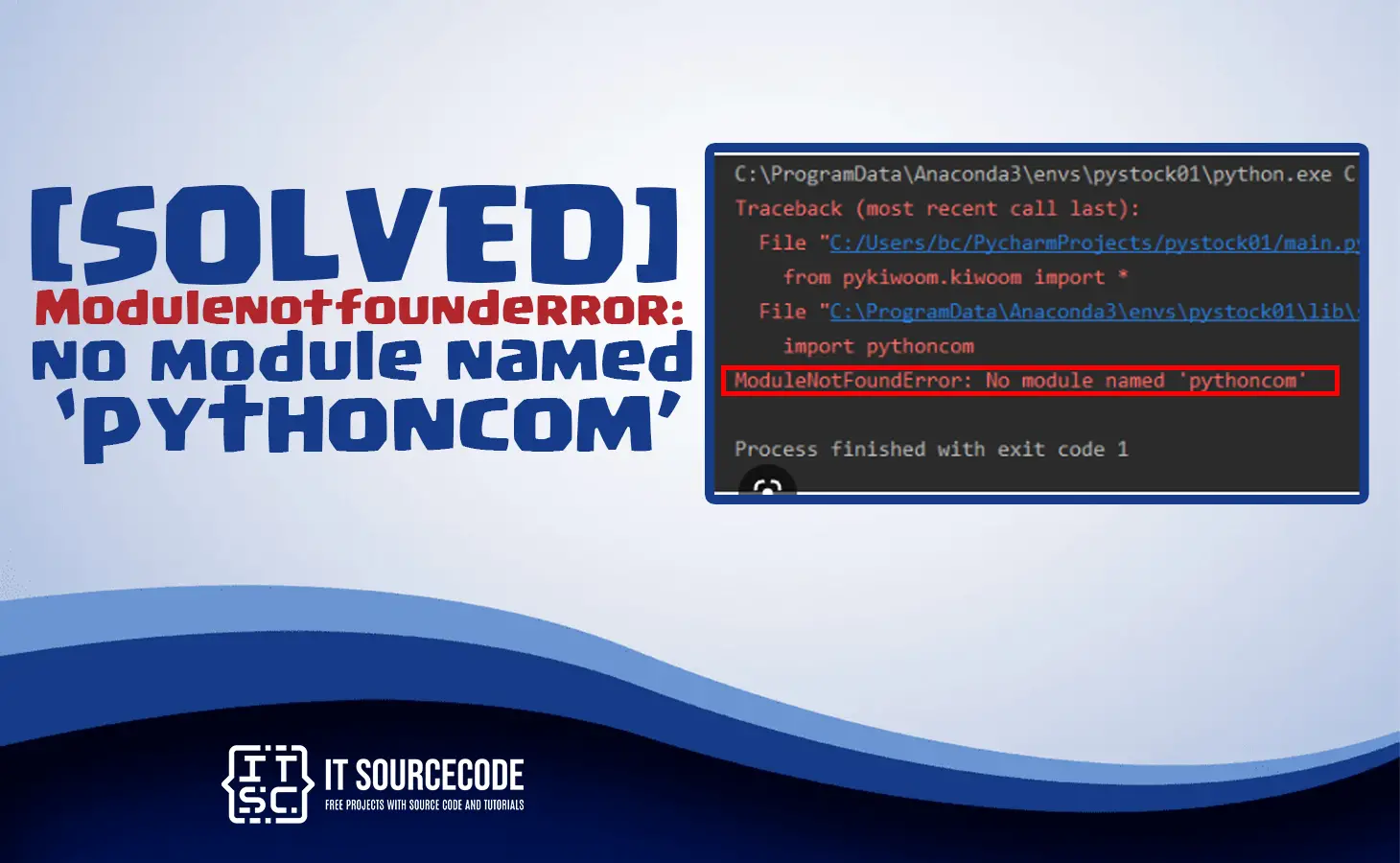
Are you encountering this modulenotfounderror no module named ‘pythoncom’ while working with Python?
Well, you don’t have to worry because the solution is very simple and easy.
This error, no module named “pythoncom,” usually occurs when the “pythoncom” module is not installed.
That is why the Python interpreter cannot find the module that is needed for running specific programs in Python.
In this article, we will give you the solutions and discuss the causes of this error, and how you can fix it.
So stick around until the end of this article.
What is pythoncom?
The pythoncom module is a Python library that gives access to the Microsoft Component Object Model (COM).
It enables Python users to interact with COM objects and automate across different Windows applications.
In addition to that, it allows software components to communicate with each other and provides a way to use multiple programming languages.
What are the causes of the error modulenotfounderror no module named ‘pythoncom’?
This error occurs because you forgot to install the pythoncom module and Python interpreter was unable to find it. It is with ActivePython, but you can get it independently on GitHub as part of pywin32.
These are additional reasons why this error modulenotfounderror no module named ‘pythoncom’ occurs.
1. Missing ‘pythoncom’ module or not installed
The pywin32 package is needed in order to use the pythoncom module. When you don’t install it, you will encounter this error.
2. Incompatible python version:
The pythoncom module and Python should be compatible in version to run the program. When you are using a different version of Python, you will encounter this error.
3. Incorrect python path
When your Python path is not set properly, Python was unable to find the pythoncom module, as a result, this error occurs.
4. Python installation corrupted
When you are unable to install Python correctly or when the installation is corrupted, you will definitely encounter this error.
How to fix modulenotfounderror no module named ‘pythoncom’
Now, we are going to show you the different solutions you may use to resolve this error. Just go to command prompt or terminal to execute the following command:
1. Install pywin32 package
When you have not yet installed the pywin32 package, you must install it to use the pythoncom module. You can install it using the following command:

or

Pythoncom is part of pywin32 for API window extension
2. Installing flask
You can try to install flask, you can use the following command:

It allows the installation to avoid environment variables and user configuration.
3. Check the Python Version
Don’t forget to ensure that you are using the correct version of Python. The pythoncom module is only available for specific versions of Python, such as:
- Python 2.7
- Python 3.5.
Use the following command to check your Python version:

When using a different version of Python, you have to install the latest version or you can update your code to use a different module that is available for your current Python version.
4. Reinstall pywin32 package
If the error still exists, try to reinstall the pywin32 package using the following command:
To uninstall pywin32 package

To reinstall pywin32 package
5. Reinstall Python
When the solutions above do not resolve the error, you can try to uninstall Python and reinstall it to fix this issue.
How to uninstall Python
1. Go to control panel:

2. Select uninstall a program:

3. Then select the Python version you want to uninstall:

After you click Python, a dialog box will pop up showing that the Python package will be removed until it’s totally uninstalled.
Another way to uninstall Python:
1. Open windows command prompt
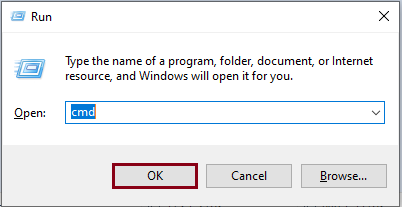
Use the keyboard shortcut “Window + R” to open up the command prompt; cmd is chosen by default if you usually open it.
However, if you ever do not use it, you can choose cmd in the drop-down menu and hit the “OK” button or press the “Enter” key.
2. Check python version
Verify the installation of the Python you are going to uninstall.

3. Check Python location
Find out the location of the Python you are using.

4. Utilize the python command
A. To utilize it, use the “cd” command to change the present working directory to the location where the Python you are using is installed.
Just like, for example, in our case, we just copy the data from the result of the Python command “where python.”
B. Then we erase “python.exe” from that part of it, and don’t forget to put “cd” before C:\users…
C. Lastly, press “Enter.”

5. Uninstall Python

Then it will automatically uninstall the Python version you wanted to delete. You can also check if it already uninstall by this command:
- > python -V
If the command responds that this “python” is not recognized as an internal or external command, it is successfully uninstalled.
After the whole process, we can assure you to resolve the error modulenotfounderror no module named ‘pythoncom’.
Official documentation
Frequently Asked Questions
What is Python ModuleNotFoundError and what causes it?
ModuleNotFoundError (a subclass of ImportError) is raised when Python cannot find the module you tried to import. Common causes: the package isn’t installed (pip install missing), wrong virtual environment activated, typo in module name, or Python can’t find your local module on the import path. The error message names exactly which module is missing.
How do I fix ‘ModuleNotFoundError: No module named X’?
Run pip install X first. If that succeeds but you still get the error, check which Python you’re using (which python OR python –version) vs which pip (which pip OR pip –version), they must match. Common gotcha: pip points to system Python 3.9 but you’re running python3.11 in a venv. Inside the venv, use python -m pip install X to be sure pip matches the active Python.
Why does my code work in one environment but not another?
Different Python versions or different installed packages. To diagnose: pip freeze > requirements.txt on the working environment, then pip install -r requirements.txt on the broken one. Use virtualenv (python -m venv venv) or conda for every project to avoid system-wide package collisions.
Is ModuleNotFoundError the same as ImportError?
ModuleNotFoundError is a subclass of ImportError added in Python 3.6. It specifically means ‘no such module exists.’ Plain ImportError covers a wider set: module exists but a name inside it can’t be imported (e.g. ‘cannot import name X from Y’). except ImportError catches both; except ModuleNotFoundError catches only the missing-module case.
Where can I find more ModuleNotFoundError fixes?
Browse the ModuleNotFoundError reference hub for 198+ specific module fixes (TensorFlow, Flask, Django, pandas, numpy, etc.). For related issues see ImportError. For broader Python setup see Python Tutorial hub.
Conclusion
Stop worrying when you encounter this error: modulenotfounderror no module named ‘pythoncom’ because this article already gives you simple and easy yet effective solutions.
You just have to execute it properly in your command prompt or terminal to resolve this issue.
We also have solutions if you encounter an error like modulenotfounderror: no module named ‘click’.
Thank you very much for reading until the end of this article.

Caren Bautista
Technical Writer at PIES IT Solution
Responsible for crafting clear, well-structured, and beginner-friendly content across the platform. Handles the writing, proofreading, and editorial review of tutorials, guides, and documentation to ensure every article is accurate, readable, and easy to follow.
Expertise: Technical Writing · Content Creation · Documentation · Editorial Writing · JavaScript · TypeScript · Python · Python Errors · HTTP Errors · MS Excel · View all posts by Caren Bautista →