
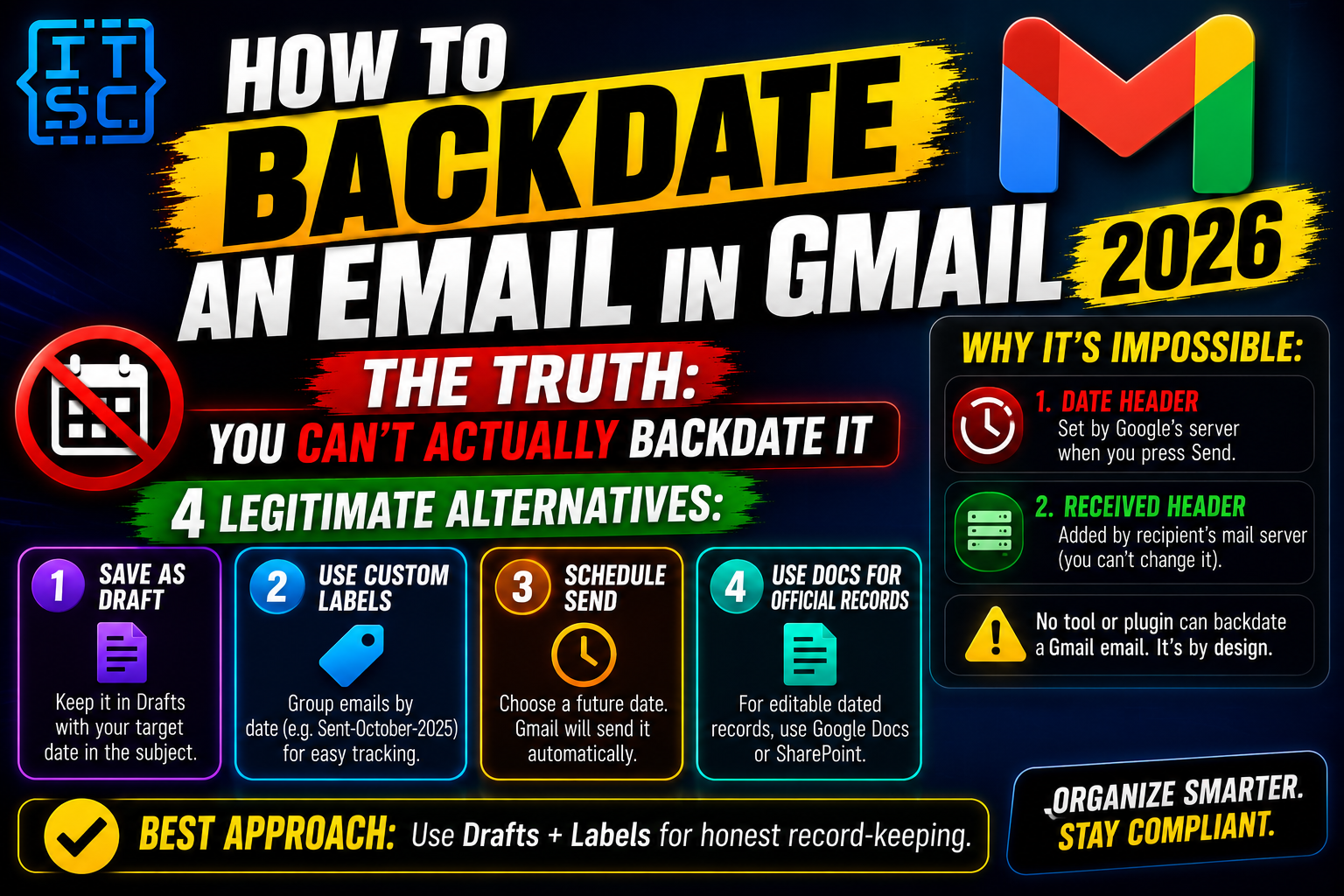
Backdating an email in Gmail is one of the most requested tricks that has no real solution. Every email carries a server-timestamp that Gmail sets when you press Send, and every recipient mail server adds its own received timestamp on top. Neither can be changed by any client-side setting or plugin.
What you can do is use drafts, labels, and scheduled sends to organize your emails by date without actually rewriting time itself. This 2026 guide covers all four legitimate workarounds and explains exactly why true backdating is impossible.
Why Gmail cannot truly backdate an email
Understanding the constraint saves you hours of searching for a nonexistent feature. Two independent timestamps are attached to every email that leaves your Gmail:
- The Date header: Google sets this from the server clock the moment you press Send. Gmail does not read your device clock, so changing your PC clock does nothing.
- The Received header: added by the recipient’s mail server (Outlook, Yahoo, corporate SMTP) when the message arrives. This gives the recipient an independent timeline.
- Any tool that claims to backdate a Gmail email is either lying, or only changing the local display in your own client without touching either header.
- Email evidence in legal or audit contexts is validated against the Received header, which you never control.
Save the email as a Draft with your target date in the subject
The simplest workaround is to keep the email as a draft indefinitely. Gmail preserves the last modified time, and you can note the intended date directly in the message.
- Compose your email as normal but do not click Send.
- Add the target date to the subject line:
Draft for record: October 15, 2025 - Q3 Review. - Or add a first-line note in the body: “This draft is dated October 15, 2025 for internal record.”
- Gmail auto-saves the draft every few seconds. You can revisit it any time from the Drafts label.
- If you eventually send it, the actual Send timestamp will be today, but the subject preserves your intended date.
Use a custom label like Sent-October-2025 for organization
Custom labels give you audit-trail organization without touching timestamps. This is the pattern most legal and finance teams use for record-keeping.
- Click More in the Gmail sidebar, then Create new label.
- Name it with the date you want to remember:
Sent-October-2025orQ3-2025-Correspondence. - Apply the label to any sent email you need grouped under that historical date.
- Filter by label to review that “period” of correspondence in one view.
- Labels can be nested (e.g.,
Audit/2025/Q3) for cleaner navigation.
Schedule forward-dated emails instead
The closest legitimate cousin to date manipulation is Gmail Schedule Send. It moves the Send action into the future, and the resulting Date header reflects the scheduled moment, not now.
- Compose your email as normal.
- Click the arrow next to the Send button (not Send itself).
- Choose Schedule send.
- Pick any date up to one year in the future.
- Gmail places the email in the Scheduled label until the moment arrives, then sends automatically.
Common backdating mistakes people make in Gmail
- Changing the local PC clock to trick Gmail. Gmail does not read your device time. The Date header comes from Google servers only.
- Trusting a browser extension that promises backdating. These change only your local Gmail view, never the sent email. The recipient sees the true Send time.
- Editing forwarded emails to fake dates. Forwarded emails carry the original Date header inside the quoted section. Deleting or editing that is easy to spot in audits.
- Forgetting Schedule Send only supports future dates. There is no Past option, and any tool advertising past-scheduled sends is impossible.
- Believing Gmail admin console can backdate. Workspace admins cannot alter timestamps on sent emails. They can only retrieve historical emails.
When backdating makes sense versus when it does not
Legitimate needs for date-based organization include audit trails, record-keeping for regulatory compliance, retrospective note-taking, and personal journaling. In all these cases, the workarounds above (drafts, labels, scheduled sends) cover the actual need without fraud.
Illegitimate uses include falsifying legal correspondence dates, backdating agreements to bypass deadlines, or manipulating evidence. These fail because the recipient server preserves the real Received timestamp, which is admissible in court and detectable in audits.
If your goal is honest recordkeeping, use labels and draft-date-in-subject. If your goal is retroactive proof of communication, no method exists because Gmail is designed to prevent exactly that.
For business teams that need proper document-with-date records, use a document management system like Google Docs or SharePoint alongside Gmail. Dates on documents are separate from email timestamps and can be edited by the owner without violating any policy.
Power-user tips for date-organized emails
Combine label naming conventions with subject prefixes for maximum audit-trail clarity. A pattern like [2025-Q3-Contract] Reviewed October 15 in the subject line, plus a matching Contracts/2025/Q3 label, gives you two independent ways to find and confirm the intended date.
- Use dated filters for automation. Create a Gmail filter that auto-applies a date-based label to every incoming email, so you never have to remember to organize by hand.
- Export important emails as EML. Google Takeout can export any email as an EML file with the full Date and Received headers intact. Store the EML alongside your other dated documents.
- Use Google Docs for retrospective memos. When you need to record something with a specific date, write it in Docs with the target date in the doc title and body. Docs preserves an edit-history timeline that shows when you actually wrote it.
- Chain scheduled sends for reminders. Schedule Send lets you queue future emails to yourself as reminders on specific dates, which gives you a forward-looking timeline without any backdating fiction.
For teams, agree on a shared labeling convention before you start. If half the team uses Q3-2025 and the other half uses 2025-Q3, search becomes inconsistent. Document the convention in a shared team wiki.
Official documentation
Recommended email productivity resources
The links below are affiliate links. We may earn a commission at no extra cost to you when you buy or sign up. See our affiliate disclosure.
Frequently Asked Questions
Can I change the Date header in a sent Gmail email?
No. Gmail sets the Date header from the server clock at the moment you send. The recipient’s mail server also adds its own Received timestamp for independent verification. Neither can be changed after sending.
Is there a plugin that lets me backdate Gmail emails?
No legitimate plugin can override the server timestamp. Any tool claiming to backdate is either editing only your local display, or misrepresenting the feature. Recipients still see the true timestamp.
Why would someone need to backdate an email?
Common legitimate reasons include audit trails, retrospective record-keeping, or reconstructing timelines. In these cases use labels, subject-line date tags, or drafts with target-date annotations instead.
Can Gmail Schedule Send arrive in the past?
No. Schedule Send only supports future dates. The earliest possible arrival is a few minutes from now. There is no past-date option and no workaround for this limit.
Does backdating work in the Google Workspace admin console?
No. Admin console does not offer a backdate function. It can retrieve historical emails, restore deleted messages, and audit access, but it cannot change existing timestamps.
What is the safest way to keep a dated record in Gmail?
Combine a custom label (Sent-October-2025) with a subject-line date tag. Both are auditable and honest. If you need a formal record, export the email as EML or PDF and store it alongside your other date-stamped documents.

Caren Bautista
Technical Writer at PIES IT Solution
Responsible for crafting clear, well-structured, and beginner-friendly content across the platform. Handles the writing, proofreading, and editorial review of tutorials, guides, and documentation to ensure every article is accurate, readable, and easy to follow.
Expertise: Technical Writing, Content Creation, Documentation, Editorial Writing, JavaScript, TypeScript, Python, Python Errors, HTTP Errors, MS Excel · View all posts by Caren Bautista →