
Saving New Records in MS Access Using VB.Net
This tutorial is all about Saving New Records in MS Access Using VB.Net. In this post, i will teach you Saving New Records in MS Access Using VB.Net. So let’s get started:
As a continuation of this tutorial. We will use the Displaying Data Table Records in Datagridview using VB.Net
This tutorial can answer the question raised in this post about how to insert new record in ms access using vb.net.
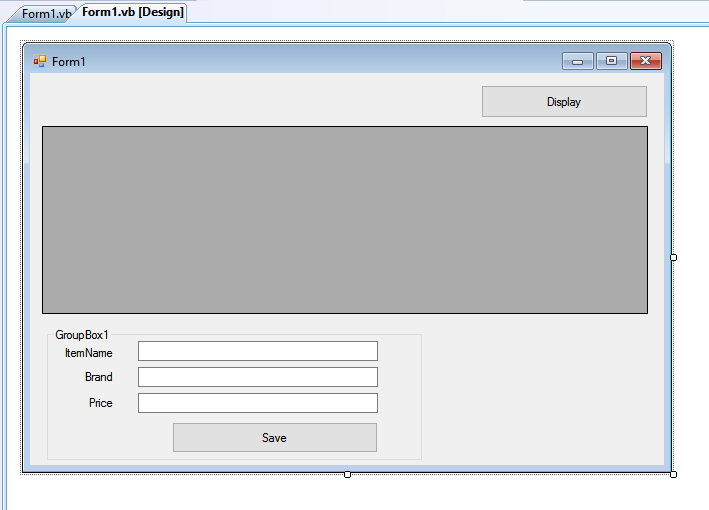
- First, Design your Form like this one below.
Add a Label, Textbox, and a Button.
- After designing the form. Click the Save Button and add this following codes.
Private Sub Button2_Click(ByVal sender As System.Object, ByVal e As System.EventArgs) Handles Button2.ClickTry
Sql = "INSERT INTO tblitems(ITEMNAME, BRAND, PRICE) VALUES ('" & TextBox1.Text & "', '" & TextBox2.Text & "','" & TextBox3.Text & "')"
Myconnection.Open()
With dbcmd
.CommandText = Sql
.Connection = Myconnection
End Withresult = dbcmd.ExecuteNonQuery
If result > 0 Then
MsgBox("New item record has been saved!")
Myconnection.Close()
Call Button1_Click(sender, e)
cleartextfields()

Else
MsgBox("No item record has been saved!!")
End If

Catch ex As Exception
MsgBox(ex.Message)
Finally
Myconnection.Close()
End Try
End Sub - Add this following Sub in the Public Class Form1.
Public Sub cleartextfields()
For Each crt As Control In GroupBox1.Controls
If crt.GetType Is GetType(TextBox) Then
crt.Text = Nothing
End If
NextEnd Sub
- Then Click F5 to Run the Program.
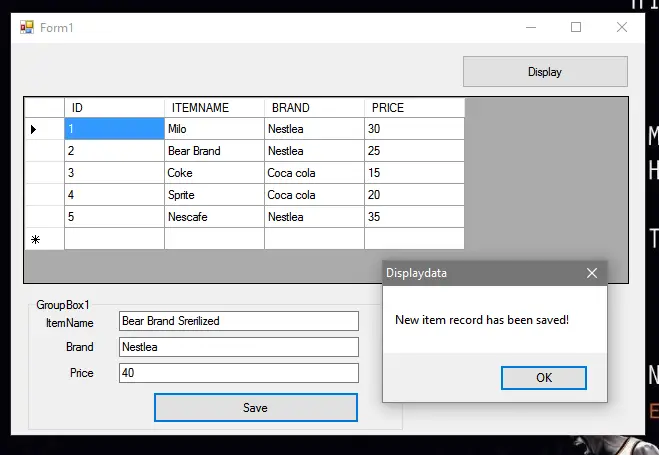
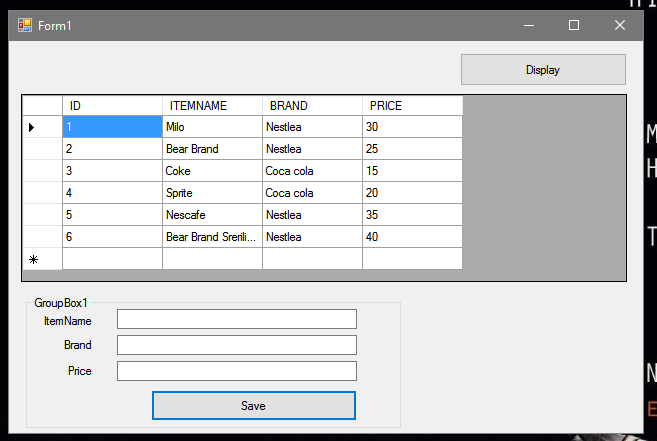
Output.
Technology stack and requirements
To run this VB.NET project, you need the following on your development machine:
- Visual Studio 2019 or later. The free Community Edition is enough for building, debugging, and running the project.
- .NET Framework 4.7.2 or higher. Most Windows 10 and 11 systems have it preinstalled through Windows Update.
- MySQL Server 8.0 or MSSQL Express 2019. Choose whichever your capstone panel prefers; both work with VB.NET data adapters.
- MySQL Connector/NET or SqlClient library. Add via NuGet Package Manager inside Visual Studio.
- Crystal Reports (optional). Required only if the project generates printable reports; install the runtime redistributable.
Installing the source code
The download link contains a ZIP archive with the full solution. Extract and set up in five steps:
- Extract the archive to a folder outside Program Files (avoids permission issues).
- Open the .sln file in Visual Studio. It loads the full solution with all forms and modules.
- Restore NuGet packages. Right-click the solution then Restore NuGet Packages if prompted.
- Import the database. Locate the .sql file in the archive and import via phpMyAdmin (MySQL) or SQL Server Management Studio.
- Update the connection string in App.config or module code to match your local database name, user, and password.
How to use this project for your BSIT capstone
This VB.NET project maps cleanly to standard BSIT capstone documentation. Suggested chapter alignment:
- Chapter 1 (Introduction). Discuss the problem the system solves in real-world context. Cite Philippine business or academic use cases where a manual process could be replaced.
- Chapter 2 (Review of Related Literature). Compare this system’s features against 5-10 similar published projects. Cite journals like IJERT or IEEE Access for academic-standard sources.
- Chapter 3 (Methodology). Include Use Case Diagram, Data Flow Diagram, Entity Relationship Diagram, and Activity Diagram covering all major workflows in the system.
- Chapter 4 (Results and Discussion). Screenshot each module of the running system with a caption explaining what data it processes and which user role interacts with it.
- Chapter 5 (Conclusion and Recommendations). Identify features that could be added in a Version 2, such as web dashboard, mobile app, or REST API export.
Modules typical of Saving New Records in MS Access Using VB.Net
- Student information. Personal info, guardian details, enrollment status, and program of study.
- Enrollment / registration. Term-by-term subject selection with prerequisite checking.
- Grading system. Teacher input for quiz, exam, and project scores with weighted average computation.
- Report card generation. Printable grade slip and transcript of records.
- Library / borrowing (optional). Track book borrowing, return date, and fine computation.
- Announcements and news. Post school-wide bulletins visible from the login screen.
Common enhancements for capstone review
- Online portal. Add ASP.NET web portal so parents and students see grades from home.
- SMS grade notification. Auto-send new-grade alerts to the parent’s registered mobile number.
- Digital ID card generation. Print student ID with photo, QR code, and academic year.
- Alumni tracking. Extend the database to include post-graduation contact info and current employer.
Project timeline estimate for BSIT capstone
Typical BSIT capstone teams complete a VB.NET project of this scope in one full academic semester. Suggested timeline:
- Weeks 1-2. Requirements gathering, interview with the target user or institution, and initial documentation of Chapter 1.
- Weeks 3-4. Design phase: use case diagram, DFD, ER diagram, and mockup screens on paper or Figma.
- Weeks 5-8. Core development: database schema in MySQL, main forms in Visual Studio, CRUD operations.
- Weeks 9-11. Reports, printing, and user roles. Test with actual sample data from the target institution.
- Weeks 12-13. Documentation: finalize Chapter 3 methodology, Chapter 4 screenshots, and Chapter 5 conclusion.
- Week 14. Mock defense with adviser, corrections, and final panel presentation.
Panel questions this project typically gets
Prepare answers to these questions before your capstone defense — panel members ask them almost every time:
- What existing systems are similar and how is yours different? Prepare a comparison table showing 3-5 alternatives (usually commercial products or older thesis work) and the specific gaps your project addresses.
- How do you validate data entry to prevent bad input? Walk through the validation logic on 2-3 key forms, showing regex checks, range validation, and required-field enforcement.
- How does the system handle concurrent access? Explain your database transaction strategy — SQL locking, timestamps, or optimistic concurrency.
- What is your backup and disaster recovery plan? Have a documented backup schedule (daily, weekly) and a restore-from-backup demo ready.
- How would you deploy this in production? Explain the Windows installer, database setup script, and how updates would be delivered.
Deployment options after the defense
Once you graduate, this system can be extended into a real product with these deployment paths:
- Local Windows install. Package with Visual Studio’s built-in ClickOnce installer for small businesses that only need one computer.
- Multi-terminal LAN. Host MySQL on one server PC and let 3-5 client PCs connect over the office network.
- Cloud migration. Move the database to Azure SQL or AWS RDS and keep the Windows Forms front-end for existing users.
- Web rewrite. Rebuild the front-end in ASP.NET Core or React while keeping the same database and business logic.
Common defense pitfalls to avoid
- Empty database. Always pre-populate 20-50 realistic sample records so demos are meaningful — an empty grid looks unfinished.
- Missing error handling. Panel members love breaking your system. Wrap every database call in Try/Catch and show user-friendly error messages.
- No printable output. Every capstone panel expects at least one printable report. Add a Print Preview form.
- Untested login. Prepare a demo Admin user, a demo Encoder user, and confirm both work before showing the panel.
- No backup demo. Have a scripted database-backup and restore demo ready in case the panel asks.
Where to get help while building
- itsourcecode.com free downloads. Browse other VB.NET projects for similar patterns and code examples.
- Microsoft Learn VB.NET docs. The official reference for language syntax and .NET class libraries.
- Stack Overflow VB.NET tag. Fastest place to get unstuck on a specific error message.
- YouTube capstone walkthroughs. Search for demos of similar systems to see how other students structure their defense.
- Your adviser. Regular check-ins keep the project on track and surface issues early rather than at defense day.
Official documentation
Frequently Asked Questions
How does this VB.NET project work?
Built with VB.NET WinForms (.NET Framework 4.5+) and SQL Server backend. Standard structure: Form designer to code-behind event handlers to ADO.NET data access layer to SQL Server. Login form for auth. Ready to extend for BSIT capstone scope.
What Visual Studio and SQL Server versions does this VB.NET project require?
Most projects use VB.NET WinForms on .NET Framework 4.5+ with SQL Server 2012 Express or higher. To run: install Visual Studio 2019 / 2022 (Community is free) with the ‘Desktop development with .NET’ workload, install SQL Server Express + SSMS, open the .sln file, build, run.
How do I set up the database for this VB.NET project?
Open SQL Server Management Studio (SSMS) and connect to your SQL Server (e.g. localhost\SQLEXPRESS). Right-click Databases, choose Restore Database OR New Database then import the included .sql script. Update the connection string in App.config (or in code-behind Module) with your server name + credentials. Rebuild and run.
Can I use this VB.NET project for a BSIT capstone or thesis?
Yes, VB.NET is one of the most accepted languages by Philippine BSIT panels. Extend it: add role-based access (admin/staff/customer login redirect), Crystal Reports or RDLC reports, dashboards with Chart control, audit log, multi-branch support. Pair with Chapter 1-5 documentation matching your panel’s rubric.
Why am I getting ‘connection error’ or ‘cannot find SQL Server’?
Three common VB.NET issues: (1) Connection error: SQL Server isn’t running. Open SQL Server Configuration Manager and verify SQL Server (SQLEXPRESS) service is started. (2) Wrong server name in connection string. Try .\SQLEXPRESS, (local)\SQLEXPRESS, or your machine name. (3) Login failed: SQL Server is set to ‘Windows-only’ authentication. Switch to Mixed Mode in SSMS Server Properties, Security.
Where can I find more VB.NET projects with source code?
Browse the VB.NET Projects hub for the full library. For C# WinForms alternatives see C# Projects. For ASP.NET web alternatives see ASP.NET Projects. For BSIT capstone idea lists see 150 Best Capstone Project Ideas.
Inquiries
If you have any comments or suggestions about on Saving New Records in MS Access Using VB.Net, please feel free to contact our webpage or simply leave a comment below.
Downloadable VB.NET Source Code
Download Saving New Records in MS Access Using VB.Net Code Here
Readers might read also: