
Ever seen videos, maps, and more seamlessly blended into websites? It’s all thanks to JavaScript embedding!
Like a trick, it brings external content right onto your page for a dynamic user experience.
This article unravels JavaScript embedding mysteries. Dive into embedding concepts, and explore forms like images and iframes.
Learn techniques like
What is embed in JavaScript?
The term “embed” in JavaScript typically refers to the process of incorporating or integrating external content, such as media, documents, or other resources, into a web page or application.
This can include embedding images, videos, audio files, interactive maps, social media posts, iframes, and more.
Common Way Embedding Content
One common way to embed content is by using the:
- HTML tag
- <iframe> tag
Let’s see examples of how it works.
HTML tag
The <embed> tag is often used to embed media files, such as audio or video, directly into a web page.
Here’s a simple example of using the <embed> tag to embed a video:
<embed src="video.mp4" width="500" height="300"><iframe> tag
The <iframe> tag, on the other hand, is commonly used to embed external web content, such as a map from Google Maps or a social media post.
Here’s an example of embedding a Google Map using an <iframe>:
<iframe src="https://www.google.com/maps/embed?pb=!1m18!1m12!1m3..."></iframe>JavaScript can also be used to dynamically embed content into a web page based on user interactions or other conditions.
For example, you can use JavaScript to change the source of an <iframe> element or to create and manipulate elements dynamically to embed content.
Here’s a simple example of dynamically changing the source of an <iframe> using JavaScript:
<iframe id="myFrame" src="initial-page.html"></iframe>

<script>
  // Change the source of the iframe
  document.getElementById("myFrame").src = "new-page.html";
</script>
How to use embed in JavaScript?
Since, we already know what is embed in JavaScript along with the common ways to it, let’s take deeper on how to use it.
Here’s a step-by-step guide on how to use the <iframe> element to embed content using JavaScript:
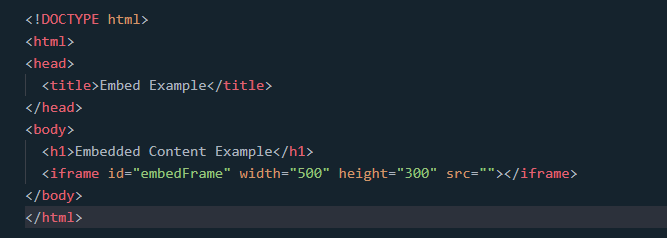
- Create the HTML Structure
First, create the HTML Structure for your webpage. Then add an <iframe> element where you want to embed the external content.
Take the following example:

- Access the <iframe> element
In JavaScript, you can use the document.getElementById() function to access the <iframe> element by its id attribute.
Apparently, it allows you to modify its attributes and content.
For instance:

- Change the Embedded Content
You can change the src attribute of the <iframe> element to embed different content.
For example, you want to embed a YouTube video. Apparently, you can change the src attribute to the YouTube video’s URL.

Replace “VIDEO_ID” with the actual ID of the YouTube video you want to embed.
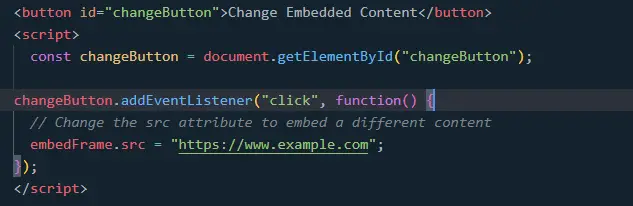
- Respond to user Interaction
You can also use JavaScript to change the embedded content based on user interactions.
For instance, you want to embed different content when the button is clicked.

In this example, clicking the button with the ID “changeButton” will update the embedded content to a different website.


Keep in mind when adding content from outside sources, prioritize security.
Follow best practices to avoid risks like XSS attacks. Only use trusted sources and sanitize user input before embedding in an <iframe>.
How to embed HTML in JavaScript?
Embedding HTML in JavaScript typically involves creating or generating HTML elements using JavaScript and then inserting them into the DOM (Document Object Model) of a web page.
This allows you to dynamically add or modify HTML content based on user interactions, data, or other conditions.
Here’s how you can embed HTML in JavaScript:
Create an HTML Container
Start by creating an HTML container element (e.g., a <div>) where you want to embed the generated HTML content.
Then, give an appropriate id attribute to make it easier to target with JavaScript.
Let’s take this example:
<div id="dynamicContent"></div>In line with it, you can consider this post if ever you want to know How to Replace div Content JavaScript.
Access the Container Element
Similar to <iframe> tag, embedding HTML in JavaScript we also use document.getElementById() function to access the container element.
Additionally, this will allow you to add or modify content within it.
For example:
const dynamicContentContainer = document.getElementById("dynamicContent");Generate HTML Elements
Then use JavaScript to create new HTML elements or modify existing ones. Basically, you can use the document.createElement () method to create new elements and set their properties.
For instance, let’s create a simple <p> element with some text.
const paragraph = document.createElement("p");
paragraph.textContent = "This is dynamically generated content.";
Append Elements to the Container
After creating or modifying the HTML elements you need to insert them into the DOM.
Then you use the appendChild() method of the container element to add the generated element as children.
For example:
dynamicContentContainer.appendChild(paragraph);Respond to User Interaction
Finally, you can trigger the dynamic HTML generation and embedding based on user interactions, such as clicking a button or submitting a form.
Here’s an example of adding to content when a button is clicked:
<button id="generateButton">Generate Content</button>

<script>
  const generateButton = document.getElementById("generateButton");

  generateButton.addEventListener("click", function() {
    const paragraph = document.createElement("p");
    paragraph.textContent = "New dynamically generated content.";

    dynamicContentContainer.appendChild(paragraph);
  });
</script>
In this example, clicking the button with the ID “generateButton” will create a new <p> element with the specified text and add it to the container.
I think we already covered everything we need to know about this article trying to convey.
Nevertheless, you can also check these articles to enhance your JavaScript HTML manipulation skills.
- How to Dynamically Add Rows in HTML table using JavaScript?
- How to combine html CSS and JavaScript in one file
- How To Make JavaScript Tabs With CSS And HTML
Conclusion
In conclusion, JavaScript embedding enriches websites by seamlessly integrating external content for dynamic user experiences. This article unveiled embedding concepts, showcased techniques like <iframe> and <embed>, and demonstrated dynamic content manipulation using JavaScript.
Prioritizing security and adhering to best practices is crucial. Explore related articles to elevate your JavaScript skills further. In essence, mastering JavaScript embedding empowers developers to create captivating and interactive web environments.
Official documentation
Frequently Asked Questions
Is JavaScript still worth learning in 2026?
What is the difference between var, let, and const?
Which JavaScript version should I target in 2026?
What is the best free editor for JavaScript?
How do I run JavaScript locally vs in the browser?
What can I build with JavaScript for my BSIT capstone?

Glay Eliver
Programmer & Technical Writer at PIES IT Solution
Glay Eliver is a programmer and writer at PIES IT Solution, author of over 600 tutorials at itsourcecode.com. Specializes in JavaScript tutorials, Microsoft Office how-tos (Excel, Word, PowerPoint), and Python error debugging covering ImportError, TypeError, AttributeError, ModuleNotFoundError, and JavaScript ReferenceError. Authored several of the site’s highest-traffic Excel and MS Office reference articles.
Expertise: JavaScript · MS Excel · MS Word · MS PowerPoint · Python · Python ImportError · Python TypeError · Python AttributeError · ModuleNotFoundError · JavaScript ReferenceError · Pygame
· View all posts by Glay Eliver →