
Searching Data in the Datagridview Using C# with SQL Server
Searching Data in the Datagridview Using C#
In this tutorial, I will teach you how to create an Autocomple in a Combobox using C#.net and SQL Server 2005. With this, it will suggest the records when you start to type in the combobox then, you don’t have to click anymore the dropdown or scroll down the list of records that you’re going to select.

Let’s begin:
Create a database and name it “dbcombo”.
After creating database, do the following query for creating a table in the database that you have created.
SET ANSI_NULLS ON
GO
SET QUOTED_IDENTIFIER ON
GO
CREATE TABLE [dbo].[tblemployee](
 [ID] [int] IDENTITY(1,1) NOT NULL,
 [Name] [nvarchar](50) NULL,
 [Address] [nvarchar](50) NULL,
 [Contact] [nvarchar](50) NULL,
 [Emailadd] [nvarchar](50) NULL,
 CONSTRAINT [PK_tblemployee] PRIMARY KEY CLUSTERED
(
 [ID] ASC
)WITH (PAD_INDEX = OFF, STATISTICS_NORECOMPUTE = OFF, IGNORE_DUP_KEY = OFF, ALLOW_ROW_LOCKS = ON, ALLOW_PAGE_LOCKS = ON) ON [PRIMARY]
) ON [PRIMARY]
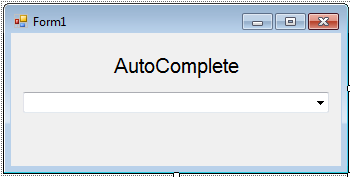
Now , open Microsoft Visual Studio and create new Windows Form Application for C#. Then do the following design of a Form as follows.

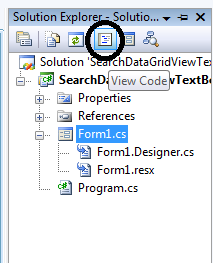
After that, go to the Solution Explorer, double click the “View Code” to display the code editor.
In the code editor, declare all the classes that are needed.
Note: Put using System.Data.SqlClient; above the namespace to access sql server library.
 //initialize all classes
 SqlConnection conn = new SqlConnection();
 SqlCommand cmd = new SqlCommand();
 SqlDataAdapter da = new SqlDataAdapter();
 DataTable dt = new DataTable();
After declaring the classes, establish a connection between SQL server and C#.net and retrieve the data in the database to display in the datagridview in the first load of the Form.
private void Form1_Load(object sender, EventArgs e)
 {
 //set a connection between SQL server and Visual C#
 con.ConnectionString = "Data Source=.\\SQLEXPRESS;Database=persondb;trusted_connection=true;";

 //opening connection
 con.Open();
 try
 {
 //initialize a new instance of sqlcommand
 cmd = new SqlCommand();
 //set a connection used by this instance of sqlcommand
 cmd.Connection = con;
 //set the sql statement to execute at the data source
 cmd.CommandText = "Select * FROM tblemployee";

 //initialize a new instance of sqlDataAdapter
 da = new SqlDataAdapter();
 //set the sql statement or stored procedure to execute at the data source
 da.SelectCommand = cmd;
 //initialize a new instance of DataTable
 dt = new DataTable();
 //add or resfresh rows in the certain range in the datatable to match those in the data source.
 da.Fill(dt);
 //set the data source to display the data in the datagridview
 dataGridView1 .DataSource = dt;

 }
 catch (Exception ex)
 {
 //catching error
 MessageBox.Show(ex.Message);
 }
 //release all resources used by the component
 da.Dispose();
 //dr.Close();
 //clossing connection
 con.Close();
 }
Now, go back to the design views, double click the TextBox and do the following codes for searching data in the datagridview.
 private void textBox1_TextChanged(object sender, EventArgs e)
 {
 //opening connection
 con.Open();
 try
 {
 //initialize a new instance of sqlcommand
 cmd = new SqlCommand();
 //set a connection used by this instance of sqlcommand
 cmd.Connection = con;
 //set the sql statement to execute at the data source
 cmd.CommandText = "Select * FROM tblemployee WHERE Name Like '%" + textBox1 .Text + "%'";

 //initialize a new instance of sqlDataAdapter
 da = new SqlDataAdapter();
 //set the sql statement or stored procedure to execute at the data source
 da.SelectCommand = cmd;
 //initialize a new instance of DataTable
 dt = new DataTable();
 //add or resfresh rows in the certain range in the datatable to match those in the data source.
 da.Fill(dt);
 //set the data source to display the data in the datagridview
 dataGridView1.DataSource = dt;

 }
 catch (Exception ex)
 {
 //catching error
 MessageBox.Show(ex.Message);
 }
 //release all resources used by the component
 da.Dispose();
 //dr.Close();
 //clossing connection
 con.Close();
 }
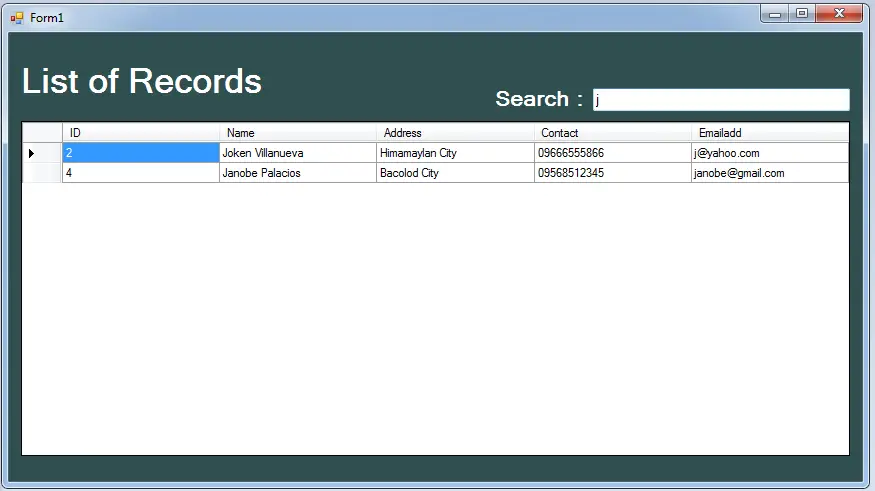
Output:
For all students who need programmer for your thesis system or anyone who needs a sourcecode in any programming languages. You can contact me @ :
Email – jannopalacios@gmail.com
Mobile No. – 09305235027 – tnt
| ABOUT PROJECT | PROJECT DETAILS |
|---|---|
| Project Name : | Searching Data in the Datagridview with SQL Server |
| Project Platform : | C# |
| Programming Language Used: | C# Programming Language |
| Developer Name : | itsourcecode.com |
| IDE Tool (Recommended): | Visual Studio 2019 |
| Project Type : | Desktop Application |
| Database: | MySQL Database |
| Upload Date and Time: | June 19, 2016 – 8:30 am |
Building a Real-Time Search with TextChanged Event
The basic search runs when a button is clicked. A better user experience filters the DataGridView as the user types. Wire up the TextChanged event on the search TextBox instead of using a button click:
private void txtSearch_TextChanged(object sender, EventArgs e)
{
    string keyword = txtSearch.Text.Trim();

    using (SqlConnection conn = new SqlConnection(connectionString))
    {
        string query = @"SELECT * FROM Students
                         WHERE FirstName LIKE @kw
                            OR LastName LIKE @kw
                            OR StudentID LIKE @kw";

        SqlDataAdapter adapter = new SqlDataAdapter(query, conn);
        adapter.SelectCommand.Parameters.AddWithValue("@kw", "%" + keyword + "%");

        DataTable dt = new DataTable();
        adapter.Fill(dt);
        dataGridView1.DataSource = dt;
    }
}
Three things worth noting. First, the % wildcards on both sides of the keyword make it a “contains” search, not “starts with”. Second, parameterized queries (@kw) prevent SQL injection. Third, the using block automatically closes the connection even if an exception is thrown.
Case-Insensitive Search Across Multiple Columns
SQL Server’s default collation is case-insensitive (e.g., SQL_Latin1_General_CP1_CI_AS where CI means Case Insensitive). On those servers, the basic LIKE query above already searches case-insensitively. But if your server uses case-sensitive collation, use UPPER() on both sides:
string query = @"SELECT * FROM Students
                 WHERE UPPER(FirstName) LIKE UPPER(@kw)
                    OR UPPER(LastName) LIKE UPPER(@kw)";
For larger tables, this approach is slow because the index on FirstName cannot be used once you wrap it in UPPER(). A better fix for production is to add a computed column with the uppercase value and index that. For a BSIT capstone with under 10,000 records, the simple UPPER approach is acceptable.
Filtering Without Re-Querying the Database
Hitting the database on every keystroke is wasteful for small tables. Load the full data once on form load, then filter the in-memory DataTable as the user types:
private DataTable dtAll;  // class-level field

private void Form1_Load(object sender, EventArgs e)
{
    using (SqlConnection conn = new SqlConnection(connectionString))
    {
        SqlDataAdapter adapter = new SqlDataAdapter("SELECT * FROM Students", conn);
        dtAll = new DataTable();
        adapter.Fill(dtAll);
        dataGridView1.DataSource = dtAll;
    }
}

private void txtSearch_TextChanged(object sender, EventArgs e)
{
    string kw = txtSearch.Text.Replace("'", "''");  // escape single quotes
    (dataGridView1.DataSource as DataTable).DefaultView.RowFilter =
        $"FirstName LIKE '%{kw}%' OR LastName LIKE '%{kw}%'";
}
This approach feels instant because no network round-trip is needed for each keystroke. The downside is memory usage: if your table has a million rows, loading it all is wasteful. The rule of thumb: in-memory filtering is fine up to about 50,000 rows.
Common Mistakes Implementing DataGridView Search
- String concatenation instead of parameters. Building
"WHERE Name LIKE '%" + txtSearch.Text + "%'"is a classic SQL injection bug. Always useSqlParameterorAddWithValue. - Forgetting the wildcards.
LIKE @kwmatches the EXACT keyword. To match “contains”, add%on both sides BEFORE binding:"%" + keyword + "%". - Not handling empty search text. If
txtSearch.Textis empty, your query returns only rows where the columns are also empty. Add a check at the top:if (string.IsNullOrEmpty(keyword)) { /* show all */ }. - Forgetting to dispose connections. Without a
usingblock, the connection stays open until garbage collection. After 100 searches you exhaust the connection pool. - Searching ID columns as strings. If StudentID is an int,
WHERE StudentID LIKE '%5%'requires CAST:WHERE CAST(StudentID AS VARCHAR) LIKE '%5%'.
Frequently Asked Questions
How do I search data in DataGridView using C# and SQL Server?
The simplest approach uses a SqlDataAdapter with a parameterized LIKE query. Wire the search TextBox’s TextChanged event to a method that builds a query like SELECT * FROM Table WHERE Column LIKE @kw, binds the parameter as "%" + keyword + "%", fills a DataTable, and sets it as the DataGridView’s DataSource. This gives you real-time filtering as the user types.
Should I use AddWithValue or specify parameter types explicitly?
For most BSIT projects, AddWithValue is fine. For production code, prefer Parameters.Add(new SqlParameter("@kw", SqlDbType.NVarChar, 100)) because AddWithValue’s type inference can mis-detect the column type and bypass indexes. The performance difference matters at scale, not for typical capstone-sized tables.
How do I make the DataGridView search case-insensitive?
SQL Server’s default collation is already case-insensitive (the “CI” in SQL_Latin1_General_CP1_CI_AS). If your server uses a case-sensitive collation, wrap both sides of the comparison in UPPER(): WHERE UPPER(Name) LIKE UPPER(@kw). For C# in-memory filtering on a DataView, set CaseSensitive = false on the DataTable.
What is the difference between DataGridView and DataGrid in C#?
DataGridView (introduced in .NET 2.0) is the modern Windows Forms control with built-in support for binding, sorting, filtering, and styling. DataGrid is the older .NET 1.x version with fewer features. For any new Windows Forms project in 2026, always use DataGridView. DataGrid still exists in WPF and other newer frameworks but those are different controls.
Why does my LIKE search not find anything when I type a number?
Probably because the column is an INT but LIKE works on strings. The query WHERE StudentID LIKE '%5%' fails on an int column. Fix it by casting: WHERE CAST(StudentID AS VARCHAR) LIKE '%5%'. Alternatively, use exact match for numeric columns: WHERE StudentID = @id where @id is parsed via int.Parse(txtSearch.Text).