
Calculator in C#
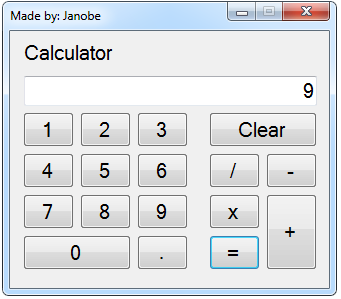
Today, I will teach you how to create a calculator using C#.Net. This tutorial contains a step by step procedure that you need to follow orderly with ease. This is a simple calculator with functions that has been done accurately.
To start with:
Open Microsoft Visual Studio 2008 and create new Windows Form Application for C#. Then do the following design of a Form just like this.
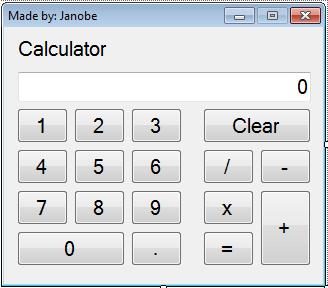
After that, go to the Solution Explorer, double click the “View Code” to display the code editor.
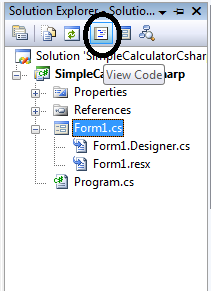
In the code editor, declare all the variables that are needed.
double tot = 0;
string LogicalOperator;
do the following codes for function of the buttons (0-9 and .) .
private void btn1_Click(object sender, EventArgs e)
 {
 if (txtView.Text == "0")
 {
 txtView.Clear();
 txtView.Text += btn1.Text;
 }
 else
 {
 txtView.Text += btn1.Text;
 }
 }

 private void btn2_Click(object sender, EventArgs e)
 {
 if (txtView.Text == "0")
 {
 txtView.Clear();
 txtView.Text += btn2.Text;
 }
 else
 {
 txtView.Text += btn2.Text;
 }
 }

 private void btn3_Click(object sender, EventArgs e)
 {
 if (txtView.Text == "0")
 {
 txtView.Clear();
 txtView.Text += btn3.Text;
 }
 else
 {
 txtView.Text += btn3.Text;
 }
 }

 private void btn0_Click(object sender, EventArgs e)
 {
 if (txtView.Text == "0")
 {
 txtView.Clear();
 txtView.Text += btn0.Text;
 }
 else
 {
 txtView.Text += btn0.Text;
 }
 }

 private void btn8_Click(object sender, EventArgs e)
 {
 if (txtView.Text == "0")
 {
 txtView.Clear();
 txtView.Text += btn8.Text;
 }
 else
 {
 txtView.Text += btn8.Text;
 }
 }

 private void btn7_Click(object sender, EventArgs e)
 {
 if (txtView.Text == "0")
 {
 txtView.Clear();
 txtView.Text += btn7.Text;
 }
 else
 {
 txtView.Text += btn7.Text;
 }

 }

 private void btn9_Click(object sender, EventArgs e)
 {
 if (txtView.Text == "0")
 {
 txtView.Clear();
 txtView.Text += btn9.Text;
 }
 else
 {
 txtView.Text += btn9.Text;
 }

 }

 private void btn6_Click(object sender, EventArgs e)
 {
 if (txtView.Text == "0")
 {
 txtView.Clear();
 txtView.Text += btn6.Text;
 }
 else
 {
 txtView.Text += btn6.Text;
 }

 }

 private void btn5_Click(object sender, EventArgs e)
 {
 if (txtView.Text == "0")
 {
 txtView.Clear();
 txtView.Text += btn5.Text;
 }
 else
 {
 txtView.Text += btn5.Text;
 }
 }

 private void btn4_Click(object sender, EventArgs e)
 {
 if (txtView.Text == "0")
 {
 txtView.Clear();
 txtView.Text += btn4.Text;
 }
 else
 {
 txtView.Text += btn4.Text;
 }
 }

 private void btnDote_Click(object sender, EventArgs e)
 {
 if (!txtView.Text.Contains("."))
 {
 txtView.Text += btnDote.Text;
 }

 }
After that, do the following codes for function of the MDAS(x,/,+,-).
 private void btnPlus_Click(object sender, EventArgs e)
 {
 tot += double.Parse(txtView.Text);
 LogicalOperator = "plus";
 txtView.Clear();


 }
 private void btnminus_Click(object sender, EventArgs e)
 {
 tot += double.Parse(txtView.Text);
 LogicalOperator = "minus";
 txtView.Clear();

 }
 private void btnMultiply_Click(object sender, EventArgs e)
 {
 tot += double.Parse(txtView.Text);
 LogicalOperator = "multiply";
 txtView.Clear();
 }

 private void btnDivide_Click(object sender, EventArgs e)
 {
 tot += double.Parse(txtView.Text);
 LogicalOperator = "divide";
 txtView.Clear();
 }
Do the following codes for the “Clear” button.
 private void btnClear_Click(object sender, EventArgs e)
 {
 txtView.Text = "0";
 tot = 0;

 }
Finally, do the following codes for the function of the equals(=) sign.
 private void btnEqual_Click(object sender, EventArgs e)
 {

 switch (LogicalOperator){
 case "plus":
 tot = tot + double.Parse(txtView.Text);
 txtView.Text = tot.ToString();
 tot = 0;
 LogicalOperator = "";
 break ;
 case "minus":
 tot = tot - double.Parse(txtView.Text);
 txtView.Text = tot.ToString();
 tot = 0;
 LogicalOperator = "";
 break;

 case "multiply":
 tot = tot * double.Parse(txtView.Text);
 txtView.Text = tot.ToString();
 tot = 0;
 LogicalOperator = "";
 break;
 case "divide":
 tot = tot / double.Parse(txtView.Text);
 txtView.Text = tot.ToString();
 tot = 0;
 LogicalOperator = "";
 break;
 default :
 txtView.Text = tot.ToString();
 break;

 }
For all students who need programmer for your thesis system or anyone who needs a sourcecode in any programming languages. You can contact me @ :
Email – jannopalacios@gmail.com
Mobile No. – 09305235027 – tnt
| ABOUT PROJECT | PROJECT DETAILS |
|---|---|
| Project Name : | Calculator |
| Project Platform : | C# |
| Programming Language Used: | C# Programming Language |
| Developer Name : | itsourcecode.com |
| IDE Tool (Recommended): | Visual Studio 2019 |
| Project Type : | Desktop Application |
| Database: | None |
| Upload Date and Time: | June 20, 2016 – 8:23 am |
Frequently Asked Questions
How does this C# project work?
Built with C# WinForms (.NET Framework or .NET 6/7/8) and SQL Server backend. Standard structure: Form designer → code-behind event handlers → ADO.NET data access layer → SQL Server. Login form for auth. Ready to extend for BSIT capstone scope.
What .NET and SQL Server versions does this project require?
Most projects in this batch use C# WinForms on .NET Framework 4.5+ (the dominant stack for tutorial sites) with SQL Server 2012 Express or higher. A few newer projects use .NET 6/7/8. To run: install Visual Studio 2019 / 2022 (Community edition is free), install SQL Server Express + SSMS, open the .sln file, build, run.
How do I set up the database for this C# project?
Open SQL Server Management Studio (SSMS) and connect to your SQL Server instance (e.g. localhost\SQLEXPRESS). Right-click Databases > Restore Database OR > New Database then import the included .sql script. Update the connection string in App.config (or in code-behind) with your server name + credentials. Rebuild and run.
Can I use this C# project for a BSIT capstone or thesis?
Yes, but extend it. A bare CRUD form is too narrow for full capstone scope. Add: role-based access (admin/staff/customer login redirect), Crystal Reports or RDLC reports, dashboard with Chart controls, audit log, multi-branch support. Pair with Chapter 1-5 documentation matching your panel’s rubric.
Why am I getting ‘connection error’ or ‘object reference not set’?
Three common C# issues: (1) Connection error: SQL Server isn’t running OR connection string in App.config has wrong server name. Open SQL Server Configuration Manager + verify SQL Server (SQLEXPRESS) service is running. (2) NullReferenceException: a control reference or DB column returned NULL, add a check or use ?? operator. (3) Build error ‘The type or namespace could not be found’: missing assembly reference, add via Project > Add Reference.
Where can I find more C# projects with source code?
Browse the C# Projects hub for the full library. For other .NET stacks see VB.NET Projects (300+ Windows Forms systems). For ASP.NET WebForms see ASP.NET Projects. For BSIT capstone idea lists see 150 Best Capstone Project Ideas.