
You will learn how to make a simple calculator program in C in this article. This simple calculator is one that can perform addition, subtraction, multiplication, and division, modulus, power and factorial as well as other fundamental mathematical operations.
There are two ways to create a calculator program. The first is by creating a switch case for the program and the second is by creating a function that takes the operator +, -, and – as its operands.
This Calculator C also includes a free Download Source Code. Simply locate the downloadable source code below and click the “Download Now” button. To start creating a C on calculator Language, make sure that you have a Code Blocks or any platform of C installed in your computer.
About Project Details
| ABOUT PROJECT | PROJECT DETAILS |
|---|---|
| Project Name : | Calculator in C |
| Project Platform : | C/C++ |
| Programming Language Used: | C Programming Language |
| Developer Name : | itsourcecode.com |
| IDE Tool (Recommended): | Dev-C++/Codeblocks |
| Project Type : | Desktop Application |
| Database: | Stores data in .DAT file |
Calculator program in C Steps on How to Create a Project
Time needed: 5 minutes
Here’s the step’s on how to create a Calculator in C with Source Code.
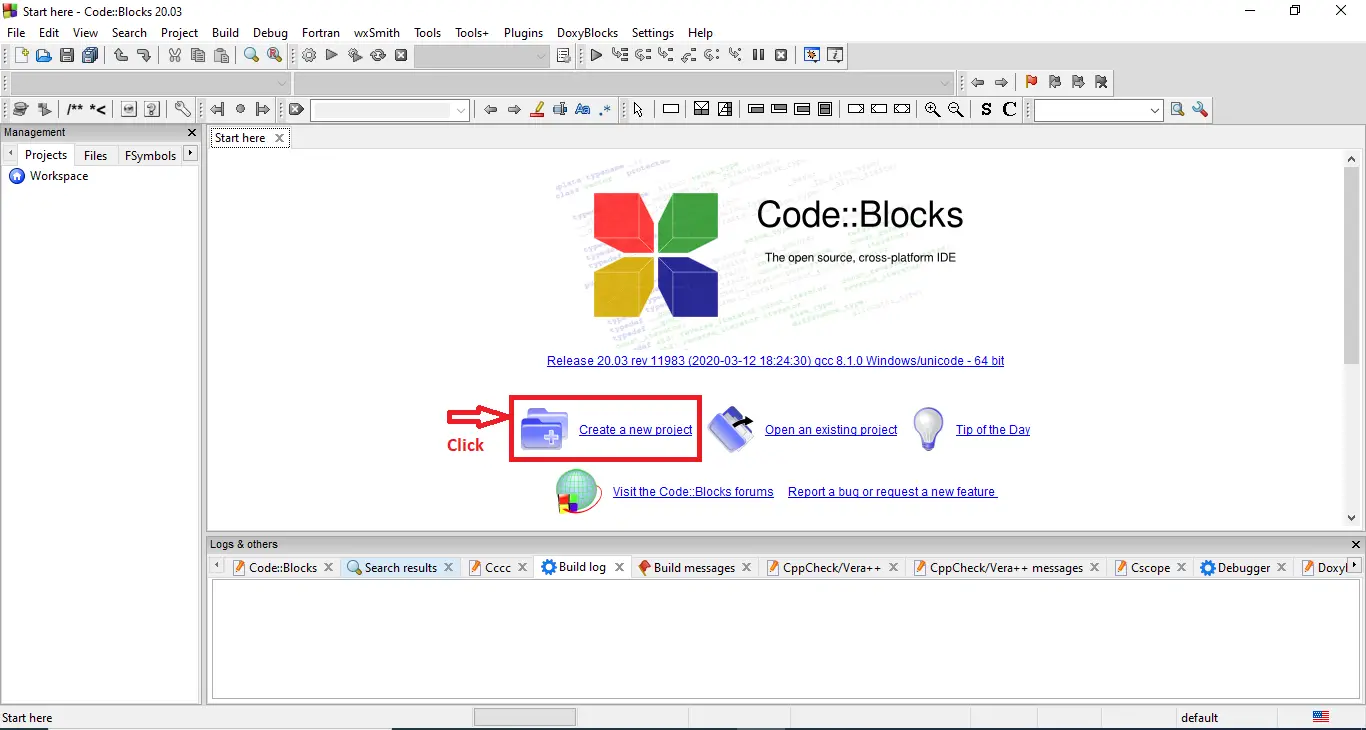
- Step 1: Create a new project.
First open the code blocks IDE and click “create a new project“.

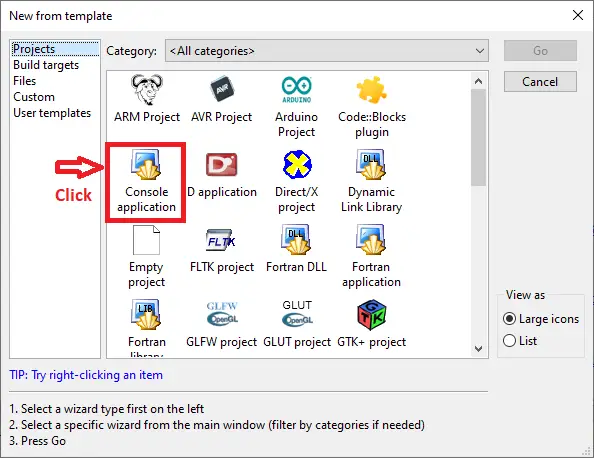
- Step 2: Choose console application.
Next, click the “console application” and after that click “next“.

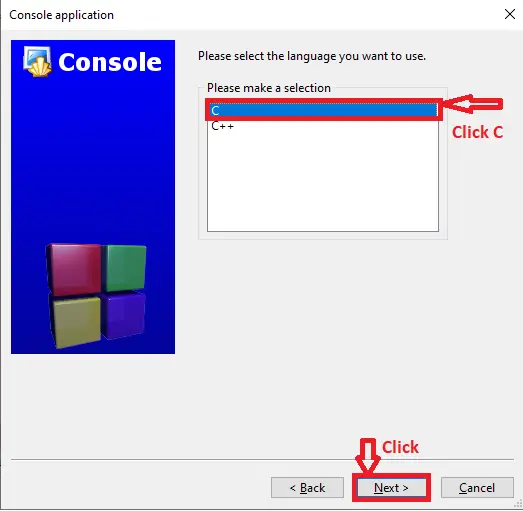
- Step 3: Choose C language.
Then , choose “C language” and click “next“.

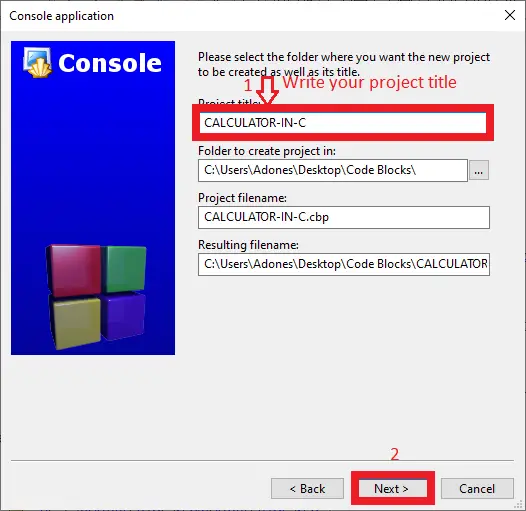
- Step 4: Name your project.
Lastly, name the project you’ve created and click “next” after that click “finish“.

- Step 5: The actual code.
Finally, we will now start adding functionality to our C Framework by adding some functional codes.
This Calculator C with Source Code was build and run under Code::Blocks IDE.
The following is the first screenshot of the sample run:
Now provide any input (from +,-,*,/,?,^,!) in such a way that:
Enter + symbol for Addition
Enter – symbol for Subtraction
For Multiplication Enter * symbol
Enter / symbol for Division
Enter ? symbol for Modulus
Enter ^ symbol for Power
Enter ! symbol for Factorial
- Output for main window
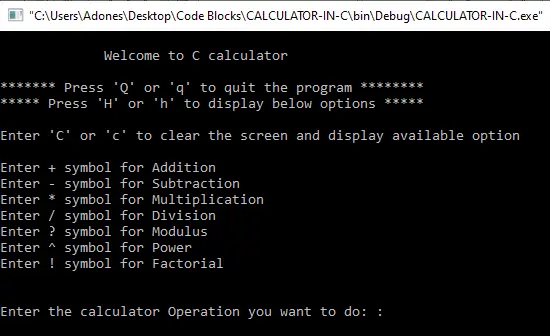
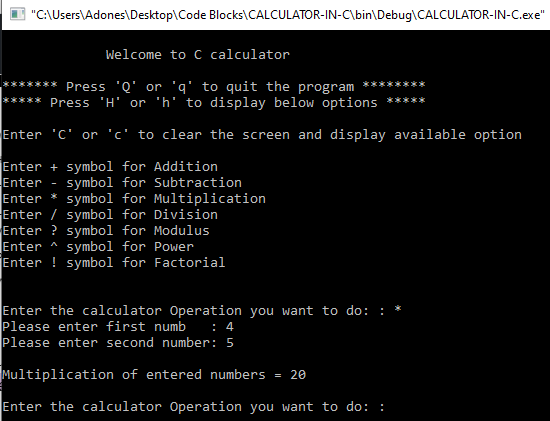
If the user selects * symbol, the application will ask the user to enter any two numbers to accomplish the multiplication. For example, if the user select * symbol and enter 4 as the first number, the second number will be 5. To see the output, press the ENTER key as shown in the screenshot below:
- Output for multiplication window
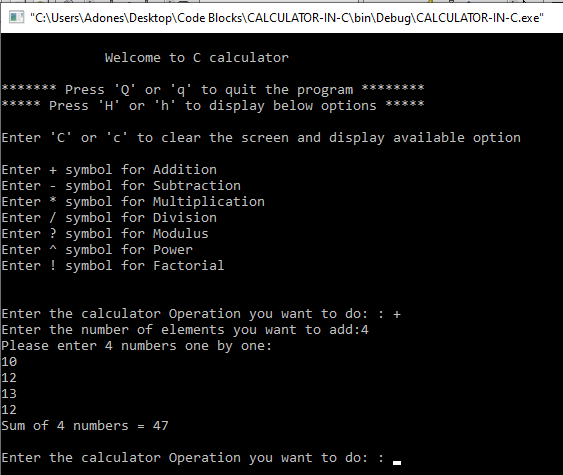
If the user selects + symbol, the application will ask the user to enter any two numbers to accomplish the multiplication. For example, if the user select + symbol and enter 10 as the first number, the second number will be 12, the third number will be 13 and the fourth number will be 12. To see the output, press the ENTER key as shown in the screenshot below:
- Output for addition window
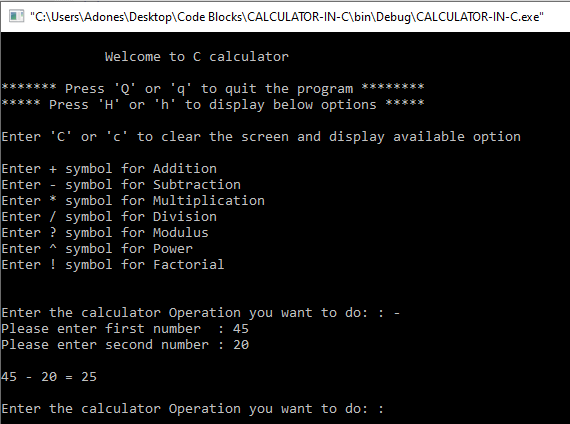
If the user selects – symbol, the application will ask the user to enter the number of elements you want to add to accomplish the subtraction. For example, if the user select – symbol and enter 45 as the first number, the second number will be 20. To see the output, press the ENTER key as shown in the screenshot below:
- Output for subtraction window
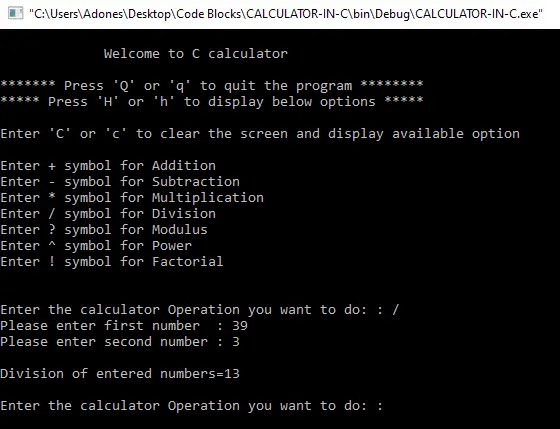
If the user selects / symbol, the application will ask the user to enter the number of elements you want to add to accomplish the division. For example, if the user select / symbol and enter 39 as the first number, the second number will be 3. To see the output, press the ENTER key as shown in the screenshot below:
- Output for division window
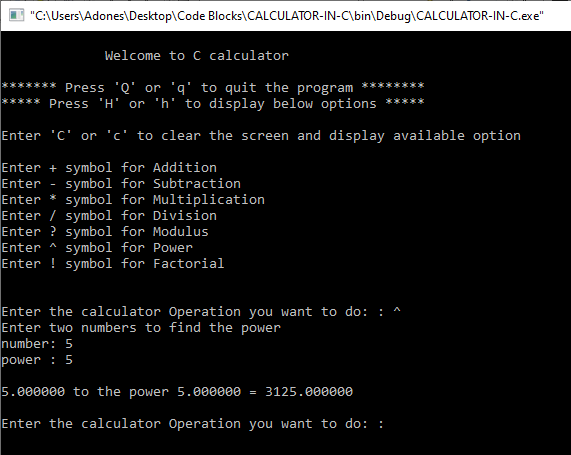
If the user selects ^ symbol, the application will ask the user to enter the number of elements you want to add to accomplish the power. For example, if the user select ^ symbol and enter 5 as the first number, the second number will be 5. To see the output, press the ENTER key as shown in the screenshot below:
- Output for power window
Downloadable Source Code
Conclusion
In Conclusion, This is a simple calculator created in the C programming language that runs from the DOS command prompt.
All basic arithmetic operations, such as addition, subtraction, multiplication, modulus calculations, and many others, are performed by the calculator. It can also compute integer numbers’ factorial, powers, and roots.
Related Articles
- Simple Calculator in C# With Source Code
- How To Make A Calculator in Python with Example
- Simple Calculator in JavaScript Source Code Free Download
- Best Calculator Android App with Source Code
Inquiries
If you have any questions or suggestions about Calculator in C with Source Code, please feel free to leave a comment below.
Frequently Asked Questions
How does this C / C++ calculator project work?
Console calculator: read 2 numbers + operator, switch statement on operator (+, -, *, /, %), print result. Extended version: scientific functions, expression parser, history.
What compiler do I need to run this C or C++ project?
For C: gcc (GNU Compiler Collection) or MinGW (Windows). For C++: g++. IDE options: Code::Blocks (lightweight, built-in compiler), Dev-C++ (classic Philippine BSIT favorite), Visual Studio Code with C/C++ extension, CLion (paid). To compile from terminal: gcc program.c -o program (for C) or g++ program.cpp -o program (for C++), then run with ./program (Linux/macOS) or program.exe (Windows).
How do I run this C / C++ project?
Open the .c or .cpp file in your IDE (Code::Blocks, Dev-C++, VS Code). Click Build (or press F9), then Run (or press F5). From terminal: navigate to project folder, run gcc/g++ command above, then ./program. If using file storage, make sure the data file (e.g. records.txt) is in the same folder as the executable.
Can I use this C / C++ project for a BSIT capstone or thesis?
C/C++ projects are usually accepted for 1st-2nd year mini-projects or as building blocks. For a full capstone you would typically pair them with a more interactive frontend (e.g. wrap C++ logic with a Java/Python/PHP frontend, or extend to GTK/Qt for a real GUI). Standalone console C++ capstones are accepted by some panels but rare in 2026.
Why am I getting ‘undeclared identifier’ or ‘cannot find header’ errors?
Three common C/C++ issues: (1) Missing #include directive, e.g. #include
Where can I find more C or C++ projects with source code?
Browse the C and C++ Projects hub for the full library. For Java desktop alternatives see Java Projects. For higher-level languages see Python Projects. For BSIT capstone idea lists see 150 Best Capstone Project Ideas.

Adones Evangelista
Programmer & Technical Writer at PIES IT Solution
Adones Evangelista is a programmer and writer at PIES IT Solution, author of over 900 tutorials and error-fix guides at itsourcecode.com. Specializes in JavaScript, Django, Laravel, and Python error debugging covering ValueError, TypeError, AttributeError, ModuleNotFoundError, and RuntimeError, plus C/C++ and PHP capstone projects for BSIT students.
Expertise: JavaScript · Python · Django · Laravel · Error Debugging · C/C++ · View all posts by Adones Evangelista →