
Microsoft Word in 2026 looks both familiar and brand-new at the same time. The window you see when you open Word 365 still has the same core layout users have known for over a decade. The Ribbon at the top, the document area in the middle, the status bar at the bottom. But it has also picked up several new elements. A redesigned title bar, a pinned Copilot pane on the right, a refreshed dark mode, and an unobtrusive search box that replaces the old “Tell Me” feature.
If you have ever felt lost staring at Word’s interface, wondering what each button does, why a panel suddenly appeared, or where a missing toolbar went, this guide is for you. In this guide, I will walk you through every visible part of the MS Word window. I will name it, explain what it does, and show how it changed between Word 2019, Word 2021, and Word 365 in 2026.
By the way, I also have here some related materials that pair well with this guide. We have the How to Use the MS Word Ribbon deep dive, the Parts of Excel Window companion, the Parts of PowerPoint Window guide, and our full MS Word tutorial series for everything else from formatting to mail merge.
Last updated: June 2026, written by PIES Information Technology Solutions, drawn from 10+ years of helping students and office workers master Microsoft Office tools.
Quick answer
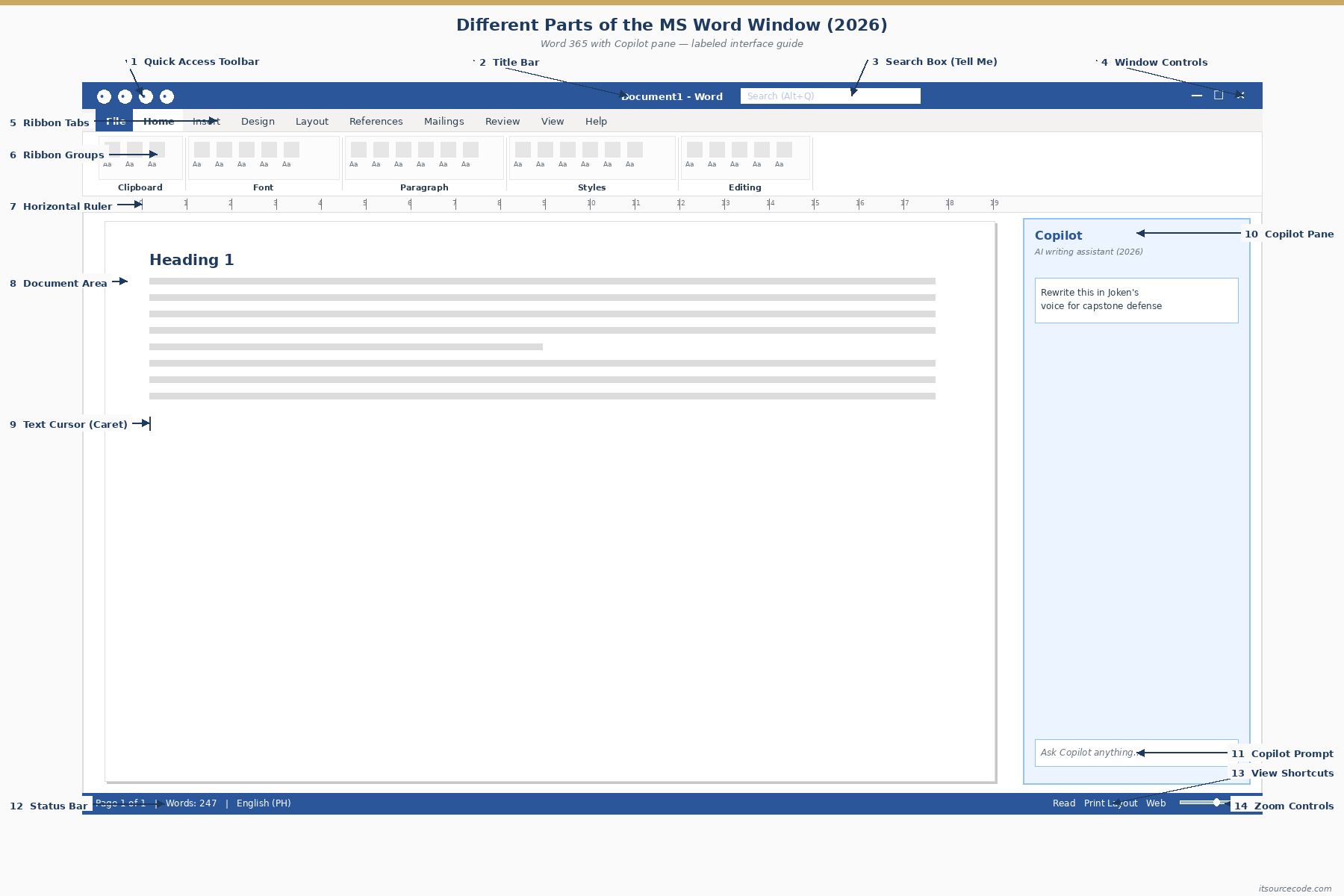
From top to bottom, the MS Word window includes the Title Bar (file name plus window controls), Quick Access Toolbar (Save, Undo, Redo shortcuts), Ribbon (Home, Insert, Layout, References, Mailings, Review, View, Help tabs), Rulers (horizontal and vertical), Document Area (where you type), Scroll Bars (right and bottom), Status Bar (page count, word count, language, zoom), View Buttons (Read, Print Layout, Web Layout), and the Zoom Slider. In Word 365 (2026), the Copilot pane can be docked on the right as an AI sidebar. The File tab at the far-left opens Backstage View for save, print, export, and share.
Identifying the Different Parts of the MS Word Window
When you launch Microsoft Word 365 in 2026 and open a blank document, you see a window made up of roughly twelve distinct interface regions. Most of them have been part of Word since the Ribbon was introduced in Word 2007. A few of them, like the Copilot pane and the Microsoft Search box, are 2024 to 2026 additions tied to the AI-powered productivity push.
Each of these regions either shows information (status bar, rulers, scroll bars, page count) or gives you commands (Ribbon, Quick Access Toolbar, View buttons, Copilot pane). Learning the names matters less than learning what each one is for. That is how you stop hunting through menus and start working faster.
The sections below walk through every part of the window, from the very top (Title Bar) down to the bottom-right (Zoom Slider), with a 2026-specific deep dive on Copilot.
The Major Parts of MS Word
1. Title Bar
The Title Bar runs along the very top edge of the Word window. It shows the name of the document you are working on (for example, Resume_Final – Word), followed by an indicator of whether the file is saved to OneDrive, SharePoint, or kept local. On the far right of the Title Bar you will find the standard Windows controls (Minimize, Maximize or Restore, and Close), plus the Ribbon Display Options arrow (which lets you auto-hide or always-show the Ribbon), and your Microsoft 365 account avatar.
In Word 365 (2026), the center of the Title Bar also hosts the Microsoft Search box. It is a redesigned successor to the older “Tell Me what you want to do” field. You can type a command, a setting, or even a natural-language phrase like “insert table of contents” and Word jumps you to the right place.
2. Quick Access Toolbar (QAT)
The Quick Access Toolbar is a small row of icons that, by default, sits above (or below, depending on your setting) the Ribbon at the top-left of the window. Its job is to give you one-click access to the commands you use most often. Typically, these are Save, Undo, and Redo out of the box.
You can customize the QAT to add any command you want. First, open the dropdown arrow at the right end of the toolbar. Then choose “More Commands.” Finally, pick from the full list of Word commands. Common additions are Print Preview, Quick Print, Open, New, and Email Document. In Word 365, the QAT can also be hidden entirely if you prefer a cleaner interface. Just right-click any toolbar area and choose “Hide Quick Access Toolbar.”
3. Ribbon
The Ribbon is the wide horizontal band of commands below the Title Bar. It is the single most important element of the Word interface. Every formatting, editing, layout, and review command lives somewhere on the Ribbon. The Ribbon is organized into tabs (the labeled headings like Home, Insert, Layout, and so on), and each tab is divided into groups (Font, Paragraph, Styles, Editing on the Home tab, for example).
The default Word 365 (2026) Ribbon contains these tabs:
- File. Opens Backstage View (Save, Save As, Print, Export, Share, Account, Options).
- Home. Clipboard, font, paragraph, styles, editing. This is your most-used tab.
- Insert. Tables, pictures, shapes, icons, 3D models, charts, links, headers and footers, equations, symbols.
- Draw. Pens, highlighters, ink-to-text, ink-to-math. Visible on touch devices by default.
- Design. Document themes, style sets, page color, watermarks, page borders.
- Layout. Margins, orientation, columns, breaks, indent, spacing, position, wrap text.
- References. Table of contents, footnotes, citations, bibliography, captions, index.
- Mailings. Envelopes, labels, mail merge wizard, recipient list, merge fields.
- Review. Spelling and grammar, thesaurus, translate, comments, track changes, compare, protect.
- View. Read mode, print layout, web layout, outline, navigation pane, ruler, gridlines, zoom.
- Help. Contact support, feedback, training, what’s new.
Plus the contextual tabs that appear only when relevant. Picture Format appears when you click an image. Table Design and Table Layout appear when your cursor is in a table. Header and Footer appears when you are editing a header, and so on. These tabs vanish when you click back into normal body text.
4. Ribbon Tabs Deep Dive
Knowing which tab holds which command is half the battle of working efficiently in Word. Here is the quick mental map:
- “I want to change how text looks” goes to the Home tab (font, size, color, bold, italic, alignment).
- “I want to add something to the document” goes to the Insert tab (table, picture, page break, header, hyperlink).
- “I want to change the page itself” goes to the Layout tab (margins, orientation, columns, page breaks).
- “I want to change the overall document style” goes to the Design tab (theme, page color, watermark).
- “I want to manage citations or a TOC” goes to the References tab.
- “I want to send the same letter to many people” goes to the Mailings tab (mail merge).
- “I want to check spelling or work with comments” goes to the Review tab.
- “I want to change how I see the document” goes to the View tab (zoom, layout view, navigation pane).
You can minimize the Ribbon to claw back screen space. Double-click any tab name, or press Ctrl+F1. Only the tab names stay visible, and clicking one temporarily expands its commands.
5. Document Area (Work Area)
The Document Area, also called the Work Area, Editing Area, or simply the page, is the large white space in the middle of the window where you actually type and format your text. The blinking vertical line you see is the insertion point (or cursor). The mouse pointer changes shape depending on what it is hovering over (I-beam over text, arrow over an image).
By default, Word shows the document area in Print Layout view. This means each page appears as a discrete white sheet with grey gaps between pages, exactly as it would print. You can switch to other views from the View tab or the View Buttons at the bottom-right of the status bar.
6. Rulers (Horizontal and Vertical)
Word shows two rulers around the document area. A horizontal ruler across the top and a vertical ruler down the left side. The rulers display measurements (inches or centimeters depending on your regional setting), and they visually mark your margins, indents, and tab stops.
You can drag the indent markers on the horizontal ruler. The upside-down house shape on the left controls first-line indent and hanging indent. The rectangle on the right controls right indent. Click anywhere on the ruler’s bottom edge to drop a tab stop.
If you do not see the rulers, toggle them on at View tab, then Show group, then check “Ruler.” The vertical ruler only appears in Print Layout view.
7. Scroll Bars (Vertical and Horizontal)
The vertical scroll bar on the right edge of the document area lets you move up and down through a long document. The horizontal scroll bar appears at the bottom when your document is wider than the window. This is usually because of zoom level, wide tables, or landscape orientation.
The vertical scroll bar in Word 365 includes a small browse buttons set. Previous page, next page, and “select browse object” (find next heading, comment, footnote, and so on). The scroll thumb shows your relative position in the document. If you have multiple pages, it displays a tooltip with the current page number as you drag.
8. Status Bar
The Status Bar runs along the very bottom of the window. It quietly shows real-time information about your document, and gives one-click access to several view and proofing tools. From left to right, the default Status Bar shows:
- Page number. “Page 3 of 10” for example. Click to open the Navigation pane.
- Word count. Total words in the document (or selected text). Click to open the Word Count dialog with characters, paragraphs, and lines.
- Spell check status. Book icon with red X if errors exist, green checkmark if clean.
- Language. Proofing language (for example, “English (United States)”). Click to change.
- Track Changes status. Shows on or off if Track Changes is active.
- View Buttons. Read Mode, Print Layout, Web Layout (icons on the right).
- Zoom Slider. At the far right, with the current zoom percentage.
You can customize what the Status Bar shows. Right-click anywhere on the bar to bring up a checklist (formatted page number, section, line number, character count, vertical page position, caps lock, overtype, selection mode, and more). Add or remove items to match what you actually want to track.
9. View Buttons
The View Buttons sit on the right side of the Status Bar, just left of the Zoom Slider. Three small icons let you switch document view modes instantly:
- Read Mode. A full-screen, page-flipping reading view. Good for review or e-reader-style consumption. Press Esc to exit.
- Print Layout. The default view. Shows each page as it will print, with margins, headers, and footers visible.
- Web Layout. Shows the document as a single continuous page (no page breaks), like a web page. Useful for documents you will publish online.
The View tab on the Ribbon offers two more views not on the Status Bar. Outline (shows your document by heading levels, which is great for restructuring long documents) and Draft (a simplified text-only view that loads faster on huge files).
10. Zoom Slider
The Zoom Slider at the bottom-right corner lets you zoom in or out of your document without changing its actual font sizes. Drag the slider, click the plus and minus buttons (each click is 10%), or click the percentage label (for example, 100%) to open the Zoom dialog where you can pick exact values like 75%, 200%, page width, text width, or many pages at once.
Useful zoom shortcuts: hold Ctrl and scroll the mouse wheel to zoom smoothly. Press Ctrl+0 in some Word builds to reset to 100%. Zoom only affects how Word displays the document. Printed output is unchanged.
11. Copilot Pane (NEW for Word 365 in 2026)
The single biggest addition to the MS Word interface in the 2024 to 2026 update cycle is the Copilot pane. This is Microsoft’s AI assistant docked as a sidebar on the right side of the window. You open it from the Copilot button on the Home tab (a stylized icon with a sparkle motif), or via the keyboard shortcut Alt+H, MQ on some keyboard layouts.
The Copilot pane gives you a chat interface where you can ask Word to do things in natural language:
- “Summarize this document in 5 bullet points.” Copilot reads the entire document and outputs a summary.
- “Rewrite this paragraph to sound more professional.” Applies tone transformation to the selected text.
- “Draft a cover letter for a software developer role based on my resume.” Generates new content using context from the open document.
- “Translate this section to Filipino.” Instant translation without leaving Word.
- “Create a table comparing X and Y.” Generates and inserts the table.
Copilot in Word requires an active Microsoft 365 subscription with the Copilot add-on (sold separately as of 2026). Without the add-on, the Copilot button is visible but disabled. The pane can be dragged to undock as a floating window, resized, or hidden entirely by clicking the X at its top-right corner.
Common gotcha. If the Copilot button does not appear at all on your Home tab, your Word install is older than the Copilot rollout (anything before mid-2024 Word 365 builds), or your IT admin has disabled Copilot at the organizational level. Update Word via File, then Account, then Update Options, then Update Now.
12. File Tab (Backstage View)
The File tab at the far-left of the Ribbon is special. Clicking it does not show Ribbon commands. It opens Backstage View, a full-window menu for managing your document file itself rather than its contents. Backstage View hosts:
- Home. Recent documents, recommended templates, pinned files.
- New. Start a blank document or pick from templates (resume, cover letter, brochure, and so on).
- Open. Browse OneDrive, SharePoint, This PC, or recent files.
- Info. Document properties, version history, protection options, inspect document.
- Save, Save As, Save a Copy. File management. Save As lets you change format to PDF, .doc, .rtf, .txt.
- Print. Full print preview with all printer options.
- Share. Invite collaborators (OneDrive link), email as attachment, present online.
- Export. Create PDF or XPS, change file type.
- Transform (Word 365). Convert to Sway presentation or web page.
- Close, Account, Feedback, Options. At the bottom of the menu.
To exit Backstage View and return to your document, click the back-arrow at the top-left, press Esc, or click any other Ribbon tab.
Comparison: Word 2019 vs Word 365 (2026)
If you are upgrading from Word 2019 (or older) to Word 365, the core interface is 90% familiar. Here is what genuinely changed in 2024 to 2026:
Copilot pane (entirely new)
The biggest visible change. Word 2019 has no AI assistant. Word 365 in 2026 ships with a dedicated Copilot button on the Home tab that opens a docked AI pane on the right. Summarize, rewrite, translate, draft from prompts. All without leaving the document. It is subscription-gated.
Refreshed Ribbon visual style
Word 365 in 2026 uses a softer, more rounded Ribbon look. Rounded button corners, more whitespace between groups, less visible borders. The functionality is identical to Word 2019. Only the visual styling changed. The change is part of Microsoft’s Fluent Design refresh rolled out across all Microsoft 365 apps.
Modern Dark Mode
Word 2019 had a “Black” theme that affected only the Ribbon and surrounding chrome. The document area stayed white. Word 365 (2026) has a true Dark Mode that turns the page itself dark grey (with white text), reducing eye strain in low-light environments. Switch via File, then Account, then Office Theme, and choose “Use system setting,” “Dark Gray,” or “Black.” Then toggle the document dark mode at View tab, then Switch Modes.
Microsoft Search box replaces “Tell Me”
Word 2019 had a “Tell Me what you want to do” field at the top of the Ribbon. Word 365 replaces it with a centered Microsoft Search box in the Title Bar that searches commands, recent files, Microsoft Help articles, and SharePoint content all at once.
Auto-save indicator on Title Bar
Word 365 documents stored in OneDrive or SharePoint show an AutoSave toggle at the far-left of the Title Bar. When AutoSave is on, every keystroke is saved immediately. The floppy-disk Save button on the QAT becomes redundant. Word 2019 had no AutoSave. You always had to press Save manually.
Modern comments and @mentions
Comments in Word 365 (2026) live in a slide-out pane on the right, support @mentioning collaborators (which sends them an email and Teams notification), and let multiple users reply to the same comment thread. Word 2019 comments are simpler balloon callouts beside the page.
What stayed the same
The Quick Access Toolbar, Ribbon tab structure (Home, Insert, Layout, References, Mailings, Review, View), rulers, scroll bars, status bar layout, View Buttons, and Zoom Slider are functionally identical between Word 2019 and Word 365. If you learned Word 2019 well, you are 90% productive in Word 365 from day one.
Essential Word Keyboard Shortcuts by Interface Section
Every part of the Word window has keyboard shortcuts that bypass mouse-clicking entirely. Memorize the ones you would use 10 or more times a day. They will save hours a week.
Ribbon and Quick Access Toolbar shortcuts
- Alt. Display KeyTips (letter overlays for every Ribbon tab and QAT button). Press the letter to activate.
- Ctrl+F1. Toggle Ribbon visibility (show or collapse).
- Alt+F. Open File tab (Backstage View).
- Alt+H. Jump to Home tab.
- Alt+N. Jump to Insert tab.
- Alt+P. Jump to Layout tab (older builds: Page Layout).
- Alt+1, Alt+2, Alt+3. Activate QAT items 1, 2, 3 in order (so default Save = Alt+1).
Document area and cursor shortcuts
- Ctrl+Home. Jump to start of document.
- Ctrl+End. Jump to end of document.
- Ctrl+G or F5. Go To dialog (page, section, line, bookmark, comment).
- Ctrl+Arrow keys. Move cursor word-by-word (left or right) or paragraph-by-paragraph (up or down).
- Shift+Arrow. Extend selection.
- Ctrl+Shift+End. Select from cursor to end of document.
- Ctrl+A. Select entire document.
Status Bar and View shortcuts
- Alt+Ctrl+P. Switch to Print Layout view.
- Alt+Ctrl+O. Switch to Outline view.
- Alt+Ctrl+N. Switch to Draft view.
- Ctrl+Alt+1, 2, 3. Apply Heading 1, 2, or 3 style (also bumps document structure in the navigation pane).
- Ctrl+F. Open Navigation pane with Search (also reachable by clicking the page number on the Status Bar).
Zoom and display shortcuts
- Ctrl+scroll wheel. Smooth zoom in or out.
- Alt+W, Q. Open Zoom dialog (pick exact percentage or fit-to-page).
- Ctrl+F1. Toggle Ribbon (claws back vertical space).
- Alt+Shift+P. Insert current page number at the cursor.
Copilot shortcuts (Word 365, 2026)
- Alt+H, MQ. Open Copilot pane (on most US keyboard layouts).
- Esc. Close Copilot prompt (return focus to the document).
- Hover the Copilot icon in the left margin of an empty paragraph to get the “Draft with Copilot” inline prompt. Type a prompt, press Enter, and Copilot drafts content into the paragraph.
Office workers and students who pick 5 shortcuts per week and practice them dramatically outpace those who keep clicking. The Ribbon was designed to be discoverable, but it was never designed to be fast. Keyboard is fast.
Common MS Word Interface Problems and Quick Fixes
If parts of your Word window vanish, behave unexpectedly, or do not respond, here is how to restore each one fast.
The Ribbon disappeared (only tab names are showing)
Quick fix. Press Ctrl+F1 to toggle the Ribbon back. If you only see tab names (Home, Insert, Layout, and so on) but no commands, the Ribbon is collapsed. Click any tab once to temporarily expand, then click the small pin icon at the bottom-right of the expanded Ribbon to keep it pinned open. In Word 365 you can also use the Ribbon Display Options arrow at the top-right of the Title Bar and choose “Always show Ribbon.”
Common gotcha. Double-clicking a Ribbon tab toggles auto-hide. This is the #1 cause of accidentally-collapsed Ribbons. Just double-click any tab again to restore.
The Rulers are gone
Quick fix. Go to View tab, then Show group, then check the “Ruler” checkbox. If only the horizontal ruler appears but not the vertical, switch to Print Layout view (Alt+Ctrl+P). The vertical ruler only shows in Print Layout. If it is still missing, your document area may be too narrow to display the vertical ruler. Maximize the window or close the Navigation pane.
The Status Bar at the bottom is missing
Quick fix. The Status Bar cannot be turned off, only customized. If it is truly missing, your Word window is either taller than your screen (drag the bottom edge up) or stuck in a glitched state. Try this. First, maximize the window. Next, restart Word. Then, reset Word interface preferences at File, Options, Customize Ribbon, Reset, and Reset all customizations.
If only specific items (word count, page number) are missing from the Status Bar, right-click the Status Bar and tick the items you want to show. The checklist is independent for each user profile.
Copilot pane will not open
Quick fix. The most common cause is that your Microsoft 365 plan does not include Copilot. Check at File, Account, Manage Account. You need either Microsoft 365 Copilot or Copilot Pro added on. If you have the subscription but the button is still grey, try these:
- Update Word. File, Account, Update Options, Update Now.
- Sign out and back in. File, Account, Sign out, then sign back in with the Microsoft account that holds the Copilot license.
- Check organization policy. Enterprise IT admins can disable Copilot at the tenant level. Contact your admin.
- Confirm Copilot is enabled in Trust Center. File, Options, Trust Center, Trust Center Settings, Privacy Options. Connected Experiences must be enabled.
Document area looks too small or zoomed wrong
Quick fix. Drag the Zoom Slider at the bottom-right to 100%, or click the percentage label and pick Page width from the dialog. If text appears tiny but zoom is correct, your display scaling is the issue. Check Windows Settings, then Display, then Scale and layout (try 150% or 175% on high-DPI screens). For document content that will not fit on screen, switch to Web Layout view temporarily to remove page-width constraints.
The Quick Access Toolbar disappeared
Quick fix. Right-click any empty Ribbon area and choose “Show Quick Access Toolbar” if it is hidden. You can move it back to above the Ribbon via the QAT dropdown arrow, then “Show Above the Ribbon.” To restore the default 3 buttons (Save, Undo, Redo), open File, Options, Quick Access Toolbar, Reset, and then “Reset only Quick Access Toolbar.”
Spell check stopped underlining errors
Quick fix. Check that proofing is on. File, Options, Proofing, then tick both “Check spelling as you type” and “Mark grammar errors as you type.” Also, confirm the document language is set correctly. Select all text (Ctrl+A), then click the language indicator on the Status Bar and pick the right language (the wrong language disables proofing).
For deeper troubleshooting beyond interface issues, browse our full MS Word tutorial series or our companion guide on how to use the MS Word Ribbon.
Featured guides worth reading next
Sep 2026 update: Word 365 ribbon and interface refinements
Microsoft Word 365 saw ribbon and interface updates during the first half of 2026 that change small pieces of what you see when you open the app in September 2026:
- The Home tab now has a Copilot button by default. Click it to open the AI writing sidebar. You can ask Word to summarize the current document, rewrite selected paragraphs in different tones (formal, casual, concise), or generate a first draft from a short prompt. Requires Microsoft 365 subscription.
- The Track Changes toolbar was reorganized. The Reviewing pane is now accessed via Review → Reviewing Pane (previously it sat inside a dropdown menu). If you edit shared documents this makes accept/reject/comment workflow noticeably faster.
- The Immersive Reader toggle moved to View tab. Previously under Review, now sits alongside Read Mode and Focus Mode. Consolidates all “reading experience” toggles in one place.
- Insert tab picked up an “AI Image” option. Generates images from text prompts (powered by DALL-E integration). Useful for adding visual elements to reports without hunting for royalty-free stock photos. Limited to Copilot subscribers as of Sep 2026.
For BSIT capstone documentation writers: the Reviewing Pane relocation and the Copilot Rewrite feature reduce time on the Chapter 3-5 documentation phase. If your school assigns Word for thesis submission, learning these two features alone can save several hours per chapter.

Nice work keep on going
God bless you, you are a helper of many students in this program of ICT
Shalom