
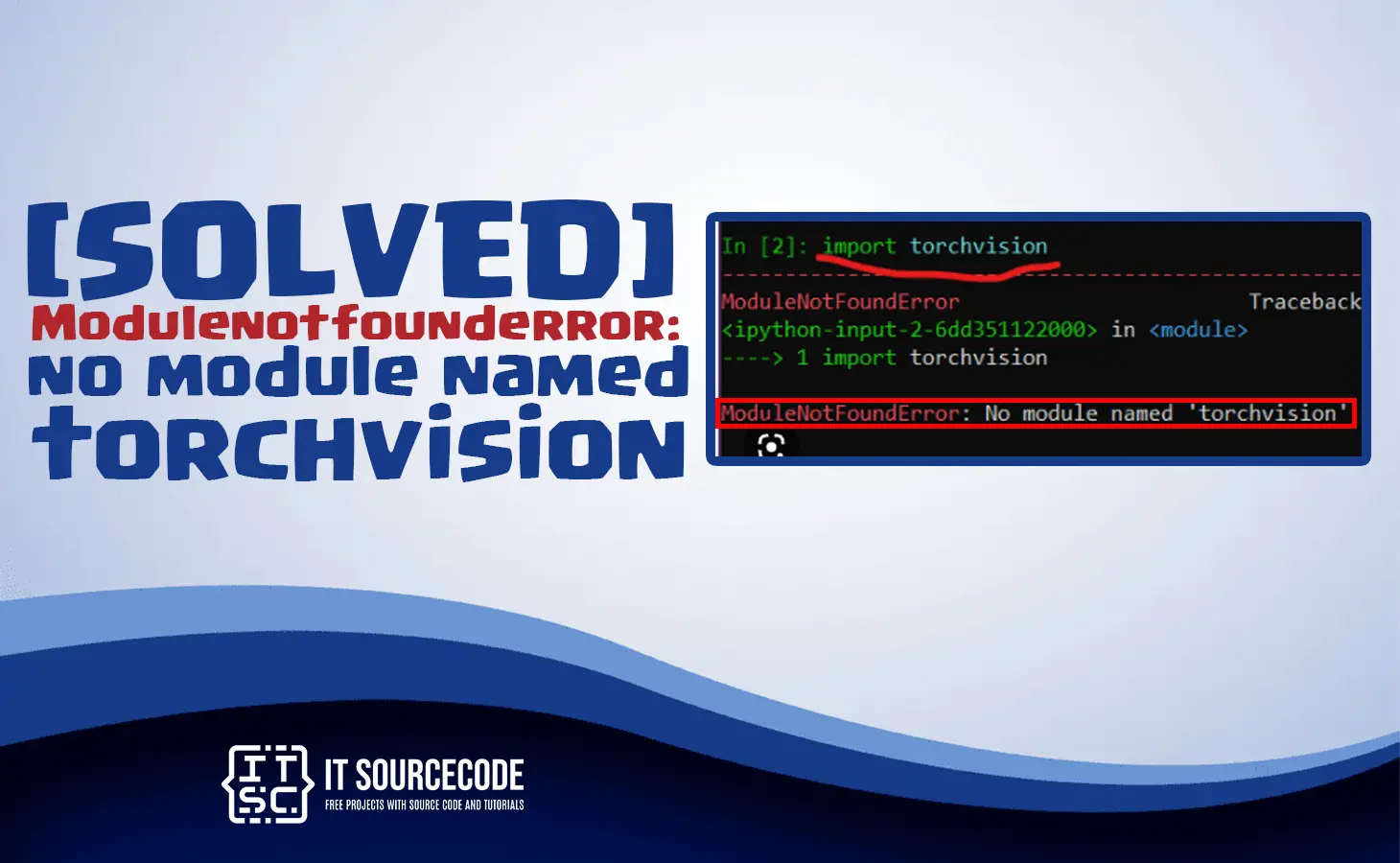
You might have encountered an error that indicates Modulenotfounderror: no module named ‘torchvision’.
In this article, we will explore what this error message means, what causes it, and how we can fix it.
The Modulenotfounderror: no module named ‘torchvision’ occur if the module is not installed on your system or it is not included in your Python environment.
It is a common error most python programmers faced either beginners or developers.
But before we get deeper into this error, we will look at a brief discussion of this error.
What is Modulenotfounderror?
The Modulenotfounderror error is an error message that appears when Python cannot find a specific module required for running a Python script.
In this case, Python cannot find the torchvision module, which is required for working with PyTorch.

Torchvision Module
Torchvision is a package that provides various utilities for working with image data in PyTorch.
It includes various datasets, data loaders, and transforms that can be used for training and testing computer vision models.
Some of the key features of the Torchvision module include:
- It has a variety of commonly-used datasets for training and testing computer vision models, such as CIFAR-10, MNIST, and ImageNet.
- It has a set of transforms for pre-processing images and video data, such as cropping, resizing, and normalization.
- Data loaders for efficiently loading and batching large datasets.
- Visualization tools for displaying images and results during training and testing.
- Pre-trained models for a variety of computer vision tasks, such as object detection, segmentation, and classification.
How to fix Modulenotfounderror: no module named ‘torchvision’
Here are some solutions you can consider to fix the error Modulenotfounderror: no module named ‘torchvision’.
- Checked if the module is installed.
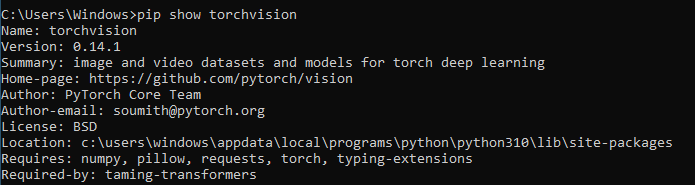
Check if torchvision is installed on your system by running the following command in your terminal or command prompt:
pip show torchvision

If it is not installed it will show warnings:

- Install torchvision module
You can install it using pip, which is a package manager for Python.
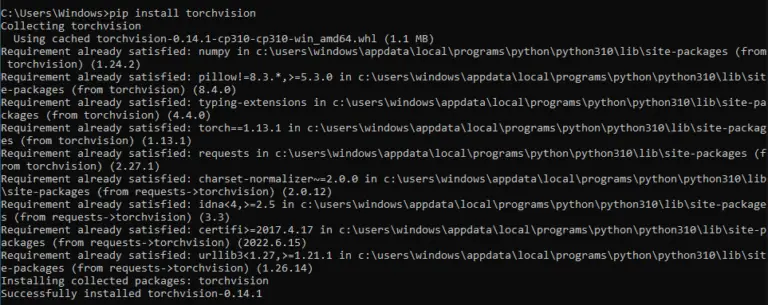
Open a command prompt or terminal and type the following command:
pip install torchvision

For Jupyter Notebook use the following command:
!pip install torchvision
!conda install pytorch -c python - Checked Python Version
If you have multiple Python versions installed on your system, make sure you are installing torchvision for the correct version.
python –version

- Check module name
Another common cause of the “Modulenotfounderror no module named torchvision ” error is a typo in the module name.
Make sure that you have spelled the module name correctly in your Python script.
- Import the module
Make sure you are importing torchvision correctly in your Python script.
To have a correct way of importing the module use the following command:
import torchvision

This is also to check if the installation is successful at the same time to see if the error is resolved.



Common causes of no module named ‘torchvision’ error
Here are some common causes of the error that may assist you in troubleshooting:
- Missing Installation
- One of the most common reasons for the ModuleNotFoundError is the absence of the torchvision module on your system.
- Wrong Installation Location
- It’s also possible that the torchvision module was installed in a different location from where your Python interpreter is looking for it.
- Typo in import statement
- The error can also occur if there is a typo in the import statement, for example, if the module name is misspelled.
- Incompatibility Issues
- In some cases, the error can arise due to incompatibility issues between torchvision and other modules or the Python version being used.
- Corrupt Installation
- If the torchvision module was installed correctly but is still not being found, it could be due to a corrupted installation of the module.
Conclusion
If you encounter the Modulenotfounderror: no module named ‘torchvision’ error while working with PyTorch, don’t panic. In this article, we’ve discussed the possible causes of the error and provided some solutions to fix it.
Remember to check your installation, dependencies, and Python path.
We hope that this article has provided you with the information you need to fix this error and continue working with Python packages.
If you are finding solutions to some errors you’re encountering we also have Modulenotfounderror: no module named ‘pymsql’.
Diagnostic checklist for “No module named ‘torchvision'”
- Verify pip install target. Run
pip show torchvision— if not installed, runpip install torchvision. - Check the active Python interpreter.
which python(mac/Linux) orwhere python(Windows). Both pip and python must point to the same environment. - Check virtual environment activation. If you use venv/conda, activate before installing:
source .venv/bin/activate. - Rule out uppercase/lowercase. Python imports are case-sensitive:
import PyPDF2notimport pypdf2. - Rule out the pip-vs-package-name mismatch. Some packages install under a different name than you import (e.g.
pip install beautifulsoup4→import bs4).
Installing torchvision — deep learning framework
# Standard pip install
pip install torchvision

# With CUDA support (Linux/Windows with GPU)
# PyTorch: use the selector at https://pytorch.org/get-started/locally/
# TensorFlow: pip install tensorflow[and-cuda]

# CPU-only install
pip install torchvision --index-url https://download.pytorch.org/whl/cpu
Common causes for missing deep-learning modules
- CUDA / cuDNN version mismatch. GPU wheels are pinned to a CUDA version. Check the framework’s install page for your CUDA.
- Python version too new. PyTorch/TensorFlow support the latest Python by a few weeks. Pin to 3.11 or 3.12 if 3.13 fails.
- M1/M2 Mac Metal build. Apple silicon needs Metal-specific wheels (torch has these).
- Notebook kernel mismatch. Jupyter may pick a different Python. Install with
%pip install torchvision.
Working code example
import torchvision
print(torchvision.__version__)

# For PyTorch: verify CUDA
# import torch
# print(torch.cuda.is_available())

# For TensorFlow: verify GPUs
# import tensorflow as tf
# print(tf.config.list_physical_devices('GPU'))
Best practices
- Use conda for deep learning. It manages CUDA + cuDNN alongside Python packages — much smoother than pip alone.
- Pin the framework + CUDA version. Deep learning models are very version-sensitive.
- Consider Docker. NVIDIA publishes CUDA-ready base images that make setup trivial.
Official documentation
Frequently Asked Questions
What is Python ModuleNotFoundError and what causes it?
ModuleNotFoundError (a subclass of ImportError) is raised when Python cannot find the module you tried to import. Common causes: the package isn’t installed (pip install missing), wrong virtual environment activated, typo in module name, or Python can’t find your local module on the import path. The error message names exactly which module is missing.
How do I fix ‘ModuleNotFoundError: No module named X’?
Run pip install X first. If that succeeds but you still get the error, check which Python you’re using (which python OR python –version) vs which pip (which pip OR pip –version), they must match. Common gotcha: pip points to system Python 3.9 but you’re running python3.11 in a venv. Inside the venv, use python -m pip install X to be sure pip matches the active Python.
Why does my code work in one environment but not another?
Different Python versions or different installed packages. To diagnose: pip freeze > requirements.txt on the working environment, then pip install -r requirements.txt on the broken one. Use virtualenv (python -m venv venv) or conda for every project to avoid system-wide package collisions.
Is ModuleNotFoundError the same as ImportError?
ModuleNotFoundError is a subclass of ImportError added in Python 3.6. It specifically means ‘no such module exists.’ Plain ImportError covers a wider set: module exists but a name inside it can’t be imported (e.g. ‘cannot import name X from Y’). except ImportError catches both; except ModuleNotFoundError catches only the missing-module case.
Where can I find more ModuleNotFoundError fixes?
Browse the ModuleNotFoundError reference hub for 198+ specific module fixes (TensorFlow, Flask, Django, pandas, numpy, etc.). For related issues see ImportError. For broader Python setup see Python Tutorial hub.

Glay Eliver
Programmer & Technical Writer at PIES IT Solution
Glay Eliver is a programmer and writer at PIES IT Solution, author of over 600 tutorials at itsourcecode.com. Specializes in JavaScript tutorials, Microsoft Office how-tos (Excel, Word, PowerPoint), and Python error debugging covering ImportError, TypeError, AttributeError, ModuleNotFoundError, and JavaScript ReferenceError. Authored several of the site’s highest-traffic Excel and MS Office reference articles.
Expertise: JavaScript · MS Excel · MS Word · MS PowerPoint · Python · Python ImportError · Python TypeError · Python AttributeError · ModuleNotFoundError · JavaScript ReferenceError · Pygame
· View all posts by Glay Eliver →