
The modulenotfounderror: no module named ‘pyqt5.qtwebkitwidgets’ is a common error when you are working with PyQt5.
In this article, we will discuss the solutions and how you are going to troubleshoot this no module named ‘pyqt5.qtwebkitwidgets’.
In addition to that, you will know what this error means and the reasons behind it.
Continue to read and find out how you are going to fix this error and get your code to run smoothly.
What is modulenotfounderror: no module named ‘pyqt5.qtwebkitwidgets’?
Traceback (most recent call last):
  File "<string>", line 1, in <module>
ModuleNotFoundError: No module named 'PyQt5.QtWebKitWidgets'
The module not found error: no module named ‘pyqt5.qtwebkitwidgets’ is an error in Python.
That frequently occurs when you are trying to import the “pyqt5.qtwebkitwidgets“ module.
Yet the Python interpreter is unable to find it to your system.
Apart from that, the module is not installed, or in some cases, it is installed but not included in your environment.
What are the causes of modulenotfounderror: no module named ‘pyqt5.qtwebkitwidgets’
The error ModuleNotFoundError: No module named ‘PyQt5.QtWebkitWidgets’ occurs when Python cannot find the specific module pyqt5.qtwebkitwidgets.
The solution for this error is to make sure that you install the PyQt5 package, which contains the qtwebkitwidgets module.
You can easily install PyQt5 using a package manager like pip or conda.
These are the possible root causes of this no module named ‘pyqt5.qtwebkitwidgets’ that you need to address to solve the error:
1. Qtwebkitwidgets is not installed.
If the module qtwebkitwidgets is not installed, you’ll literally face this error because Python cannot find the module, and your code won’t run until it is fixed.
2.Qtwebkitwidgets is installed, but in a different environment.
You should ensure that you are using Python where the qtwebkitwidgets module is installed.
3. Incorrect module name.
When the module is installed under a different name, this error no module named ‘pyqt5.qtwebkitwidgets’ occurs. Check the document for the correct module name and import the module using the correct name.
4. Incompatible Python version.
When the module has a different version from the Python version you are currently using, a conflict arises.
In some cases, you removed the latest version of the module. Seek out an alternative module version.
5. Code typo
There are some instances where you’ve made a typo or error in your code.
Proofread your code and make sure that you have encoded the correct module name and all imports are correct.
How to fix modulenotfounderror: no module named ‘pyqt5.qtwebkitwidgets’
So, those are the common possible causes of the error “no module named ‘pyqt5.qtwebkitwidgets’ that you discovered above.
Now we are going to provide the solution to resolve that issue. Just stick around until you finally fix the error.
Time needed: 2 minutes
Here’s the simple solution to this error: You have to open your command prompt or terminal and execute the following command:
- Install PyQt5
You can easily install PyQt5 package using pip or by downloading the package from its official website.

It should contain the qtwebkitwidgets module.
- Versions compatibility
If you already installed PyQt5, you have to ensure that the installed version is correct.
Simply check the version of PyQt5 using the following command:

- If you already installed PyQt5 and still getting this error, it is possible that you install an older version of PyQt5 that QtWebkitWidgets module is not included.
In this case, you have to upgrade your PyQt5 or else you have to install a different version that includes the module.
- Import the correct module
You should import the correct module name instead of importing ‘pyqt5.qtwebkitwidgets.’
You must try importing the ‘PyQt5.QtWebKitWidgets’ module.
✔ from PyQt5.QtWebKitWidgets import QWebView
- Upgrading PyQt5
If the error still exist you should try to upgrade the PyQt5.

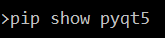

Alternatively, if this error still does not resolve, try the following command:
Reinstall PyQt5:
When the above solutions do not work, you have to reinstall PyQt5. First, you have to uninstall the existing PyQt5 package. Use the following command:

After that, it will display like this, and you just type (y), which means yes.

Then, you have to reinstall with this command:

Note: If this error occurs and you do not need to use the qtwebkitwidgets module, you can just remove the import statement from your code to avoid it.
Diagnostic checklist for “No module named ‘pyqt5′”
- Verify pip install target. Run
pip show pyqt5— if not installed, runpip install pyqt5. - Check the active Python interpreter.
which python(mac/Linux) orwhere python(Windows). Both pip and python must point to the same environment. - Check virtual environment activation. If you use venv/conda, activate before installing:
source .venv/bin/activate. - Rule out uppercase/lowercase. Python imports are case-sensitive:
import PyPDF2notimport pypdf2. - Rule out the pip-vs-package-name mismatch. Some packages install under a different name than you import (e.g.
pip install beautifulsoup4→import bs4).
Installing pyqt5 — Python GUI / game library
# Standard install
pip install pyqt5

# On Linux, some GUI libraries need system packages
# sudo apt install python3-tk  # for tkinter (Debian/Ubuntu)
# sudo apt install libsdl2-dev  # for pygame

# For streamlit
pip install streamlit
streamlit hello  # quick demo
Common causes for missing GUI/game modules
- System library missing. Pygame needs SDL2, PyQt needs Qt5/Qt6, Tkinter needs Tk — install with your system package manager.
- Python 3.13 pygame compile fail. Pygame wheels lag behind Python releases. Use Python 3.11/3.12 for stability.
- Streamlit requires modern pip. Run
python -m pip install --upgrade pipfirst. - Tkinter is not a pip package. It ships with Python — reinstall Python (with tkinter option) if missing.
Working code example
import pyqt5
print(getattr(pyqt5, '__version__', 'no version attribute'))

# Pygame smoke test
# import pygame
# pygame.init()
# print(pygame.get_sdl_version())
Best practices
- Test on the target OS. GUI/game libraries have very platform-specific behavior.
- Use a virtual environment. GUI libraries often have version-conflicting deps.
- Pin the GUI-toolkit version. Qt5 vs Qt6, SDL1 vs SDL2 all cause import errors.
Official documentation
Frequently Asked Questions
What is Python ModuleNotFoundError and what causes it?
ModuleNotFoundError (a subclass of ImportError) is raised when Python cannot find the module you tried to import. Common causes: the package isn’t installed (pip install missing), wrong virtual environment activated, typo in module name, or Python can’t find your local module on the import path. The error message names exactly which module is missing.
How do I fix ‘ModuleNotFoundError: No module named X’?
Run pip install X first. If that succeeds but you still get the error, check which Python you’re using (which python OR python –version) vs which pip (which pip OR pip –version), they must match. Common gotcha: pip points to system Python 3.9 but you’re running python3.11 in a venv. Inside the venv, use python -m pip install X to be sure pip matches the active Python.
Why does my code work in one environment but not another?
Different Python versions or different installed packages. To diagnose: pip freeze > requirements.txt on the working environment, then pip install -r requirements.txt on the broken one. Use virtualenv (python -m venv venv) or conda for every project to avoid system-wide package collisions.
Is ModuleNotFoundError the same as ImportError?
ModuleNotFoundError is a subclass of ImportError added in Python 3.6. It specifically means ‘no such module exists.’ Plain ImportError covers a wider set: module exists but a name inside it can’t be imported (e.g. ‘cannot import name X from Y’). except ImportError catches both; except ModuleNotFoundError catches only the missing-module case.
Where can I find more ModuleNotFoundError fixes?
Browse the ModuleNotFoundError reference hub for 198+ specific module fixes (TensorFlow, Flask, Django, pandas, numpy, etc.). For related issues see ImportError. For broader Python setup see Python Tutorial hub.
Conclusion
The article provided some effective solutions for modulenotfounderror: no module named ‘pyqt5.qtwebkitwidgets’ error that can resolve it smoothly.
You just have to follow the solutions above to fix the error no module named ‘pyqt5.qtwebkitwidgets’ in order to run your program efficiently.
We also have solutions if you encounter an error like modulenotfounderror: no module named ‘mpl_toolkits.basemap.’
Thank you very much for reading until the end of this article.

Caren Bautista
Technical Writer at PIES IT Solution
Responsible for crafting clear, well-structured, and beginner-friendly content across the platform. Handles the writing, proofreading, and editorial review of tutorials, guides, and documentation to ensure every article is accurate, readable, and easy to follow.
Expertise: Technical Writing · Content Creation · Documentation · Editorial Writing · JavaScript · TypeScript · Python · Python Errors · HTTP Errors · MS Excel
· View all posts by Caren Bautista →